
Introduction
A User Identifier is an optional, user-defined value that can be added to each stakeholder in Fidelity Private Shares (FPS). This helps provide a consistent reference that administrators can use to align stakeholder records in FPS with corresponding records in other systems such as an HRIS or payroll. Using a user identifier can help simplify stakeholder management by making it easier to find, review, and update the correct individual when working with reports or other workflows.
Click the links below to jump to that section of the article:
Feature overview
Enabling the User Identifier lets you choose which identifier is used for each stakeholder. This identifier is used to consistently match users across platforms, such as during HRIS integrations.
When the User Identifier feature is turned on:
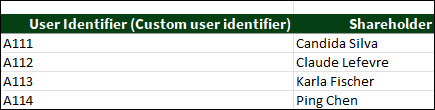
- A User Identifier column is included in all report exports that contain stakeholder names.
- A User Identifier field appears on the stakeholder profile.
- This field is visible only to users with permission to view or update stakeholder information.
When enabling the User Identifier, you can choose one of the following options:
- A custom, user-generated identifier
- The stakeholder’s work email address
- The stakeholder’s Employee ID
The selected identifier will be used across multiple reports in the platform, so it's important to select an identifier that is appropriate for your company's privacy and reporting standards.
User Identifiers and integrations
When updating user information, such as via the HR spreadsheet upload or an HRIS integration, FPS uses three identifiers to match incoming records to existing users. For an update to be applied to an existing user, at least one of these identifiers must match an existing record, and the remaining identifiers must not conflict with those associated with a different user.
The identifiers are:
- Work email (noted as Email on the HRIS Data Upload)
- Stakeholder ID (generated from FPS)
- Provider ID (if included from an HRIS through the Finch or Gusto integration)
Enabling the User Identifier displays the selected identifier with the other identifiers used to match uploaded employee or consultant records to existing users. The matching rules are as follows:
- If at least one identifier matches an existing user, that user is updated.
- If no identifiers match, a new user is created.
- If any identifier matches a different existing user, the upload fails.
- If a record matches more than one existing user, the upload results in an error.
User Identifier management
Users must have the following permissions to be able to view and adjust the user identifier, and to view or edit on each stakeholders’ profile:
- User Creator
- Employee Management Access
- Consultant Management Access
Enabling the User Identifier
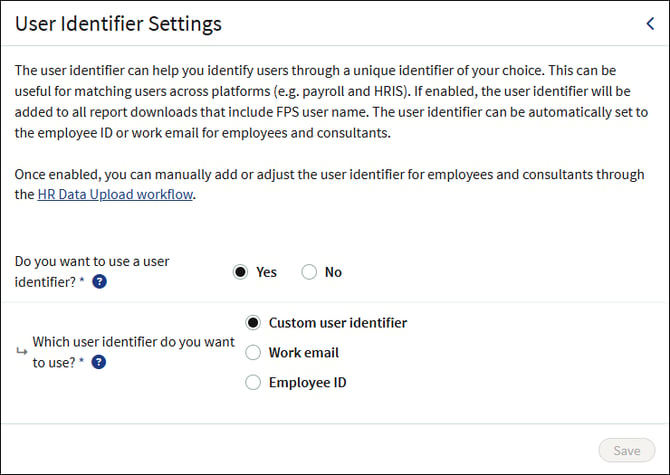
- Navigate to the Administration Workspace.
- Under General Settings, click on User Identifier.
- Toggle Do you want to use a User Identifier to Yes.
- Select which user identifier to use.
- Click Save at the bottom of the page.
Adding or editing a Custom User Identifier from the profile
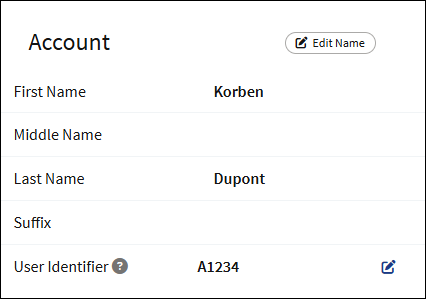
If you enabled the custom user identifier, you can add or edit the identifier from the stakeholder's profile.
- From the Company Workspace, navigate to Directory > User Directory.
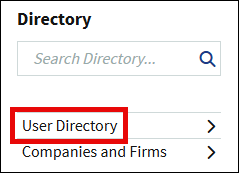
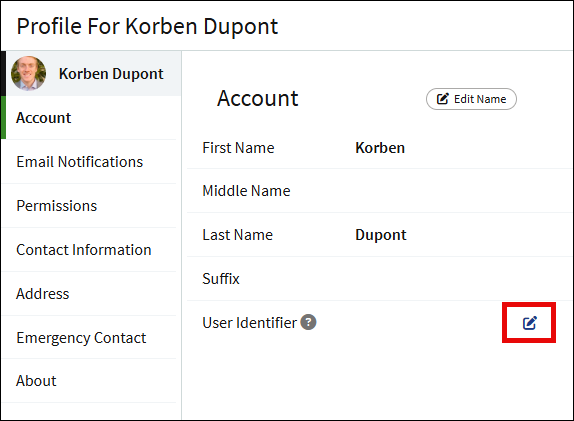
- Click on the name of the stakeholder.
- Click the edit icon to the right of the User Identifier field.
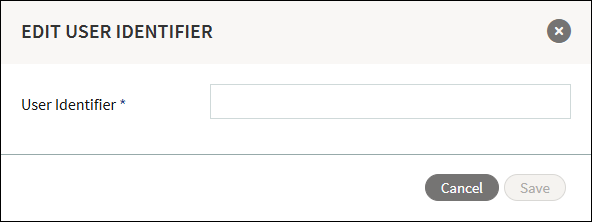
- Enter in the User Identifier and click Save.
- The profile will be updated with the Custom User Identifier.
Adding or editing a Custom User Identifier via the HR Data Upload
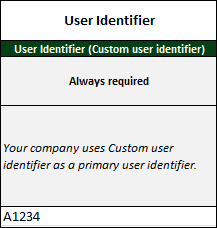
For employees and consultants, you can use the Upload HR Data workflow to add or edit the custom User Identifier in bulk. When enabled, there will be a User Identifier field on the HR Upload Template.
User Identifiers in reports
FAQs
How can I bulk upload user identifiers for stakeholders that are not consultants or employees? Currently, there is not a way to bulk upload user identifiers, or other details, related to stakeholders that are not consultants or employees. Users with access can add or edit user identifier values for stakeholders that are not employees/consultants from the stakeholder’s profile page.
Screenshots are for illustrative purposes only.
Fidelity Private Shares LLC provides cap table management and other administrative services to private companies and their equity compensation plans.
Fidelity Private Shares LLC
© 2026 FMR LLC. All rights reserved.
1265668.1.0