
Introduction
The Add Employee Workflow is used when you are ready to hire a new employee. This workflow can be used to add the new user to your account, extend an offer letter, and create an Employee Confidentially and Assignment Agreement for your new employee. Adding employees sets the stage for streamlined onboarding processes, general HR management, and grant management.
This workflow can also be used to capture employment details for current or past employees. This article will focus on the generative path of the workflow for adding a new employee. If you're curious about the employee experience of accepting an offer through the system, you can find those details here.
Adding an Employee
Getting Started
From the Company Workspace, navigate to to Start A New Workflow > Human Resources > Add Employee.
Select to either Create New Employment Documents to add a new employee or Upload Existing Employment Documents to record employment and offer details for current or former employees.
Add Employee
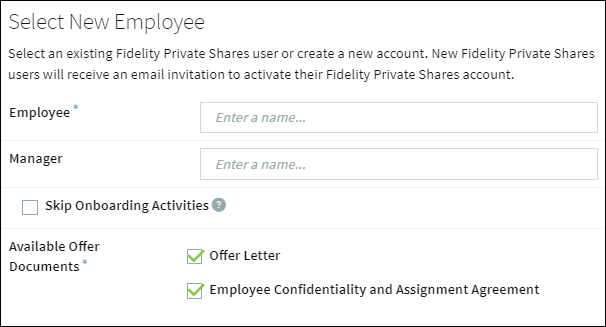
Enter the name of the employee. If they are an existing user in your account, you can select their name. Otherwise, select to Create New User.
Enter the name of their Manager, if applicable. Check which Offer Documents to include, or if you wish to skip the onboarding activities as set up in your company's HR Administration Settings.
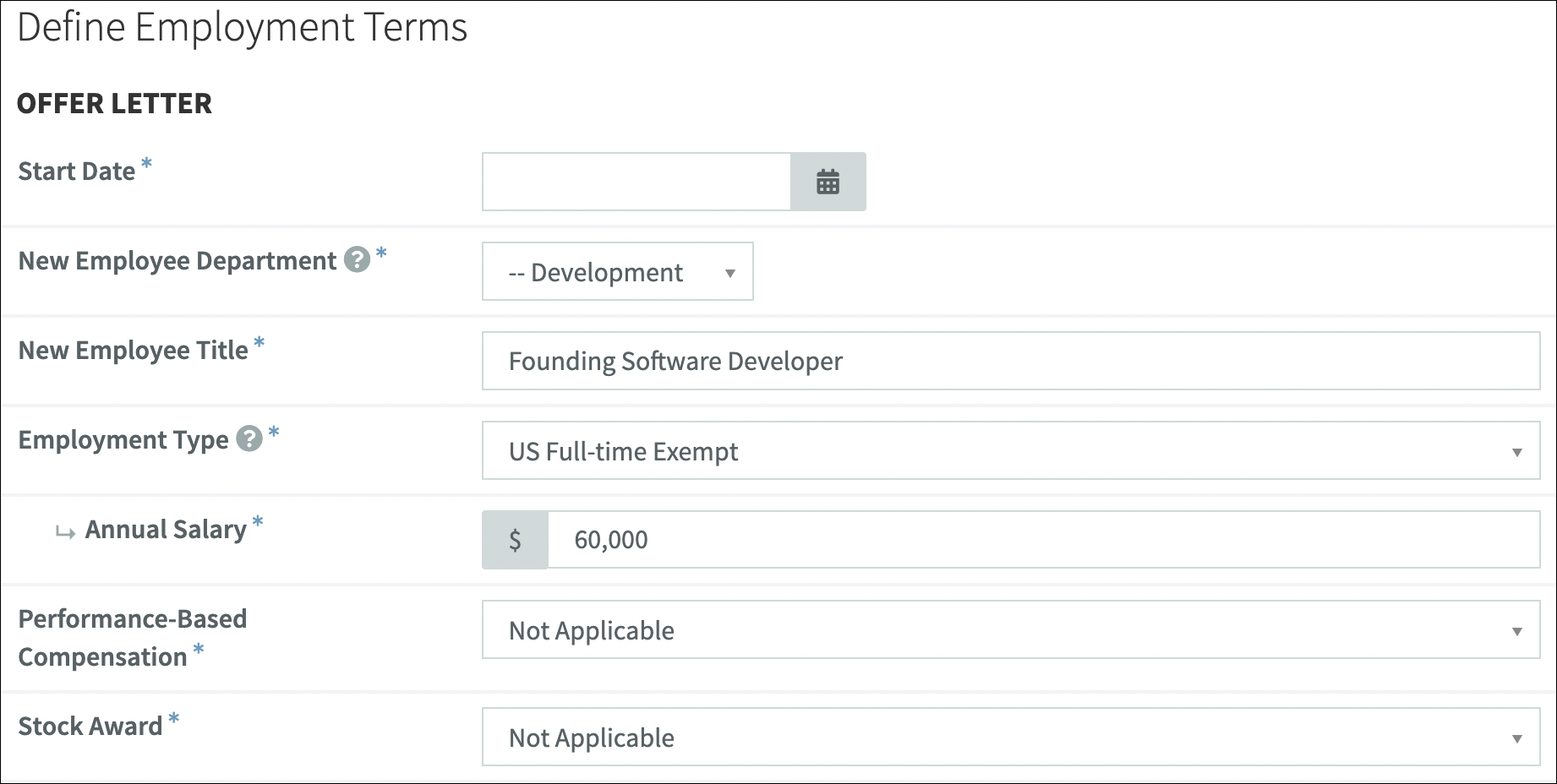
Define Employment Terms
Enter in the terms for the new employee, including their start date, department, compensation, and equity.
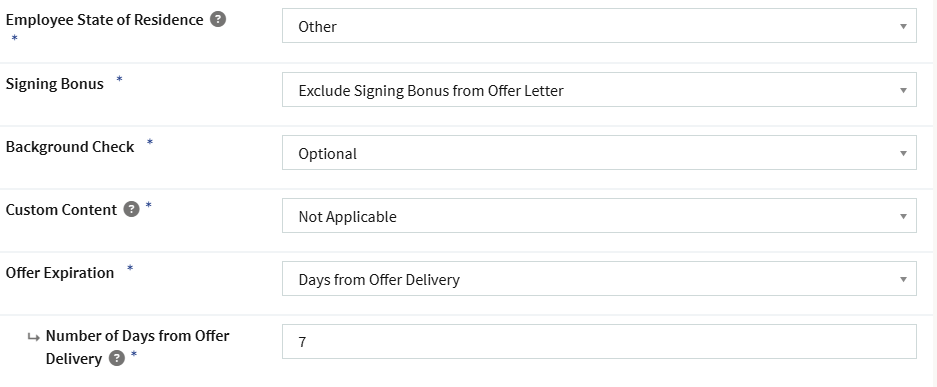
You can also specify work location, signing bonus, background check, and more.
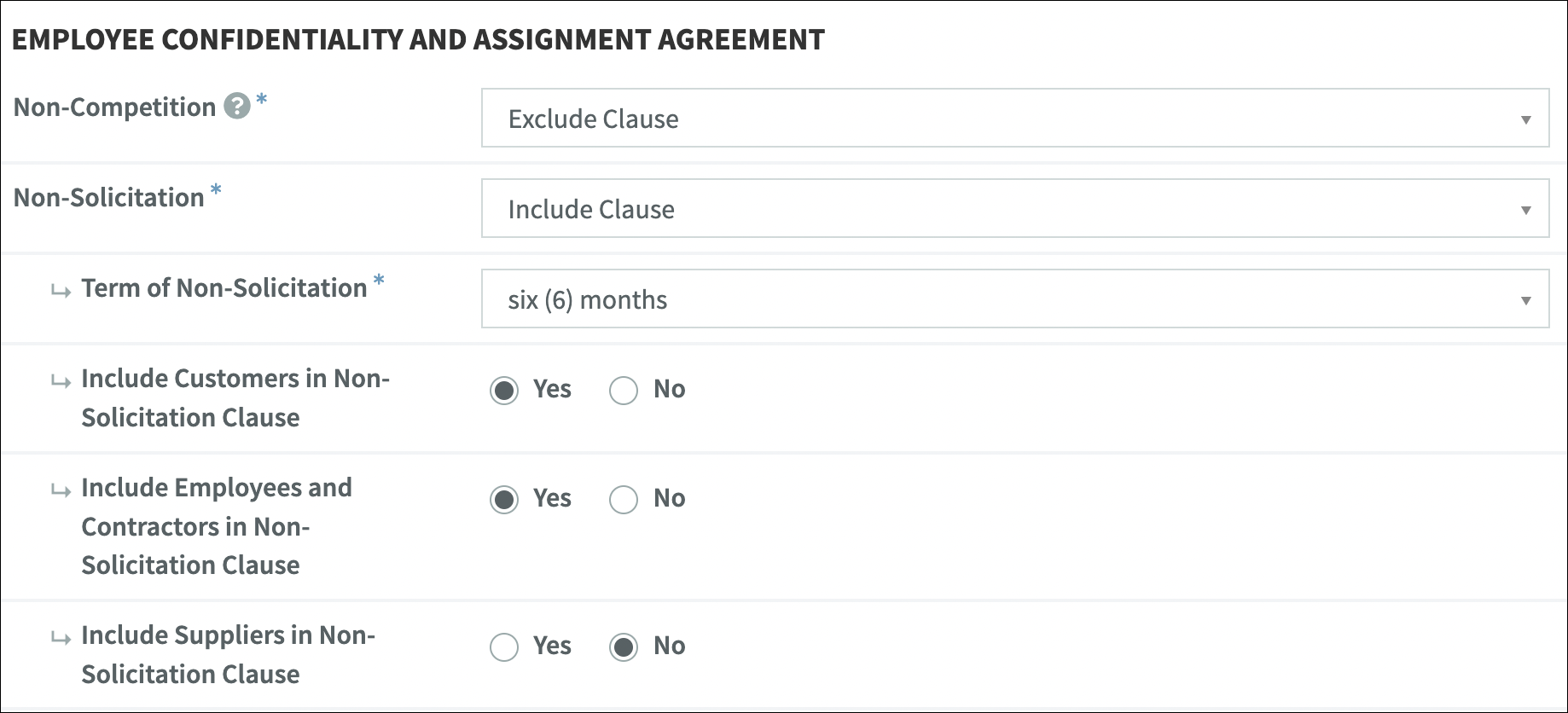
Define the terms of the Confidentiality and Assignment Agreement. This will include the non-solicitation and non-compete provisions. If you are aware of any intellectual property or patents that the employee wishes to exclude from their assignment of inventions provision, you can include those on this screen. If you don't know the answer at this time the employee will be asked the same question, and the company will have the chance to review any answers they provide.
Checkpoint
Review the generated documents before continuing. If any changes need to be made, click the Edit Document button. On this page you can view and edit the email message that is sent out to the new employee. Depending on your counsel involvement settings, you can also send the workflow for legal review.
After clicking Continue, the documents will then be circulated for signature, first to the Company Representative, and then to the employee.
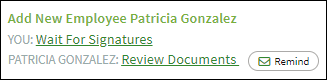
Wait For Signatures
The workflow will continue once all signatures have been gathered. If you navigate to the Workflow Explorer, you can see the progress of obtaining the signatures, and can click to remind that user to complete their pending tasks.
Review IP Disclosures
If the employee has disclosed prior inventions or patents, you will be prompted to review before continuing. Note it may be necessary to review these disclosures with the employee and/or your legal counsel.
Select Onboarding Tasks
If HR Plus is enabled, select which onboarding tasks are required for the new employee. The status of these tasks can be tracked in the Employee Task Report.
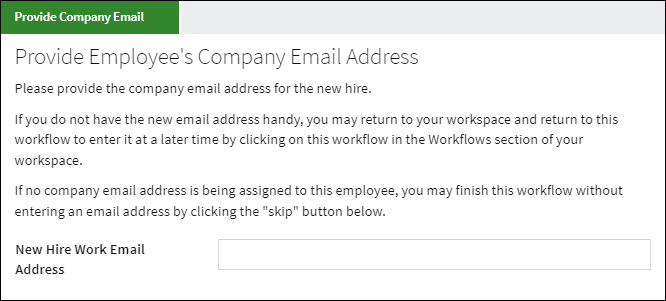
Add Work Email
The final step is to enter the company email address for the new employee. This step can be skipped if there is no company email assigned to the new employee.
Next Steps
The new employee has now been added to your account. The signed agreement created during the workflow are available in the Data Room. Any documents and forms configured to send to incoming employees with their offer materials, or after they sign their offer documents, will automatically be sent at the appropriate time per the HR Administration Settings, and can be tracked in the Document Audit Report.
Additional Information
Offer Letter & Confidentiality Agreement Templates
All templates, including the Offer Letter and Confidentiality Agreement, are viewable in the Administration workspace under General Settings > Document Templates.
You can read more about Offer Letters in this article, and additional guidance on Confidentiality Agreements is provided here.
Additional Optionality & HR Administration
The HR Administration Settings section will allow you to set defaults for offer documents, such as a standard option grant or non-compete scope and term, as well as a variety of other items to customize your employee onboarding experience. You can create employee groups, turn on the ability for the system to administer your W-4 and I-9 processes, customize your welcome message to incoming employees and the documents that they receive during the offer process (e.g. benefits enrollment forms, company policies, etc.), and more. You can also set alerts for other team members to be updated when offer processes are completed and enable additional members of your team to initiate employment workflows.
Note that some of these features are only available with HR Plus. Please reach out to your Customer Success Manager if you are interested in adding these features.
Changing an Employee's Start Date
Need to change the new employee’s start date after the offer letter is signed? The Change Employee Start Date workflow will allow you to change the start date and the first-day tasks will be rescheduled accordingly.
Rescinding an Offer
The workflow can be discarded at any time before all parties have signed the agreements. Click Discard on the bottom of the workflow. This will undo any actions and any generated documents will be deleted.
If you have proceeded past the Checkpoint but the new employee has not signed on their end, there is a Rescind Offer button on the bottom of the pending workflow. Clicking to rescind will track the employee offer that was extended but not accepted, and related documents will be stored in the Data Room. This action is not reversable.
Screenshots are for illustrative purposes only.
Fidelity Private Shares LLC provides cap table management and other administrative services to private companies and their equity compensation plans.
Fidelity Private Shares LLC
© 2025 FMR LLC. All rights reserved.
1093647.2.0