
Introduction
In Fidelity Private Shares, you can enable Diligence Mode for third parties you've invited to access your Data Room. This is recommended specifically for existing or potential investor-type relationships.
Click the links below to jump to that section of the article:
- Diligence Mode overview
- How to enable Diligence Mode
- Third-party experience with Diligence Mode
- Data Room access and permissions
Diligence Mode overview
When Diligence Mode is turned on:
- The system tracks the investor’s activity within your Data Room and can report it to specific users at your company.
- The investor will receive notifications when your company adds or updates files in the Data Room.
- Any documents they download can automatically include a watermark (as shown below).
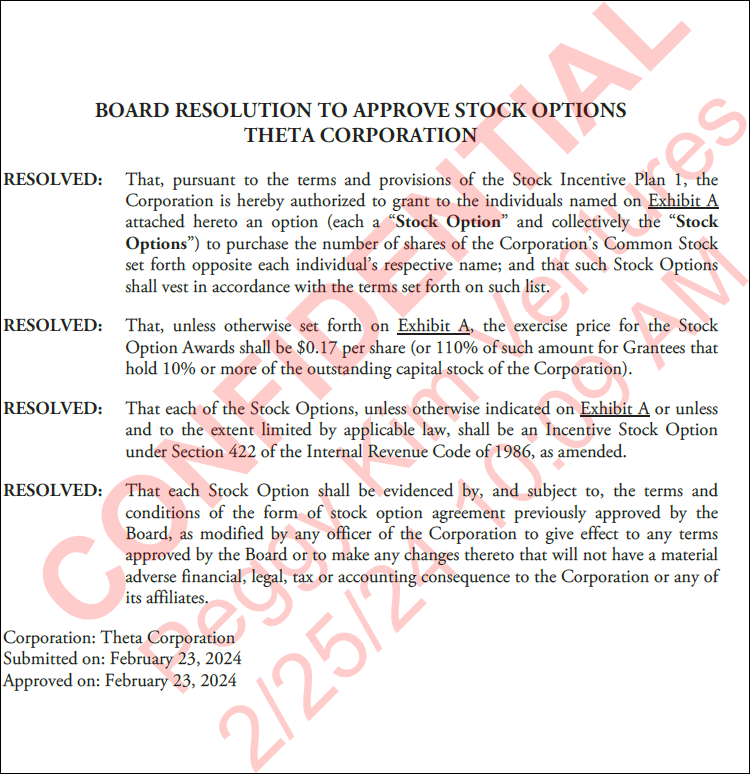
Turning on Diligence Mode does not change which documents are shared with the investor. It simply activates additional features, such as watermarking and activity tracking, for the documents that are already accessible to them.
If you want an investor to view documents in your Data Room, you’ll first need to add them as a third-party entity and grant access to your Data Room.
- See this article to add a third-party entity to your account and give them access to your Data Room.
- Follow these steps if the third-party entity is already added but needs access to more documents in your Data Room.
How to enable Diligence Mode
Follow these steps to enable Diligence Mode for a third-party entity added to your account. See this article if you need to add a new third-party entity to your account.
- From the Company Workspace, go to Directory > Companies and Firms.
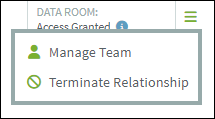
- Click on the three-bar menu to the right of the entity and select Manage Team.
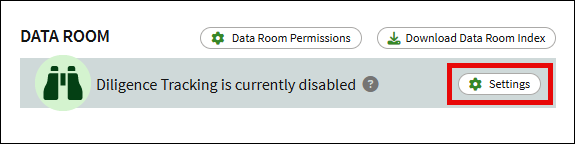
- In the Data Room section, click Settings.
- Toggle the Enable Diligence Mode toggle to On.
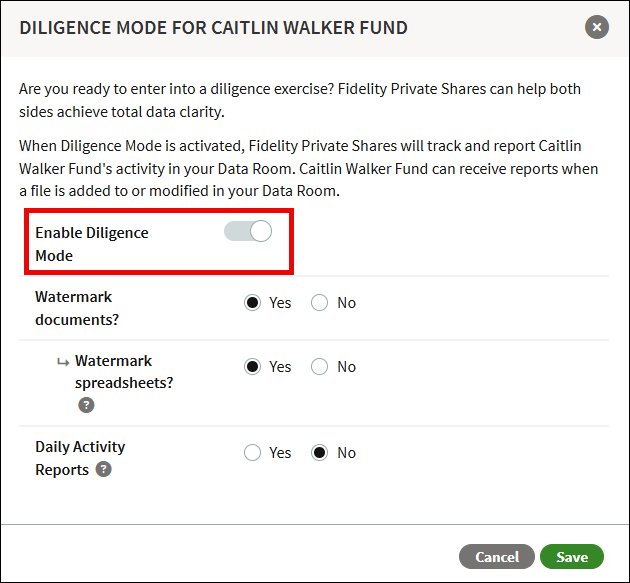
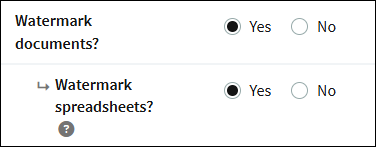
- Select if you want to Watermark documents. Enabling this will add a watermark to documents downloaded from the Data Room. You can also specify if spreadsheets should be watermarked, which will convert the spreadsheet into a PDF to apply the watermark. When disabled, you will be able to download a spreadsheet in its original form.
- Daily activity reports can be enabled by selecting Yes.
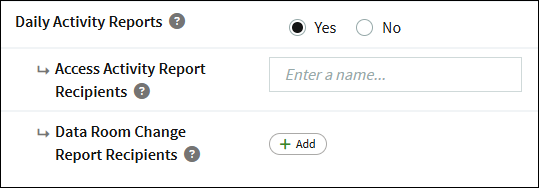
- The Access Activity Report will send a daily digest email to the specified users at your company of the third party's activity in the Data Room during the diligence period. Search for and select a user from the Enter a name box to add a new recipient.
- The Data Room Change Report sends a daily summary to the selected third-party team member(s), listing all changes in the Data Room. Click the Add button to select a team member from the third-party entity as a recipient
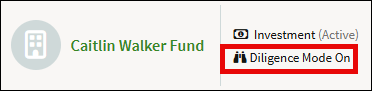
- Once enabled, the directory will show that Diligence Mode has been turned on.
Third-party experience with Diligence Mode
Daily Activity Report
Third-party entities can add users on their end to receive the Daily Activity Report. This is only available if diligence mode has been enabled by the company.
- From the third-party workspace, go to Directory > Companies and Firms.
- Click the three-bar menu for the company and select Manage Team.
- In the Diligence Tracking section, click Settings.
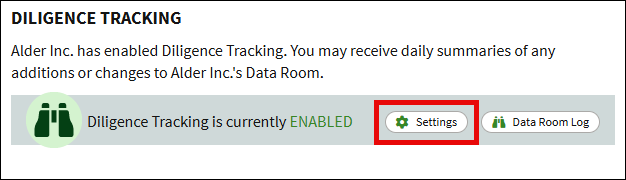
- Click Add and select the user from the dropdown menu.
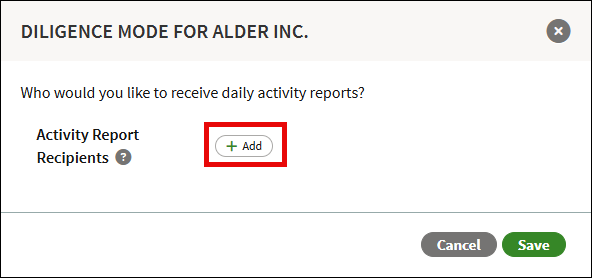
- Repeat for each user that should receive the report.
- To remove a user, click the X to the right of their name.
- Click Save.
Data Room Log
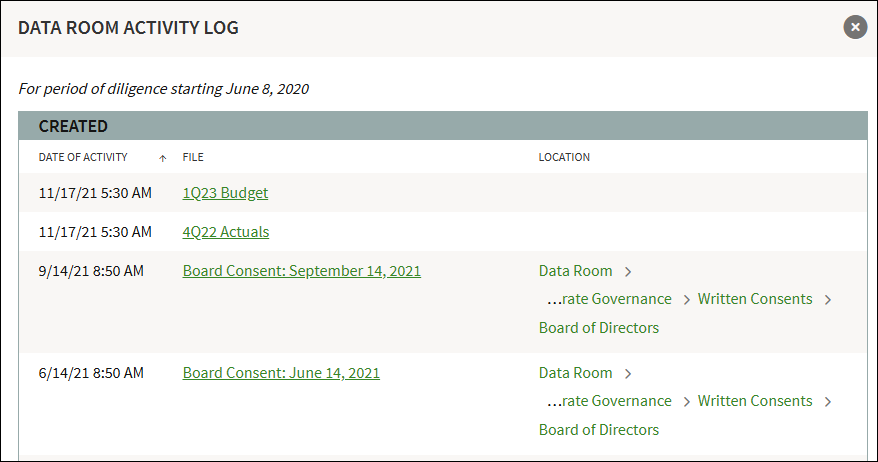
Third-party users can view the Data Room Log if Diligence Mode is enabled. This report displays a log of all documents created and uploaded by the company for any folders to which those users have access. To view this report, follow these steps.
- From the third-party workspace, go to Directory > Companies and Firms.
- Click the three-bar menu for the company and select Manage Team.
- In the Diligence Tracking section, click Daily Activity Log.
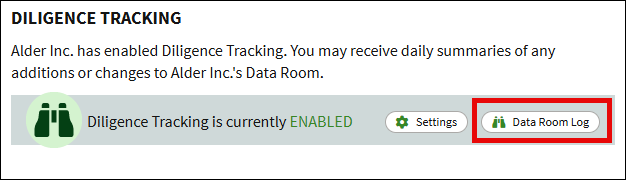
- The report displays the date of activity, document name, and its location within the Data Room for all created and uploaded documents. You can click the document name to open it in the Data Room, or click the location to open the corresponding folder.
Data Room access and permissions
You can control which folders in the Data Room are available to third-party entities. When in the Companies and Firms > Team Management page, click on Data Room Permissions. From here you can select which folders and what level of access to grant.
Data Room access can be granted from the Permissions > Access section of the Team Management page. Access granted from this section gives full access to the areas of the Data Room selected. To give specific access to certain folders, follow these steps for setting up the Data Room Permissions.
Checking on a folder will automatically grant access to any subfolders. In the example below, the Corporate Records folder is checked, and all subfolders inherit the same permissions as that folder.
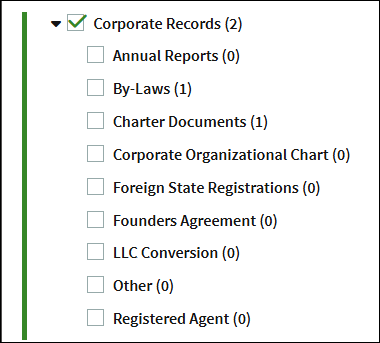
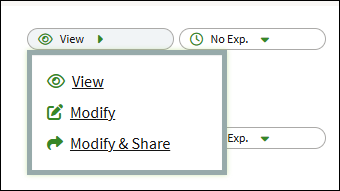
There are three levels of access you can grant for each folder: View, Modify, or Modify & Share. You can set different levels of permissions for each folder if necessary.
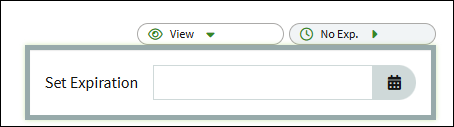
Additionally, you can set an expiration date for a folder's permissions.
You can remove access by unchecking any folders or permissions you no longer wish to share with the third-party entity. No notification will be sent when permissions are revoked.
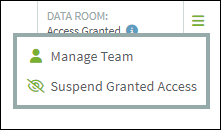
From the Companies and Firms directory, you can use the Suspend Granted Access option to remove all previously granted access for the third-party entity. If selected, the third party will still be able to log into the platform but will not be able to view any content they no longer have permission to access. For example, if they are signatories to an NDA with your company, they will retain access to those specific documents, while all other access will be revoked.
Screenshots are for illustrative purposes only.
Fidelity Private Shares LLC provides cap table management and other administrative services to private companies and their equity compensation plans.
Fidelity Private Shares LLC
© 2025 FMR LLC. All rights reserved.
1093620.3.0