
Introduction
This workflow helps you reissue stock certificates electronically for shares previously issued on paper or in another system. You can select which certificates to create and manage the restrictive legends before generating the certificates. See the instructions here if you need to generate deferred stock certificates.
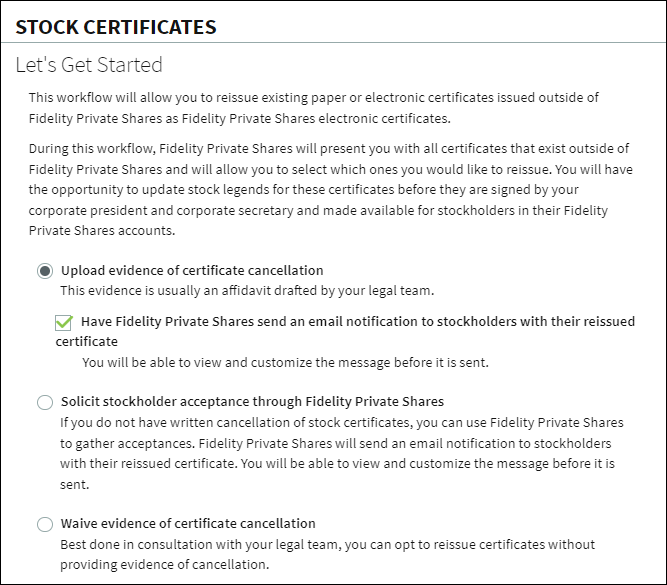
Let's Get Started
From the company workspace go to Start New Workflow > Equity > Reissue Stock Certificates. Select how to proceed with documenting evidence of certificate cancellation. You have choices to upload an affidavit or similar document from each stockholder, have the stockholder acknowledge receipt of the new certificate when accepting their electronic certificate, or waive any evidence of the replacement. In most cases, where companies are coming from another equity management system, they choose the second option.
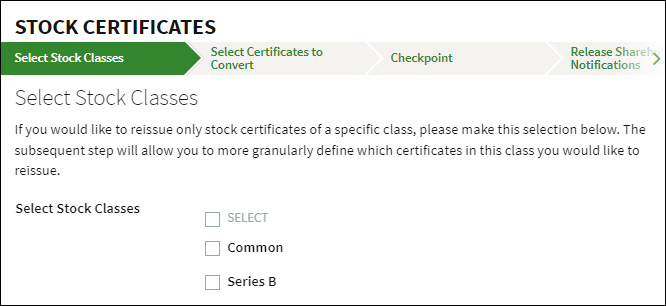
Select Stock Classes
The next step will ask you to indicate which classes of stock you'd like to create certificates. You can select any combination of the classes that have shares to be reissued. Often, companies wish to send their stockholders a different message about their certificates and will run the workflow for specific stock classes.
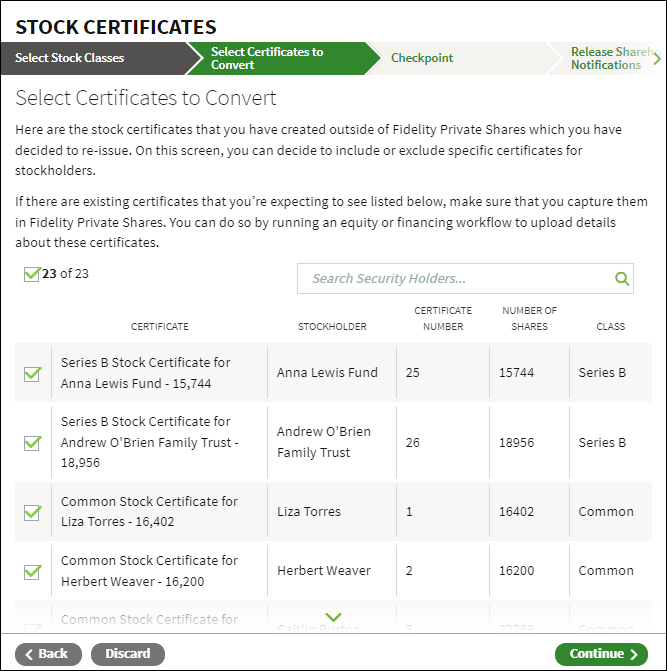
Select Certificates to Convert
Select which certificates to convert from the list of certificates created outside of the platform. Click Continue to start generating the new certificates.
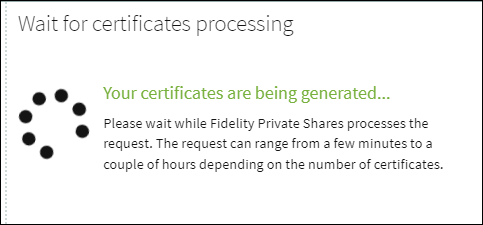
Note that the certificates may take several minutes to one or two hours depending on the number of certificates you are generating. You can return to this workflow at a later time from the Workflows section on the Company Workspace.
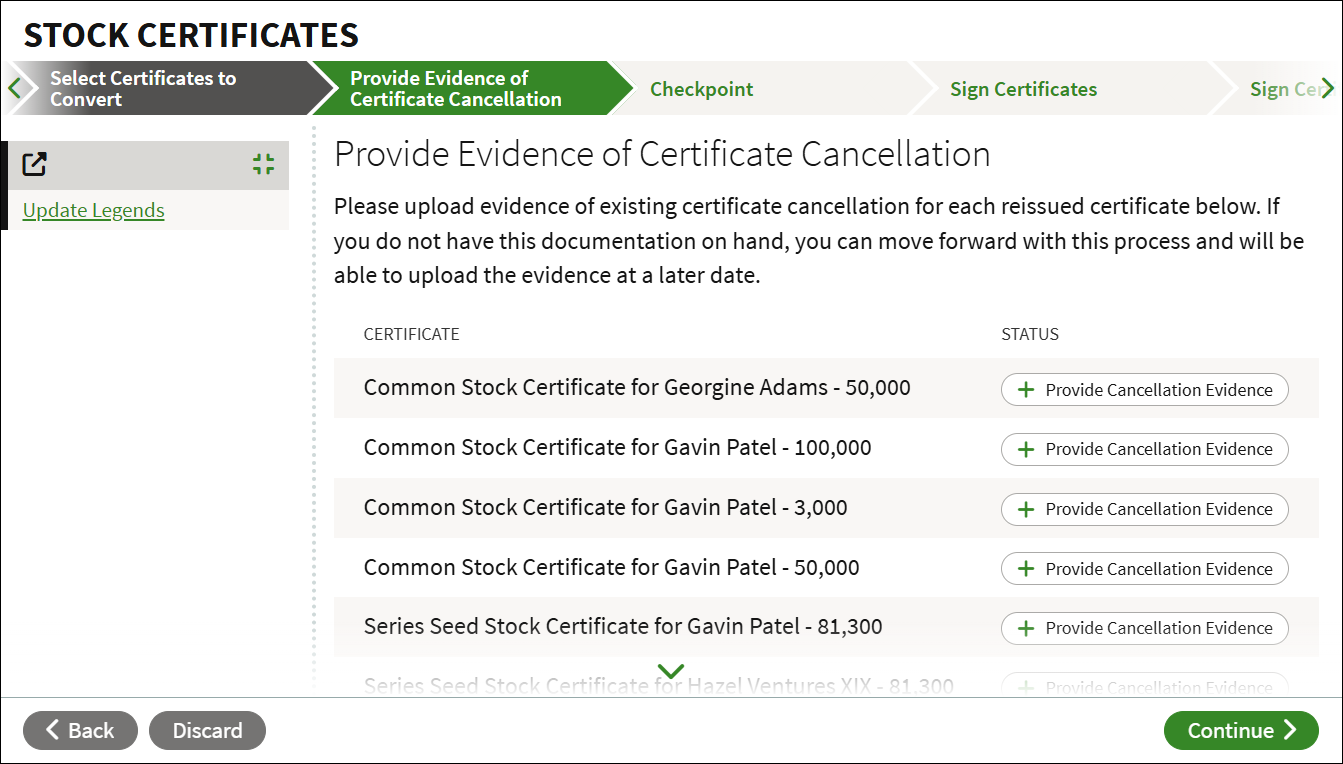
Provide Evidence of Certificate Cancellation
If you selected to provide evidence of cancellation, you can do so at this step. Click Provide Cancellation Evidence and either upload the document from your computer, or select an existing document from the Data Room. You can skip this step if you wish to upload the evidence later on.
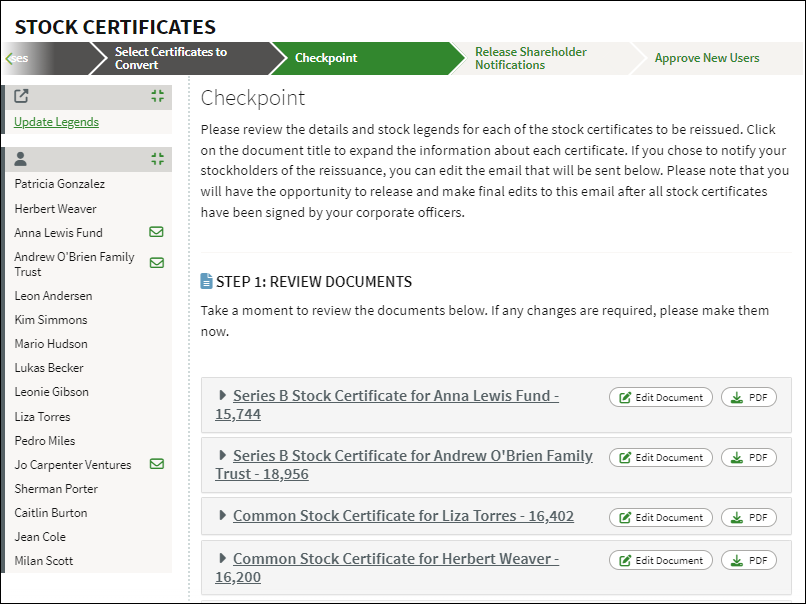
Checkpoint
At the checkpoint you can review the generated certificates. You can edit individual certificates, update the legends, or download a PDF. You can also preview and edit the email that is sent out to the stockholders.
Note that if you are generating more than 100 stock certificates in a workflow, you'll be presented with an Excel spreadsheet that you can download to help make the review process easier. It will contain the details for each certificate (e.g. holder, number of shares, certificate number), along with the applicable legends.
When ready, click Continue. This will send the certificates for legal review.
As a reminder, the 1933 Act legend will be included automatically. If you'd like to see a sample stock certificate generated in Fidelity Private Shares, please see this article.
Sign Certificates
The certificates will be ready for signature from the designated signatories which is typically the company president and secretary. Signatories can be set up from the Administration Workspace.
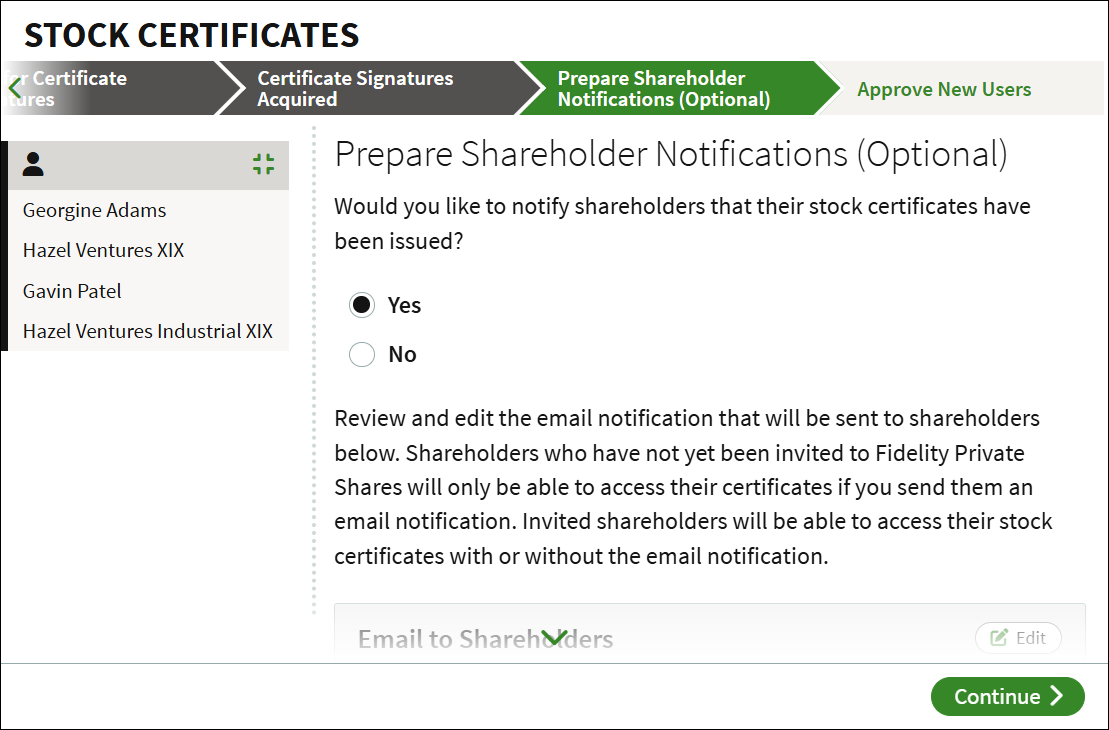
Prepare Shareholder Notifications
You can select if you wish to notify the shareholders that their new stock certificates have been issued. If you select Yes, you can customize the body of the email that is sent out. If any users have not yet created an account, they will be invited to create a username and password for Private Shares.
Next Steps
At this point the stock certificates have been generated. The Cap Table will be updated to show the current issued certificates, and the certificates can also be viewed from the Data Room.
Screenshots are for illustrative purposes only.
Fidelity Private Shares LLC provides cap table management and other administrative services to private companies and their equity compensation plans.
Fidelity Private Shares LLC
© 2025 FMR LLC. All rights reserved.
1237671.1.0