
Introduction
This article will guide you through the process of activating your account and setting up your investment entity so you can view and sign all of the necessary documents relating to your firm. Companies may add you directly as a new user outside of a workflow, or you may be added as part of an equity or financing workflow. The examples in this article are from the perspective of setting up your account to accept a newly issued SAFE.
Activating Your Account
- You will receive an email like the one in the example below.
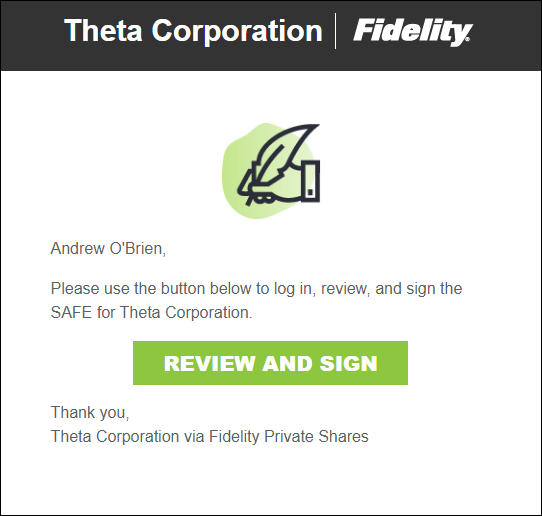
- Click on Review and Sign. You will be prompted to create a new Fidelity.com login, or to log in with an existing Fidelity account (such as a 401(k), IRA, or brokerage account). See this article for more information about logging in with your Fidelity account.
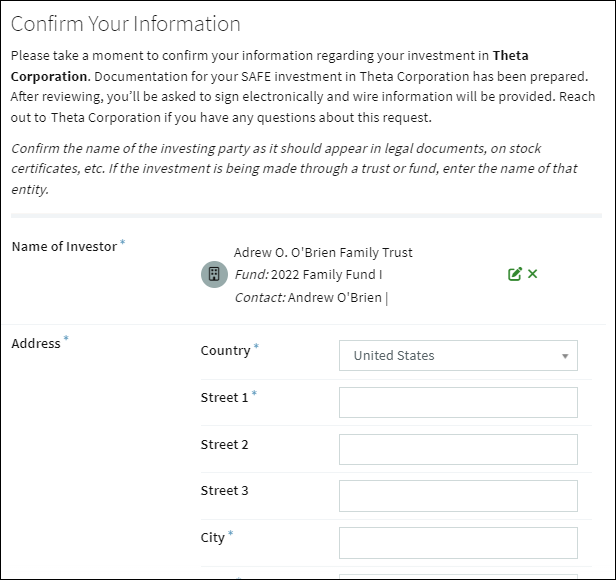
- Confirm the name and address of your firm.
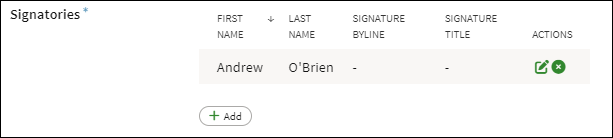
- If necessary, add or edit the signatories.
- You will be prompted to sign and accept the investment documents.
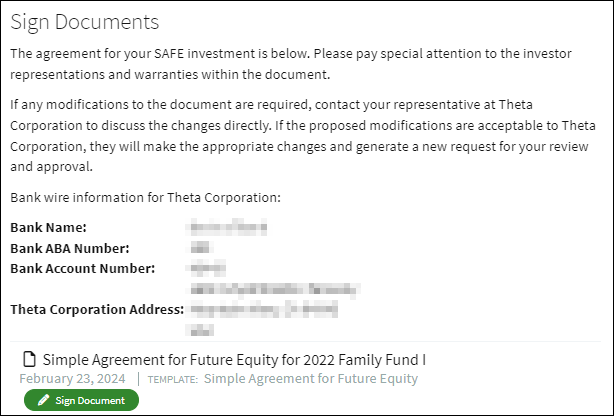
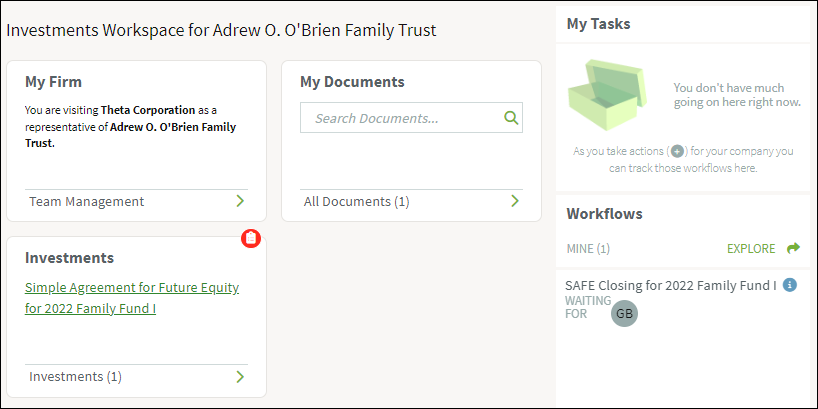
- Click Sign Documents. You'll be prompted to set up your signature block, where you can draw, upload, or use a typed signature. Once submitted, the workflow returns back to the company. At this point you can track the status of the workflow from your Workspace.
Additional Resources
Screenshots are for illustrative purposes only.
Fidelity Private Shares LLC provides cap table management and other administrative services to private companies and their equity compensation plans.
Fidelity Private Shares LLC
© 2024 FMR LLC. All rights reserved.
1094245.2.0