
Introduction
Similar to how your employee’s salary is a company expense, so too is the value of the equity you issue them. Your accountant can help you determine how to prepare an ASC 718 Report and should review the file you generate in Fidelity Private Shares before you finalize the company’s financial statements and tax filing(s).
For more information about what an ASC 718 report is and what makes for a good one, see our blog post or read our Practical Guide to ASC 718 for Startups whitepaper for in-depth information about the ASC 718 Report.
Click the links below to jump to that section of the article:
ASC 718 Report options and settings
Before running the ASC 718 workflow, we recommend configuring your ASC 718 settings, as these settings will be applied to all future reports. If the report options have not yet been configured, you will be prompted to do so the first time you run the ASC 718 Report workflow.
To set the report options, navigate to the Administration Workspace (either click the gear icon on the lower left corner of the screen, or click on Company Workspace and select Administration Workspace) > Equity Settings > ASC 718 Reporting.
You can set the accrual method, reporting span, annual dividend rate, and whether or not to consider forfeitures, report expense by cost center, or to include grants before they are accepted. For a detailed explanation of these options, see the ASC 718 Administration section below.
In order to maintain consistent reporting, the accrual method should be based off of values used in your company's previous ASC 718 reports if applicable. Once the options have been set and a report has been run, some of these options cannot be changed.
Entering prior expenses
The first time you run the ASC 718 Report workflow, you will be prompted to enter any previously recognized compensation expense. This information can be added on a grant-by-grant basis from the Grant Management section of the ASC 718 Report Administration page prior to running the ASC 718 report.
To add expense information for a grant, follow these steps:
- Navigate to the Administration Workspace > Equity Settings > ASC 718 Reporting > Grant Management.
- Click the edit icon for the grant.

- Click Add Expense.

- Enter the Expense date and Expense amount, and click Save.

- Click Save again.
Running the ASC 718 Report workflow
This workflow generates an ASC 718 report that calculates the compensation expense associated with your company’s equity issuances. The resulting expense information can be used for financial reporting purposes, including your company’s income statement.
If this is your first time running the report, you will need to provide information about employee grants issued outside of the Stock Incentive Plan, any previously recognized compensation expense, your company’s peer group, and the start and end dates of the reporting period.
Once the workflow is complete, you will receive an email with a link to download the ASC 718 report. The report will also be available in the Data Room.
To start the report, navigate from the Company Workspace to Start New Workflow > Equity > ASC 718 Stock Options Report.
Please select the step in the workflow listed below for a more detailed explanation about what to expect:
- Let's Get Started
- Check for Previous Expenses
- Set ASC 718 Options
- Enter Previous Expenses
- Peer Companies
- Reporting Start Date
- Fair Market Value
- Confirm Settings
- Reviewing the Report
Let's Get Started
Select to generate a finalized ASC 718 report, or to generate a draft ASC 718 report, and click Continue.
Check for Previous Expenses
Select if your company has previously used an ASC 718 report to expense equity issuances and click Continue. If you select Yes, you'll be prompted to add those expenses later in the workflow.

Set ASC 718 Options
Set the ASC 718 options and click Continue. If you previously set the options from the ASC 718 Administration page, those selected options will display here.
Please note that due to ASC/GAAP requirements, once an ASC 718 Report has been created in Fidelity Private Shares, you will no longer be able to change the Accrual Method for future ASC 718 Reports.

Enter Previous Expenses
If you selected No on the Check for Previous Expenses step, this step will be skipped.
Click the Edit icon to enter the date and amount of any previously recognized compensation expense. Expenses entered on the ASC 718 Administration page prior to running the report will automatically be included.
If no expenses have been entered, previous expenses will be calculated automatically based on the selected accrual method. If you selected
After all expenses have been entered, click Continue.

Enter Peer Companies
Enter the tickers for your peer companies. Typically, these will be the same as the companies that appear on the most recent 409A valuation, if one exists. The stock price history of peer companies is required to calculate the volatility of your stock. In order to maintain consistent reporting, enter the same peer companies used in your company's previous ASC 718 Reports if applicable.
Please note that generally, companies should have 10 years of public company data to be used as peer companies. The platform will alert you if your peer companies don't have 10 years of data, but you will not be blocked from proceeding, since many companies won't have that much historical data.
- Click Add.

- Enter the ticker for the peer company and select them from the dropdown menu.

- Repeat until all peer companies have been added.
- Click Continue.
Enter Report Start Date
Choose a start date for your ASC 718 Report. This report will cover the number of months specified by the reporting span you chose at the beginning of the workflow, cannot overlap with existing reports, or cover a timespan in the future.

Review Fair Market Value
Review the history of your company's Fair Market Value (FMV) reports (including the date of the valuation and the valuation price per share). Any missing valuations can be added from the 409A Valuations History report.

Confirm Settings
Review the report settings before continuing. If changes are needed, click Back to return to the previous steps in the workflow. When you are ready to proceed, click Generate Report. 
Wait for ASC 718 Report
Once the report has been generated you will receive a link to the report via email and will be stored in your company's Data Room (Stockholder Information > Equity Valuation Reports > ASC 718).

Back to the top
Reviewing the Report
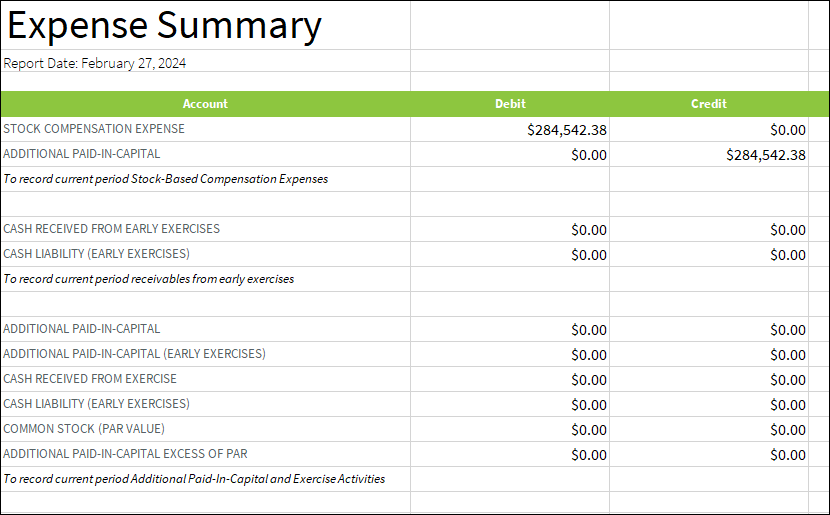
- Expense Summary Tab: This is the information that your accountant will need to book each expense (note that, if you have broken out expenses by cost center in the report setup, then there will be an Expense Summary tab for each cost center).
- Disclosure and Configuration Tabs: Shows Aggregate cap table/grant information for the chosen period.
- Grants Tab: Column AQ provides the Current Expense for each grant.
- Expense Allocation: Listed by grant, but broken down into individual vesting events, or tranches.
- Volatility: Calculated from the data on the Peers tab, which shows 10 years (or as many as available) of stock price data for the peer companies.
ASC 718 Report Administration Settings
Report settings, previous reports, and individual grants can be managed in these settings. Navigate to the Administration Workspace > Equity Settings > ASC 718 Reporting.
ASC 718 Settings
Settings for future ASC 718 reports can be set here. Once an ASC 718 report has been created on Fidelity Private Shares, you will no longer be able to change the accrual method or including/excluding grants before grantee acceptance.

Select the options for the ASC 718 reports, and click Save.
-
Accrual method: Select either Straight Line or FIN 28 for how the expense of a grant is accrued over time.
-
Straight Line will accrue the expense evenly through the service period of the grant.
-
Under FIN 28, each vesting tranche is treated as a separate award, which generally accelerates expense recognition compared to straight-line attribution, resulting in higher expense early on that decreases over time.
-
- Reporting span: select between Yearly, Quarterly, or Monthly.
- Annual dividend rate: The percentage amount paid on granted shares that is used in the Black-Scholes equation. By default, the rate is set to 0%.
- Consider forfeiture: Select Yes or No to estimate the fraction of shares being forfeited due to grant termination before the service period of the grant completes. By selecting no, the report will not consider forfeiture rates and any forfeitures are reconciled when they happen.
- Report expense by cost center: Select Yes or No to group expenses by the cost center. If a grantee does not belong to any cost center, those expenses will be listed in an "Unknown" cost center on the report. The cost center can be overridden for each grant.
- Include grants before grantee acceptance: Select Yes or No if grants that have not yet been accepted by the grantee should be included in the report. Individual grants can be overridden to be excluded from the ASC 718 repot.
Previous ASC 718 Reports
Previously generated reports will display on this page, including a link to the report document, the reporting period, report date, number of grants, total expense, and the report status. Reports can be downloaded or invalidated from the Action column.
 ASC 718 Report Status
A reporting period becomes locked when an ASC 718 Report is generated. The generated report is tagged as Finalized and the status can be viewed in the ASC 718 Administration Settings.
A report can be Invalidated, which will unlock the reporting period and allow changes as well as new report generation.
Invalidating a report
An ASC 718 Report can be invalidated in the ASC 718 Admin Settings, in any ASC 718 Warning step by an authorized user, or in the Review ASC 718 Warning sub-flow. The report status and document title will update to invalidated.
Any finalized report can be invalidated. However, since reports are built upon each other, when invalidating older reports, all subsequent existing reports must also be invalidated.
Invalidating a report is a permanent action and cannot be reversed. A new report will need to be generated if one is invalidated.
To invalidate a report:
- Navigate to ASC 718 Report Administration > Previous ASC 718 Reports.
- Click on the three-bar menu to the right of the report in the Action column.
- Select Invalidate.

- A confirmation box will appear warning you this action cannot be done. If invalidating an older report with subsequent existing reports, a dialog box will appear indicating that all reports that will be invalidated. Click Invalidate Affected Report(s) to continue.

Grant Management
All grants that are included in previous or future ASC 718 reports will be displayed on the Grant Management page. For each grant, this page shows the grantee name, grant ID, grant date, number of shares granted, total previously recognized expense(s), and any customizations or overrides applied to the grant.

Adding or editing expenses
Any customizations made to a grant(s) will override calculated values for that grant and may impact previous finalized reports.
The Past Expense column on the Grant Management page displays the total of all previously recognized expenses, including amounts generated by ASC 718 reports and expenses entered manually.
To add, view, or edit expense information for a grant, click the Edit icon to right of the grant.
Previously added expenses will display on the top of the edit screen.

To add an expense, click Add Expense and enter the date and expense amount.
To edit an expense, click the Edit icon to the right of the expense and adjust the expense date and/or expense amount.
To delete an expense, click the X to the right of the grant.
Grant overrides and customizations
In addition to adding or editing past expenses, other customizations or overrides can be added to a grant which can impact how future expenses are calculated.

Below are the terms that can be changed for a grant:
-
Expected term: the expected lifetime of a grant.
- Interest rate: the risk free interest rate used in the Black-Scholes model to calculate the present value exercise price. By default the US Treasury yield is used if this field is left blank.
- Volatility: The expected change in stock price over the expected term. By default, the list of added peer companies is used to calculate the cumulative volatility for the expected term.
- Dividend rate: The annual dividend rate paid out on shares given by the grant. By default, the interest rate is 0%. A company-wide dividend rate can be set in the ASC 718 Settings.
- Dividend frequency: How often per year dividends are paid out. For example, enter "4" for quarterly payouts.
- Fair value: the value (per share) that the option represent/ This is calculated from the Black-Scholes model and is different from the Fair Market Value (FMV) of the grant.
- Exclude from ASC 718?: Select Yes if this grant should be excluded from ASC 718 disclosures and reporting. By default, all grants are included.
- Cost center: Specify from which cost center the grant should be grouped.
Screenshots are for illustrative purposes only.
Fidelity does not provide legal or tax advice. The information herein is general in nature and should not be considered legal or tax advice. Consult an attorney or tax professional regarding your specific situation.
Fidelity Private Shares LLC provides cap table management and other administrative services to private companies and their equity compensation plans.
Fidelity Private Shares LLC
© 2026 FMR LLC. All rights reserved.
1093659.5.0