
Introduction
This article describes how to access and use the 409A Valuation History Report, which is a summary view of the valuation history of your company in Fidelity Private Shares. You can use this information to see the latest valuation information on file and decide if a new valuation is needed.
To learn more about 409A valuations and Fair Market Value, review our 409A FAQs article.
Click the links below to jump to that section of the article:
- Accessing the 409A Valuation History Report
- Viewing and exporting the Valuation Report
- Adding a valuation
- FMV Discrepancies
Accessing the 409A Valuation Report
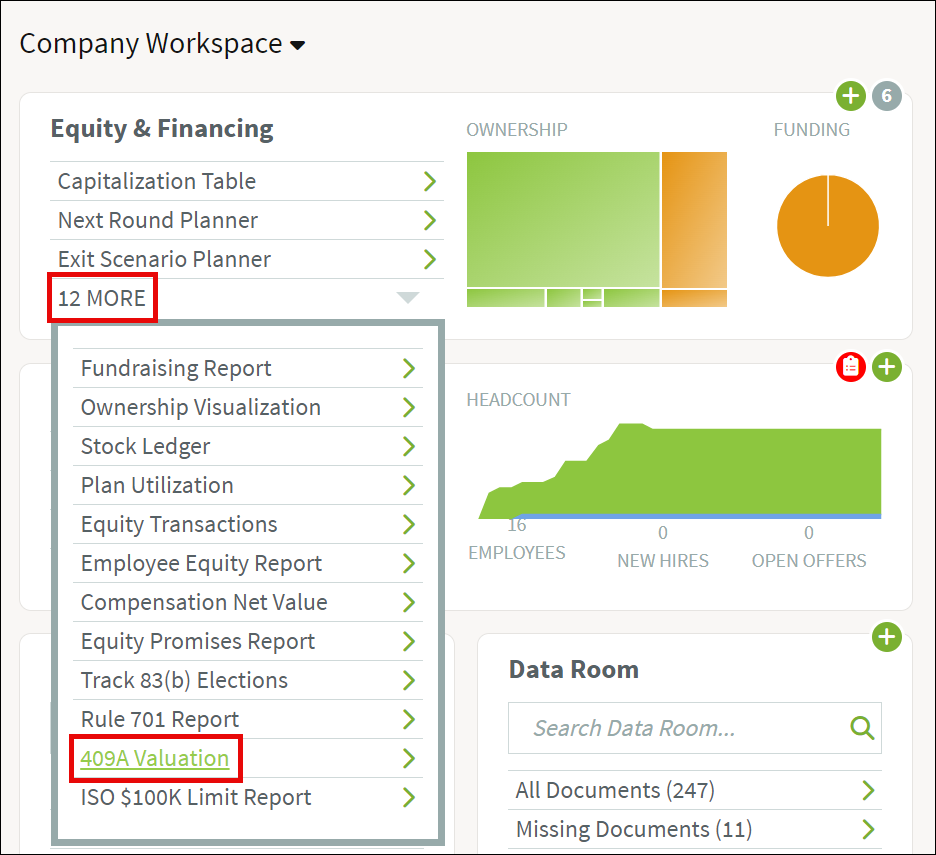
Under the Equity & Financing section of your Company Workspace, click on MORE to view additional reports, and click on the 409A Valuation Report.
Viewing and exporting the 409A Valuation Report
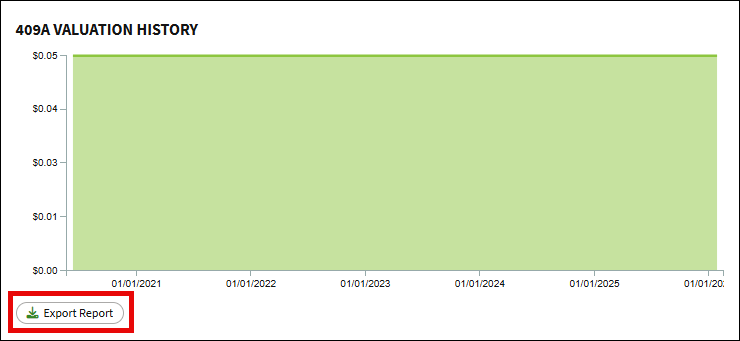
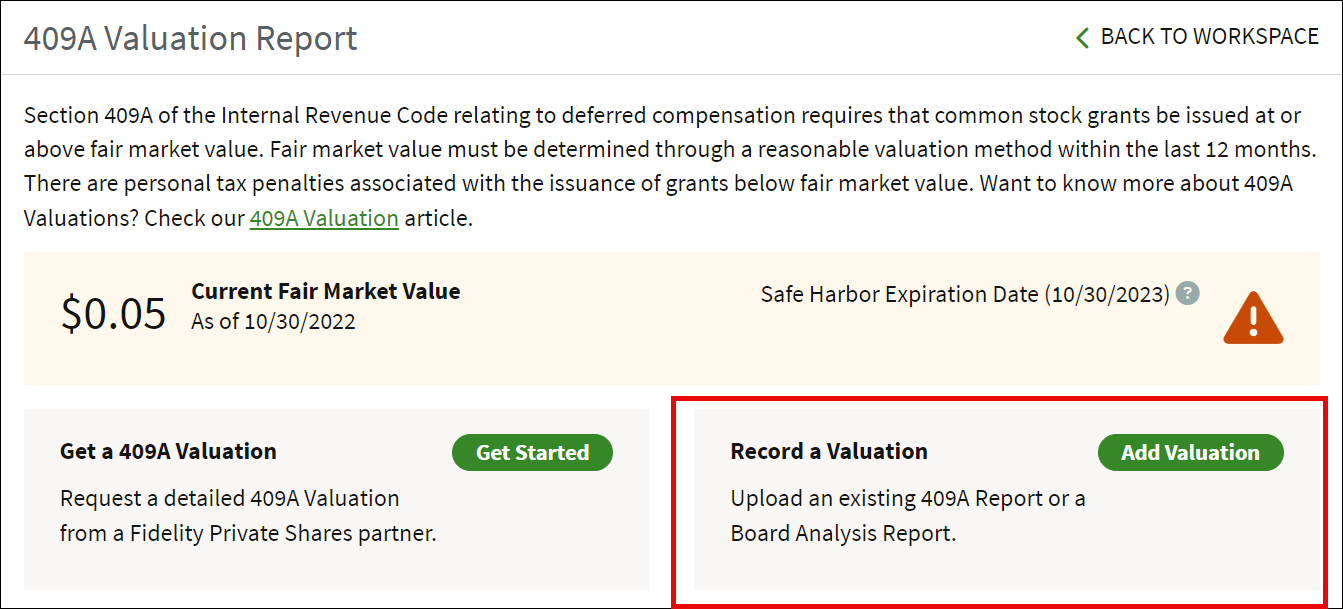
The 409A Valuation Report provides a summary view showing the current effective Fair Market Value, the current Safe Harbor expiration date (typically 12 months from the last valuation date), and the valuation history that has been entered in Fidelity Private Shares. You can also use this page to document a valuation that occurred outside of the system, or request a new 409A valuation, if your Fidelity Private Shares subscription includes one.
This view also provides some checks to alert you that it may be time for a new valuation. In the screenshot below, you can see the red alert notification next to the Safe Harbor Expiration Date, indicating that the newest valuation on file in Fidelity Private Shares is older than 12 months, which may mean that a new one is needed.
For a deeper dive into the requirements and history of 409A valuations, download our comprehensive 409A Valuation Guide for Private Companies.
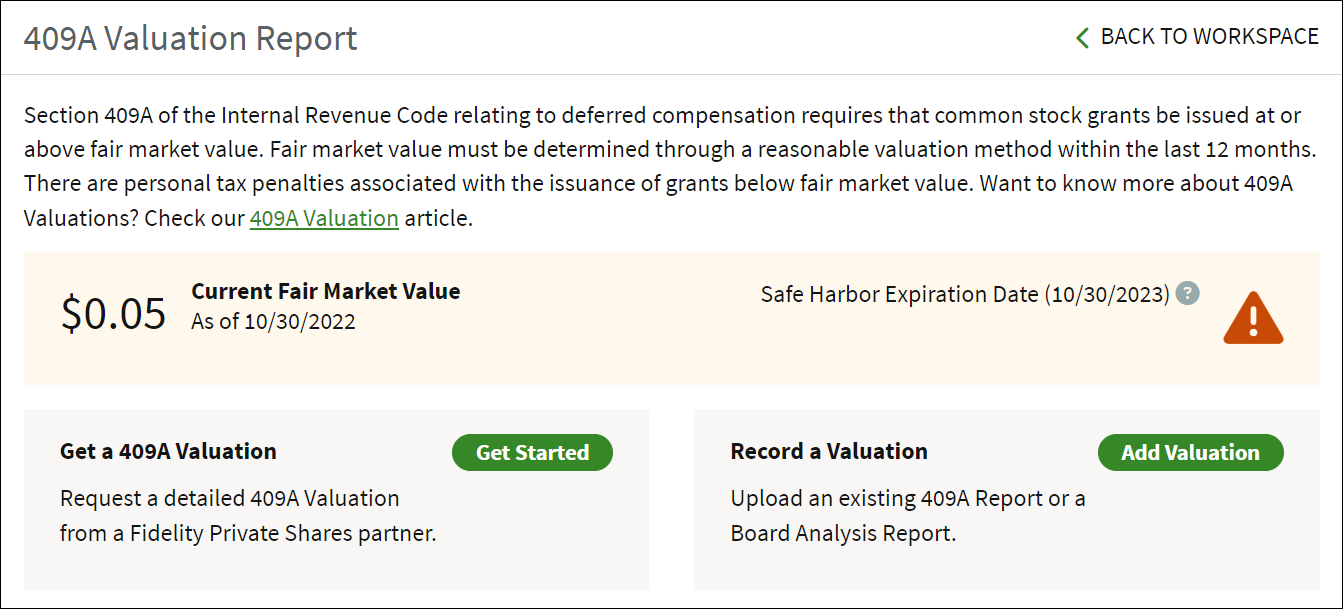
To export the report click Export Report.
Adding valuations
Requesting a new valuation
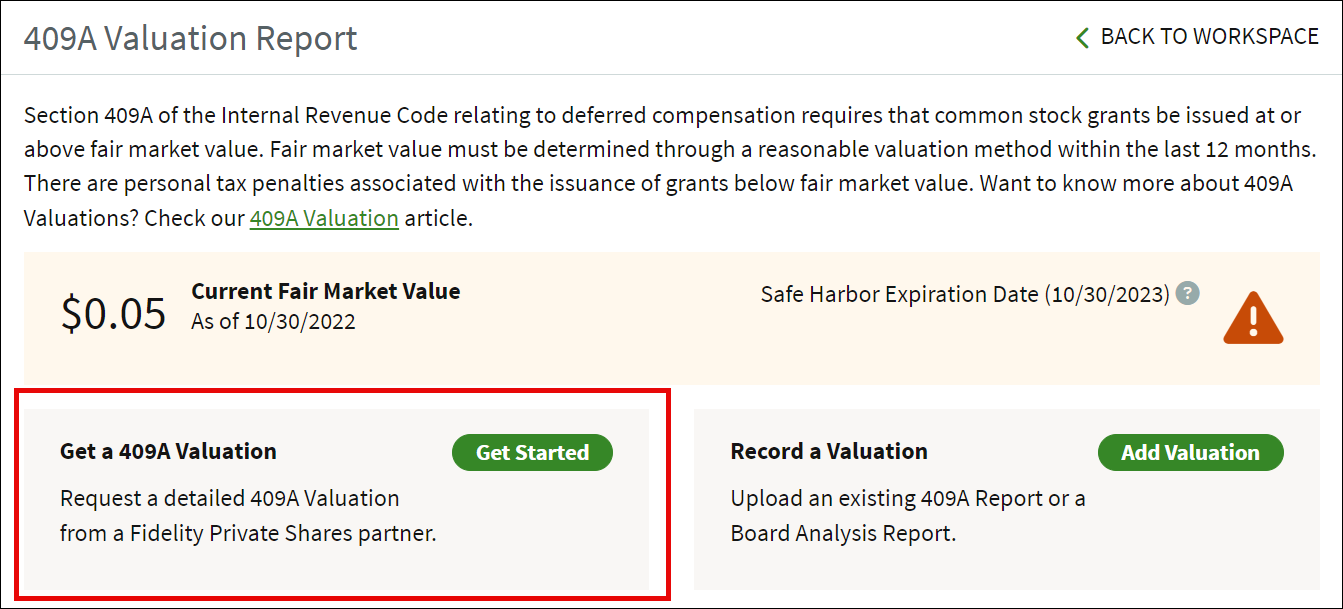
Clicking Get Started next to Get a 409A Valuation will begin the Request 409A Valuation workflow. You can learn more about that workflow in the 409A Valuation Report (FMV) Step By Step Guide.
Record an existing valuation
To document a board analysis report or an existing valuation completed outside of Fidelity Private Shares, click Add Valuation. You can also go to the Start New Workflow page and select Record a Valuation. See this support article for more information on running the Record a Valuation workflow.
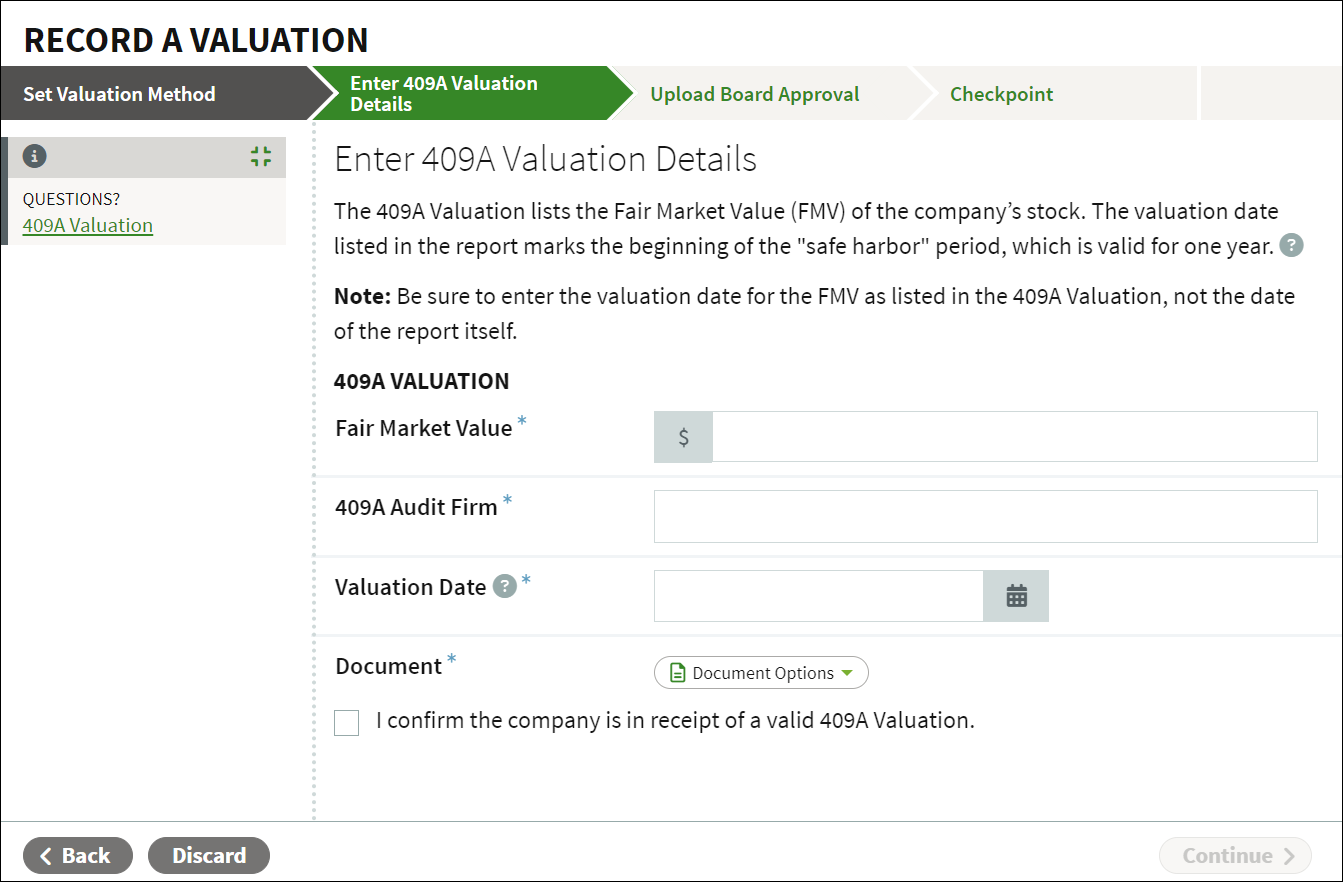
This workflow will guide you through entering the details of your completed valuation, such as the fair market value, the valuation date, and the provider or audit firm. You can also upload the valuation report and board approval which will be saved in the Data Room for future reference.
If you are planning to issue grants immediately after documenting the valuation, you can also input valuation data in the Grant Shares workflow, but this is an alternate way to add historical valuation information into your account without issuing grants immediately.
FMV Discrepancies
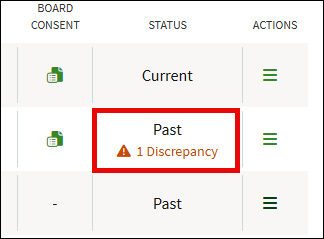
If the recorded FMV for a grant or exercise transaction is different than the recorded FMV for that time frame, the report will show a discrepancy. The Status column in the report will show if there are any discrepancies for a time period.
Clicking on the discrepancy will display the effected transactions. In the example below, the FMV at the time of grant ($0.04) is different from the recorded FMV for that time frame ($0.05).
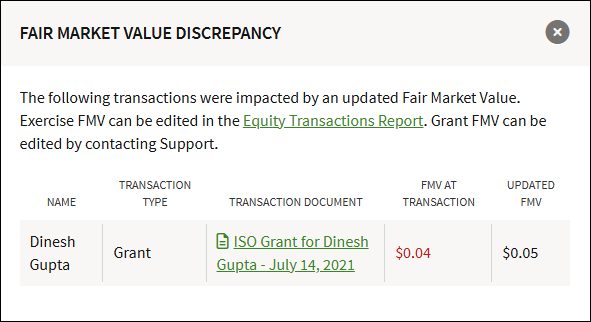
The Exercise FMV can be edited from the Equity Transactions report. To edit the Grant FMV, please reach out to Support for further assistance.
Screenshots are for illustrative purposes only.
Fidelity does not provide legal or tax advice. The information herein is general in nature and should not be considered legal or tax advice. Consult an attorney or tax professional regarding your specific situation.
409A valuations are conducted by a third-party.
Fidelity Private Shares LLC provides cap table management and other administrative services to private companies and their equity compensation plans.
Fidelity Private Shares LLC
© 2026 FMR LLC. All rights reserved.
1157184.2.0