
Introduction
This article is a step-by-step guide to the Change Authorized Shares or Par Value workflow. This workflow has two options: the first allows you to create an amendment to your company's authorized shares and/or a change in par value (the generative path), or you can upload documents to record a change that has already happened outside of the platform (the upload path). Click the links to jump to that section of the article:
- Using Fidelity Private Shares to change the authorized shares
- Recording a change to authorized shares
Changing authorized shares or par value
Getting Started
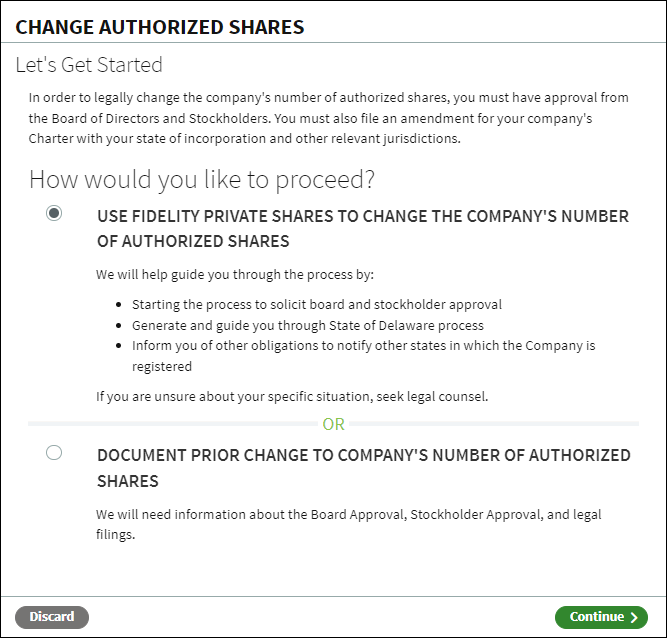
In order to legally change your company's number of authorized shares, you must have approval from the Board of Directors and Stockholders. This workflow will help you solicit the necessary approvals, and will generate an amendment for your company's Charter that you must file with your state of incorporation and other relevant jurisdictions.
- From the Company Workspace, navigate to Start New Workflow > Equity> Change Authorized Shares or Par Value.
- Select Use Fidelity Private Shares to change the company's number of authorized shares.
- Click Continue.
Provide Key Data
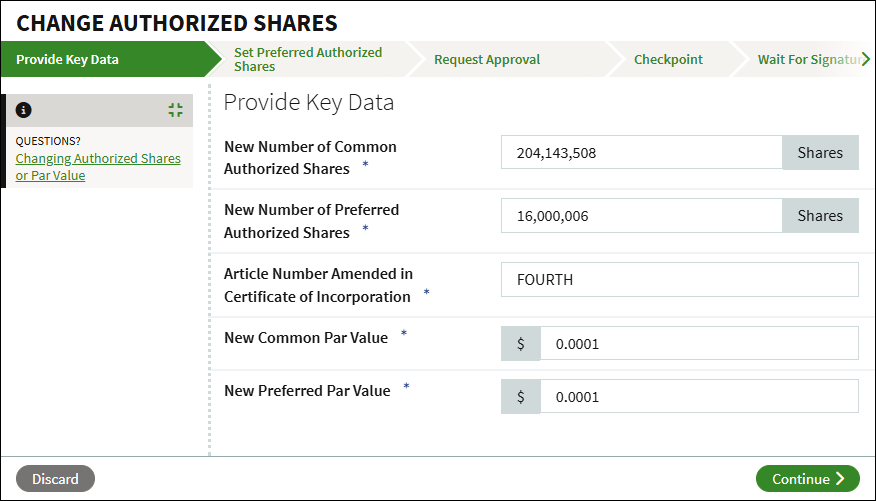
Enter the updated total authorized shares for Common and Preferred Stock. If the par value is changing, provide the new par value for Common and/or Preferred shares. Note: If no Preferred classes are established, you can only update the Common numbers.
Enter the amendment number for your Charter. This field will be prepopulated based on existing recorded amendments, but you may adjust it if needed.
After entering the new numbers, click Continue to proceed.
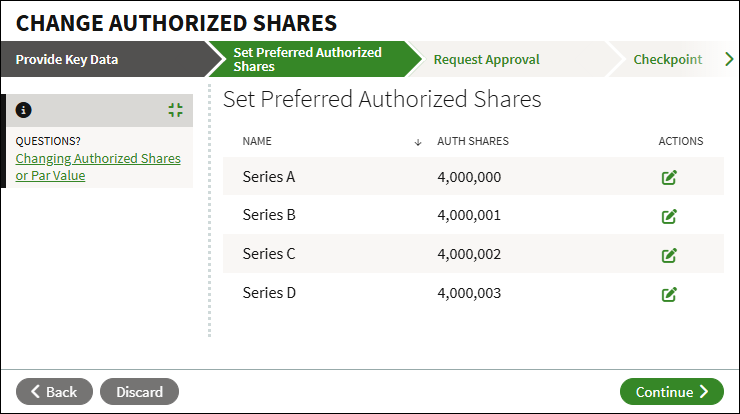
Set Preferred Authorized Shares
Request Approvals
Select how you want to obtain the necessary Board and Stockholder approvals:
- Generative: Create and solicit Board and Stockholder approvals as part of the workflow.
- Upload & Execute: Upload drafted consents and use the system to circulate them for execution.
- Separate Workflow: Queue the resolutions from this process for approval later through dedicated Board Consent and Stockholder Consent workflows.
- Upload: Upload fully executed approval documents (either consents or meeting minutes).
Once the approvals have been uploaded or collected, you'll be able to move forward.
Checkpoint
At this point you will be able to review all generated documents or all uploaded documents, including your Amended Certificate of Incorporation. You can optionally share the documents with other users, or send the workflow for legal review before continuing. Once you click Continue, the amendment will be sent to the designated company representative for signature.
Filing With Delaware
It is your duty to file this information with the State of Delaware and pay any related filing fees, including fees from your registered agent, should you choose to engage them to handle the filing for you. You will find instructions on how to do so on this screen.
Once you receive your filing back from Delaware, return to this workflow to upload that document.
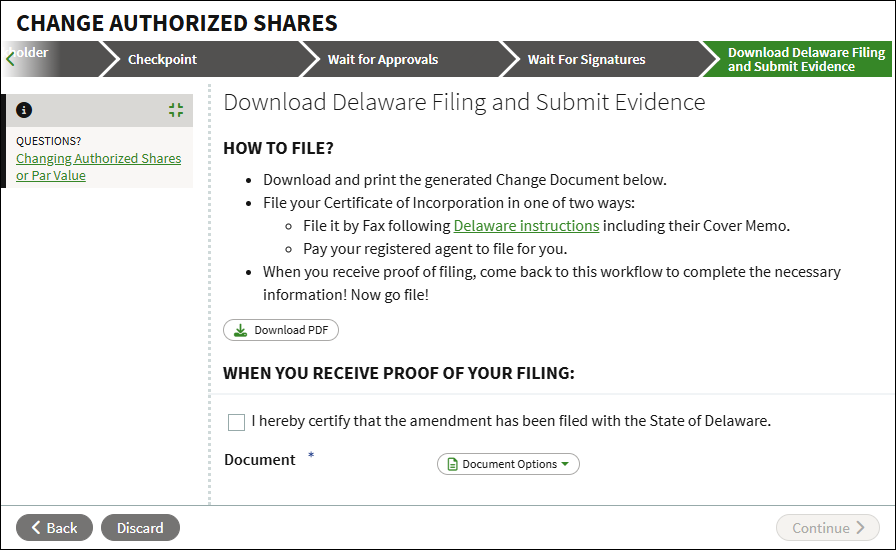
Once you complete the upload, the workflow will be complete, and these changes will be recorded in your account.
Uploading a change to authorized shares or par value
Getting Started
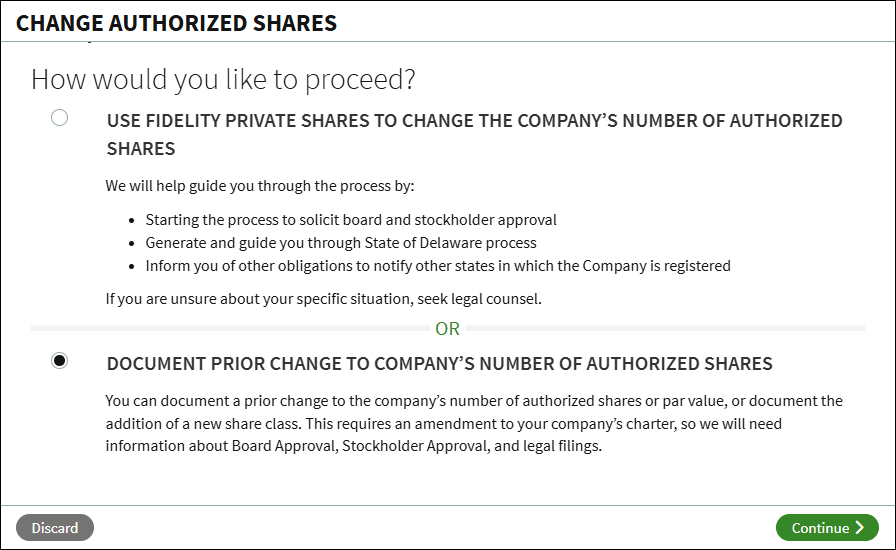
You can document a prior change to your company's number of authorized shares or par value. This workflow can also be used to record the addition of a new stock class, see this article for instructions on adding a new stock class. This workflow requires uploading an amendment to your company’s charter, as well as the necessary board and stockholder approvals.
- From the Company Workspace, navigate to Start New Workflow > Equity> Change Authorized Shares or Par Value.
- Select Document prior change to company's number of authorized shares.
- Click Continue.
Provide Key Data
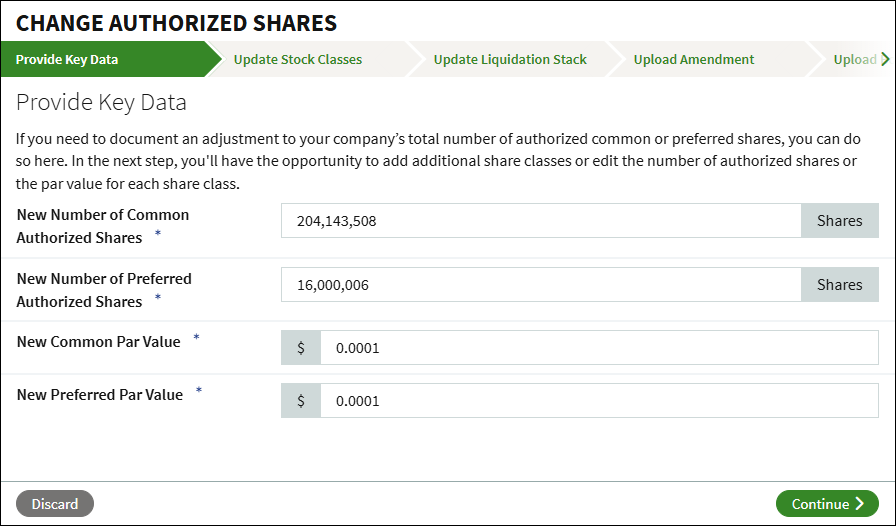
Enter the updated total authorized shares for Common and Preferred Stock. If the par value is changing, provide the new par value for Common and/or Preferred shares. Note: If no Preferred classes are established, you can only update the numbers for Common stock.
After entering the new numbers, click Continue to proceed.
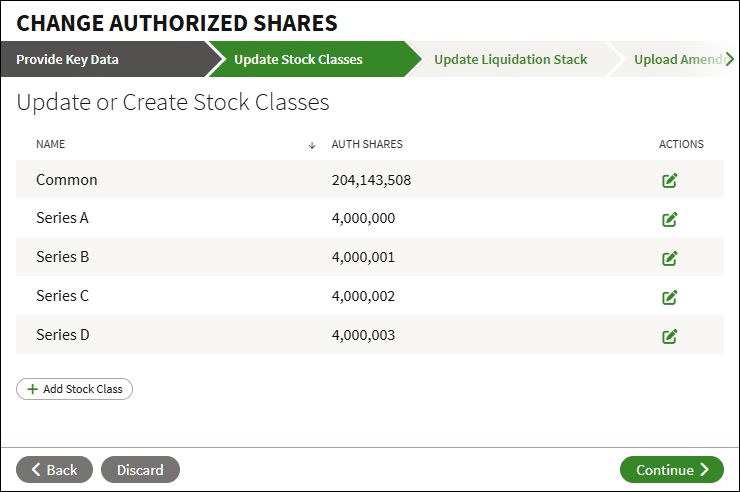
Update or Create Stock Classes
Click the Edit icon to change the authorized shares or par value for each share class. If you updated the total authorized shares in the previous step, you must adjust the amounts here.
New stock classes can be added at this step; seee this article for instructions on adding a new stock class.
Once all classes have been updated, click Continue.
Update Liquidation Stack
If there are any changes to the order in which stockholders are paid out during a liquidation event, drag and drop the boxes for each share class. Classes can be combined into the same group. Click Continue to proceed.
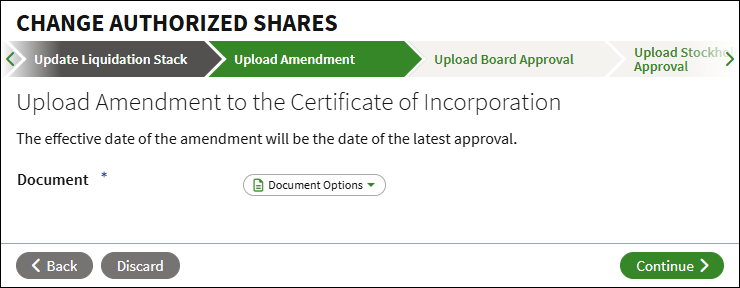
Upload Amendment
Click Document Options to either upload the amendment from your computer, or select it from the Data Room.
Upload Board and Stockholder Approvals
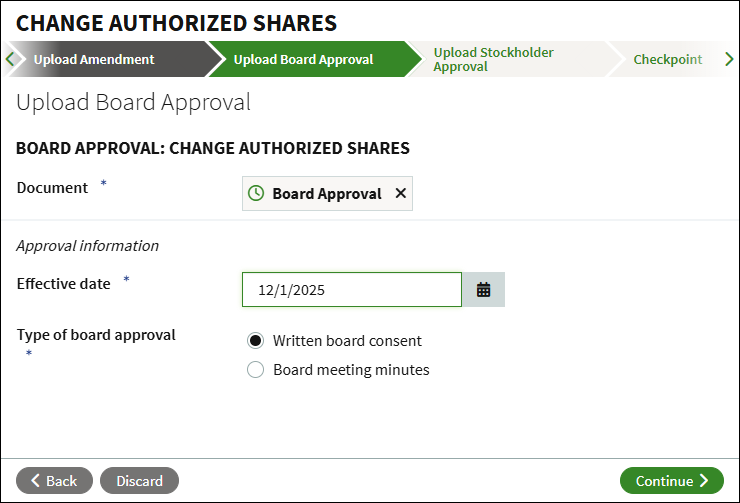
Click Document Options to upload the board approval or select it from the Data Room. Enter the effective date, and select the type of approval. Repeat this on the next step to add stockholder approval.
Checkpoint
At this point you will be able to review the uploaded documents, including your Amended Certificate of Incorporation. You can optionally share the documents with other users, or send the workflow for legal review before continuing. Click Continue to move forward.
Confirm Document Version
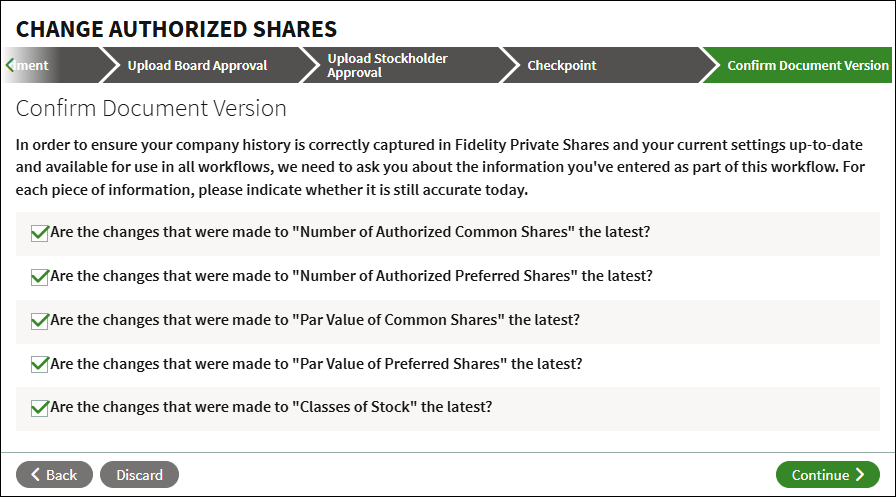
You will be asked to confirm that the changes uploaded as part of this workflow are correct and the current information. Once you click Continue, the workflow will be complete and the amendment has now been reflected and the new share class has been added to the cap table. All uploaded documents will be placed in the corresponding folder in the Data Room.
Screenshots are for illustrative purposes only.
Fidelity does not provide legal or tax advice. The information herein is general in nature and should not be considered legal or tax advice. Consult an attorney or tax professional regarding your specific situation.
Fidelity Private Shares LLC provides cap table management and other administrative services to private companies and their equity compensation plans.
Fidelity Private Shares LLC
© 2025 FMR LLC. All rights reserved.
1092799.3.0