
Introduction
This feature is available to users with Growth and Scale subscriptions. If you'd like to upgrade your subscription, please contact your Customer Success Manager.
We’re excited to announce a new integration with Finch that enables clients to automatically import HR data for employees and consultants in bulk. This integration allows you to update existing user information or add new users directly within Fidelity Private Shares.
Click the links below to jump to that section of the article:
- List of HRIS providers
- Before you begin
- Setting up the integration
- Integration details
- Administration and error reporting
- FAQs
List of HRIS providers
As of June 2025, below are the current list of HRIS providers supported through our integration. All providers include general stakeholder updates (hiring, terminations, and change in demographic data), and some providers can also include payroll information that can be used in tax calculations. If your HRIS does not support payroll, you can use the Upload HR Data Workflow.
| Stockholder updates & payroll | Stockholder updates only (no payroll) |
|
|
Before you begin
Setting up your HRIS integration with Fidelity Private Shares is designed to be smooth and secure. Below are a few key things to keep in mind during onboarding and beyond:
Data complexity during integration
HRIS systems can contain a wide variety of data formats and structures. During onboarding, we may identify certain data fields that require your review and approval. This helps ensure we’re accurately pulling the right information into Fidelity Private Shares.
Matching Users Between Systems
As part of the integration setup, HRIS users will be matched with existing Fidelity Private Shares users. If your HRIS includes users who aren’t yet in Fidelity Private Shares, they’ll be added as new, uninvited users.
If your HRIS updates an existing user with a new email address, Fidelity Private Shares will automatically send an informational email to that user to let them know about the update.
Ongoing Maintenance
While the integration setup is a one-time process, your HRIS connection requires ongoing monitoring. This ensures data continues to sync correctly and user information stays up to date.
HRIS Integration Setup
The integration setup is done in three parts, click the links to jump to that section of the workflow:
- Connecting to your HRIS provider
- Matching users between your HRIS and Private Shares
- Finalizing the integration
Connecting your HRIS
- From the Administration Workspace, go to Security & Access > HRIS Integration, or from the left hand menu go to Human Resources > HRIS Integration.
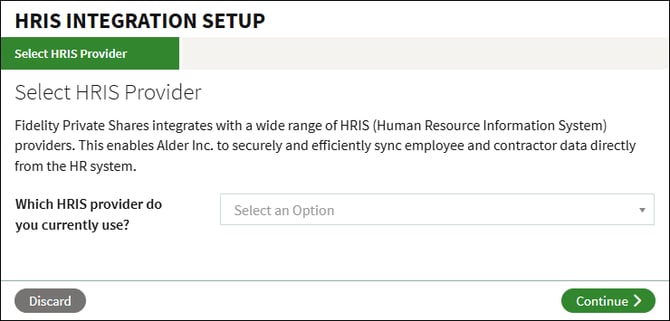
- Select your HRIS provider from the dropdown menu and click Continue.
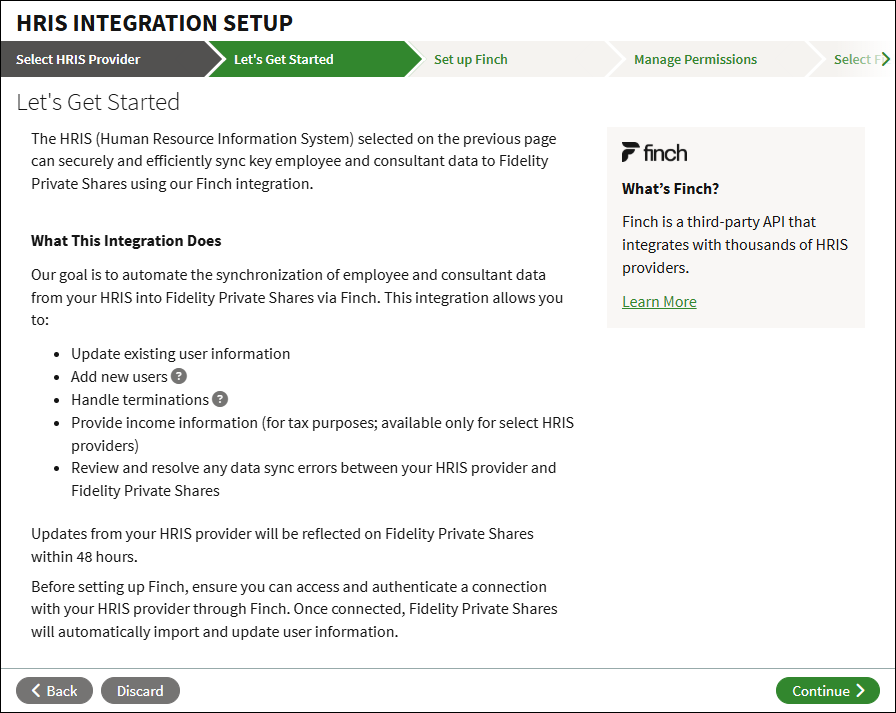
- The Let's Get Started page will show a summary of how the Finch integrations works. Before continuing, ensure you can access and authenticate a connection with your HRIS through Finch.
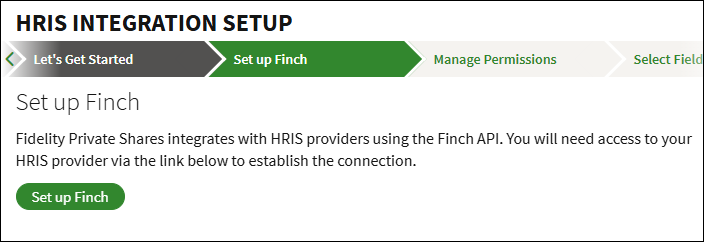
- Click Set up Finch. This will open a new window to establish the connection with Finch.
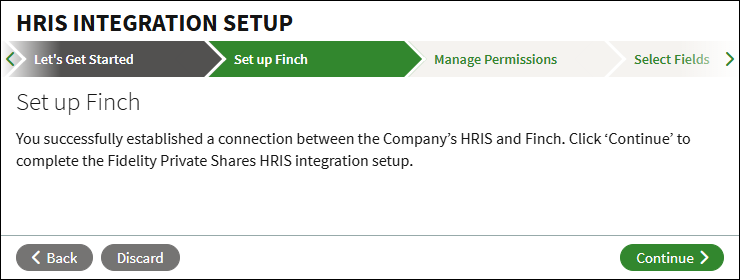
- Once the connection with Finch to your HRIS has been established, you'll be brought back to the workflow in Private Shares. Click Continue.
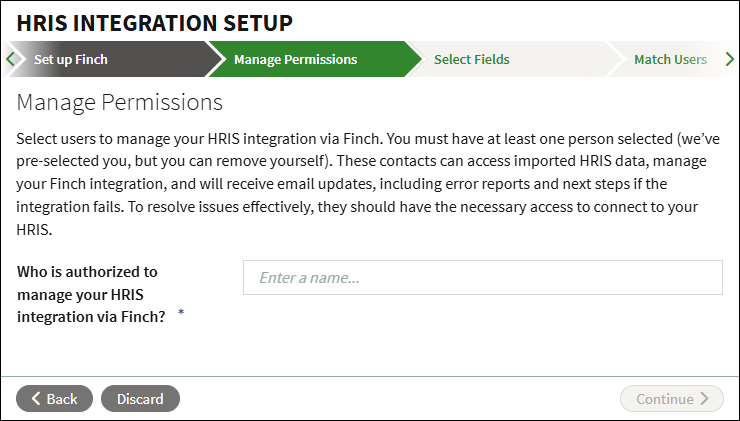
- Select which user(s) will mange the HRIS integration. By default, you will be added as an authorized user, but you can remove yourself if you will not be managing the integration. When all users have been added, click Continue.
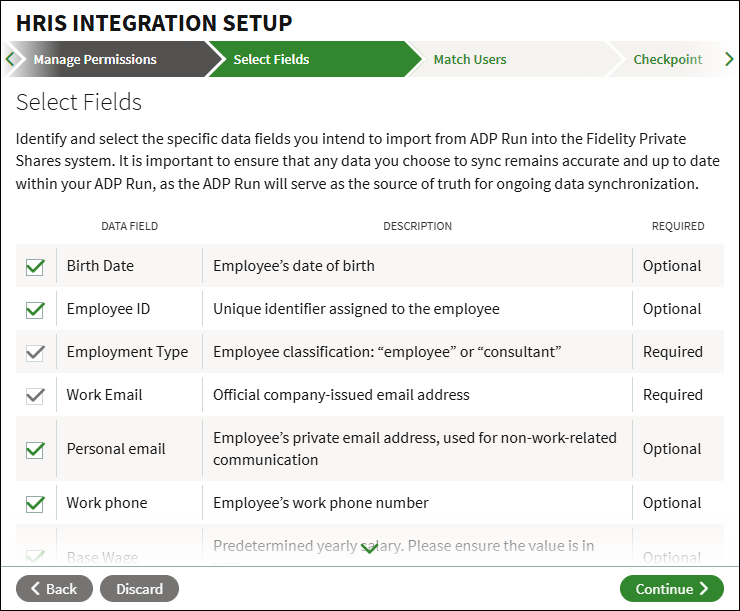
- Select which additional data fields you wish to import from your HRIS, and click Continue. Anything marked as Optional can be unchecked and will not be synced from your HRIS. Note that the list of available fields will be different based on your HRIS.
Matching users
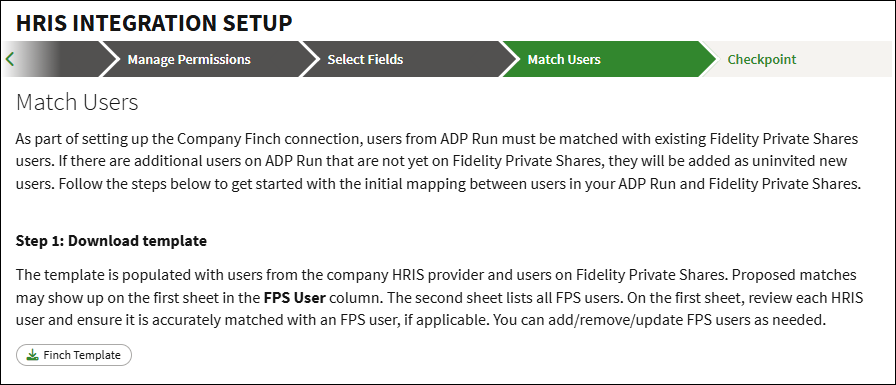
Once your HRIS is connected, you'll be prompted to map your HRIS users to existing accounts in Private Shares. You can also choose to automatically create new accounts for users who don’t yet exist in Private Shares, or exclude specific users from being synced. This gives you full control over who gets added, updated, or ignored during the integration process.
- Click Finch Template to download and open the template.
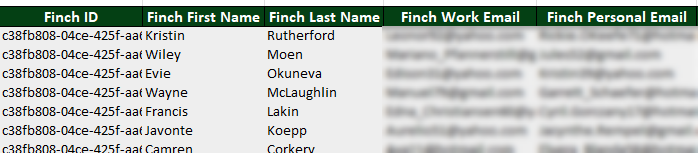
- Users pulled in from your HRIS will appear in the columns on the left side of the template. Each of these columns will include the word Finch in the header to indicate that the data came directly from your HRIS.
- The template will show proposed matches to existing users in Private Shares based on each user’s name and email. When a match is found, the corresponding user information will appear in the right‑side columns, labeled with FPS in the header.

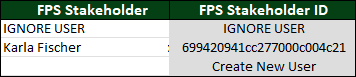
- To manually match a user from your HRIS to an existing user in Private Shares, search for and select their name or email in the FPS Stakeholder column. Once selected, the corresponding columns to the right will populate with that user’s information.
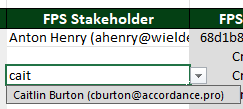
- To add new HRIS users who aren’t yet in Private Shares, leave their row unchanged. The FPS Stakeholder ID column will show Create New User, and the information in the columns to the right will be used to set up their new account. Note that any new users added will not be invited to the platform until you run the Invite Users workflow, however, existing users may be prompted to verify new emails added to their account.

- For any HRIS users who should not be added to Private Shares or have their HRIS data synced, select IGNORE USER in the FPS Stakeholder column. To update which users are ignored, refer to the Ignored Users section in the Administration Settings below.

- Once all users have been matched, save the template and return to the workflow.
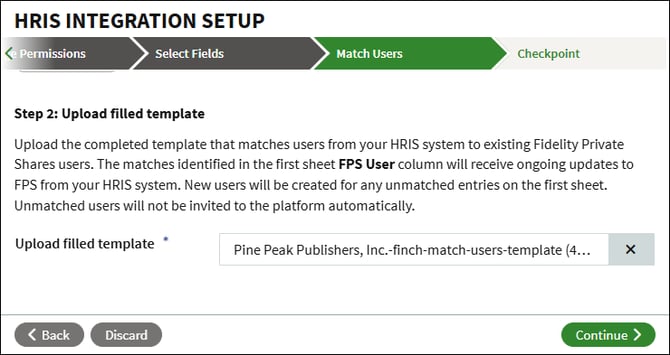
- Click Choose a file to upload the saved template from your computer and click Continue.
Finalizing the integration
-
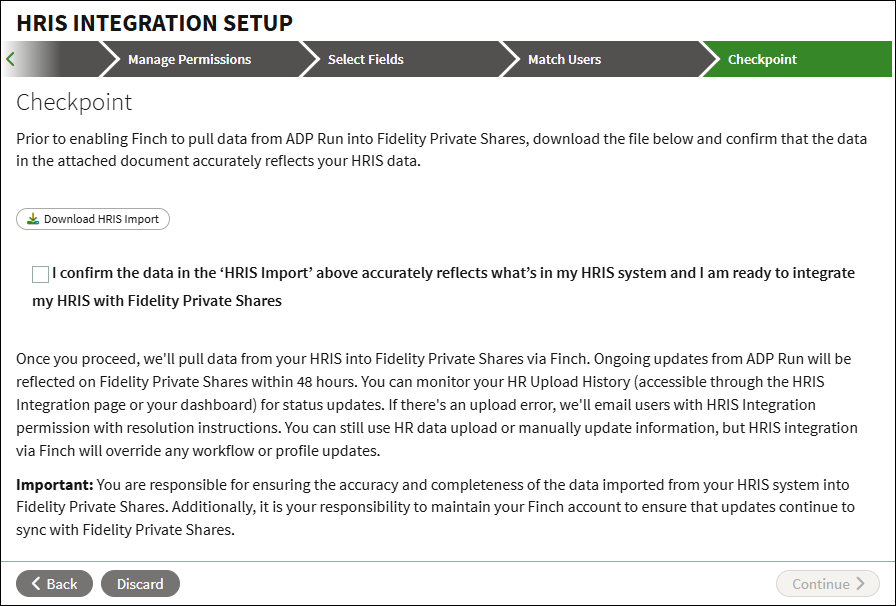
At the Checkpoint, click Download HRIS Import and confirm that the spreadsheet accurately reflects your HRIS data. If everything looks correct, check the confirmation box and click Continue to finalize the integration.
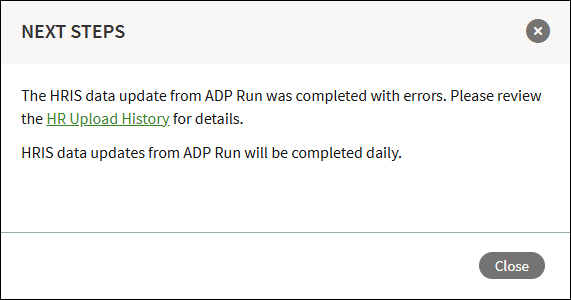
- A confirmation page will display with the next steps. If there are any errors from the import, you'll be provided a link to review on the HR Upload History report.
Integration details
Data sync
Once the integration has been set up, data will be pulled from Finch every 24 hours at approximately 6AM eastern. Finch pulls data from HRIS systems daily at various times. Due to this, updates made in your HRIS provider may not be reflected in Private Shares until a day or two later.
Stockholder updates and demographic information
All HRIS providers will update the following fields:
- First and last name
- Hire date
- Termination date
- Home address (street, state, and country)
- Employment type (employee or consultant). Note that if this field is not provided, the integration will mark all users as Employees.
- Work email
For HRIS providers that include payroll information, the integration will also update:
- YTD wage income
- YTD supplemental income
Some providers have additional fields that can be mapped. These fields will be added to the employee's profile and/or in relevant reports. Check with your provider and Finch to see if these fields are available.
- Birthday
- Employee ID
- Personal email
- Work phone
- Personal phone
- Street 2
- Middle name
- Department
- Position
- Shows on the profile as Job Title
The integration does not pull or use Social Security Numbers.
Administration
HRIS Integration management
There is a HRIS Integration Management permission that should be enabled for any users that will be managing the integration through Finch. If there is an error with Finch, any user with this permission will receive an email. There are two scenarios in which an error email will be sent:
- If the authentication is disconnected, an email will be sent with a link to re-authenticate your account.
- There is a line-item error updating Finch data into Private Shares. The email will include a link to view the error report.
Integration log & error reports
Updates pulled from Finch will be included in the HR Upload History Report. This report includes any manual updates processed through the HR Update Workflow as well as all Finch updates. To access this report, from the Company Workspace go to HRIS Integrations > Upload History, or from the side bar go to Human Resources > Reports > HR Upload History.
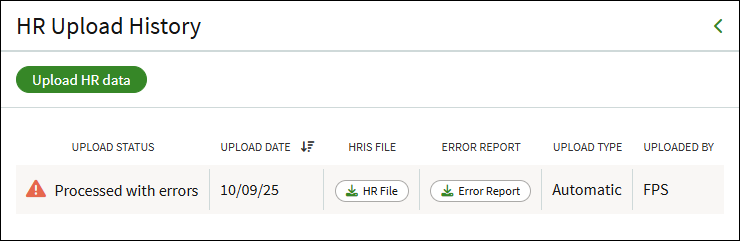
To view the errors, click the Error Report button to download the report. Any errors will be highlighted in red with a note explaining the error.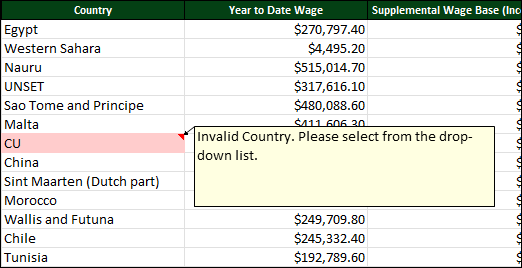
For more information about this report, or steps on how to manually upload an HR report, see this article on the Upload HR Data workflow.
Ignored Users
Users can be marked as ignored, which prevents any updates from syncing for those users. If a user is marked as ignored during the initial integration setup, they will not be added to Private Shares.
You can view and manage ignored users on the HRIS Integration Management page by navigating to Company Workspace > HRIS Integration > Ignored Users.
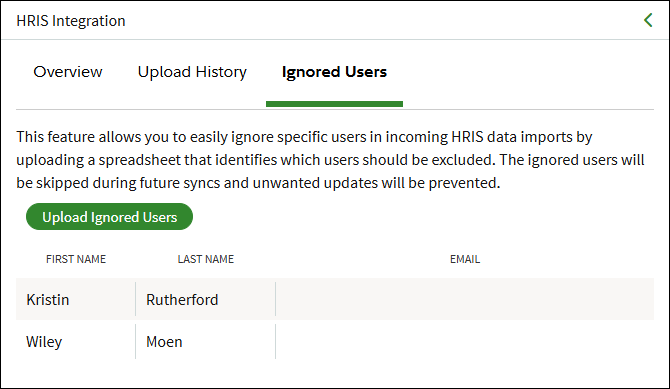
Follow these steps to make changes to the ignored users:
- Click on Upload Ignored Users.
- Click Finch Template to download and then open the template.
- To make a user ignored, select IGNORE USER in the FPS Stakeholder column.
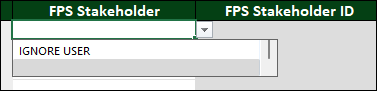
- To stop ignoring a user, either select an existing user from the FPS Stakeholder column, or remove IGNORE USER to create a new user in Private Shares. The columns to the right will indicate if the user will be ignored, will be connected to an existing user, or if a new user will be created.
- Save the template.
- Click into Choose a file and select the saved template from your computer.
- Click Confirm.
- The Ignored Users page will refresh showing the changes made.
FAQs
Does Finch support two-way data synchronization between Private Shares and the HRIS provider? This is a one-way pass of information, and no updates completed on FPS will be shared or updated via Finch to the HRIS provider.
Can the Finch integration ignore certain users or employees? Yes, it is possible to configure the integration so that certain users are excluded from automatic updates based on data in your HRIS. Please reach out to Support if you would like to set this up.
What happens if I update an employee’s information in Private Shares?
If you need to make changes to employee data directly in Private Shares, you can use the Upload HR Data workflow, especially when updates can't easily be made through an existing workflow. However, please note that when Finch syncs data from your HRIS, any mismatched information will be overwritten with the data from your HRIS.
Will new employees receive an email from Private Shares? New employees will be added with a status of Not Invited. When you are ready to invite the new user to log in, you can manually invite them from the User Directory, or run the Send Invite To Multiple Users workflow.
Will existing employees receive an email from Private Shares? If an existing user has an additional email address added through the Finch integration, they may receive an email to verify the new email address. This is a one time email, and would also happen if the user added an additional email address from their Profile.
How will Private Shares know if an employee has been terminated? If an employee has been terminated in your HRIS, a Terminate Employee workflow will be started in Private Shares. Any user with appropriate permissions can then claim the workflow and complete the termination in the platform.
What happens if I switch to a new HRIS provider? If you are switching to another supported HRIS provider, please reach out to our support team and they will assist you to connect Finch to your new HRIS. If your new HRIS is not supported, then we will turn off the integration. You can still use the Upload HR Data Workflow to manually import data from your HRIS.
Why are my HRIS updates from yesterday not reflected in the platform? The integration will automatically pull from Finch every 24 hours at approximately 6 AM eastern time. Finch pulls data from the supported HRIS providers at various times during the day, so there can be a delay in what you see in your HRIS and in Private Shares.
Why is my ADP not connecting? The integration currently only support ADP Run and ADP Workforce Now. If your ADP type is something other than Run or Workforce Now, it is not supported.
Screenshots are for illustrative purposes only.
Third parties mentioned and Fidelity are not affiliated.
Fidelity Private Shares LLC provides cap table management and other administrative services to private companies and their equity compensation plans.
Fidelity Private Shares LLC
© 2026 FMR LLC. All rights reserved.
1210093.3.0