
Introduction
This article explains how two duplicate users can be merged together in Fidelity Private Shares. There are situations, such as during onboarding or after an HRIS integration, where the same user has been added more than once to your account. Duplicate users can be merged if one or both of the user accounts is unactivated.
Who can be merged?
There are two requirements to merge users:
- Only unactivated users, that is, users that have a status of Not Invited or Awaiting Account Activation in the directory are eligible to be merged. The unactivated user can be merged into an active user, or two unactivated users can be merged. Two active users with the status of Current User cannot be merged.
- The users must be an individual user type. This includes employees, consultants, board members, advisors, or other users added to the User Directory. Third-party entities (such as law firms or investment firms) and their team members cannot be merged; see this article for additional information on managing team members in third-party entities.
The Merge User process will use the active user's details (such as their name and job title). If merging two unactive users, you can select which user's details to keep. Once merged, only one user will remain. This process cannot be undone.
A note on HRIS integrations
If you have an HRIS integration enabled and if the user's information is different from the information in your HRIS, the applicable data will be updated in Private Shares when the integration fetches new HRIS data.
Merge User process
- From the Company Workspace, navigate to the User Directory.
-
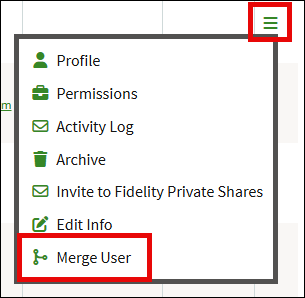
Click on the three-bar menu to the right of the unactivated user and select Merge User.
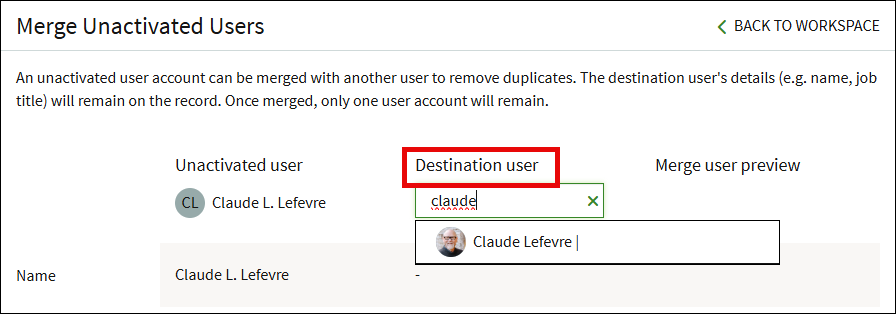
- Search and select the active user in the Destination user box.
-
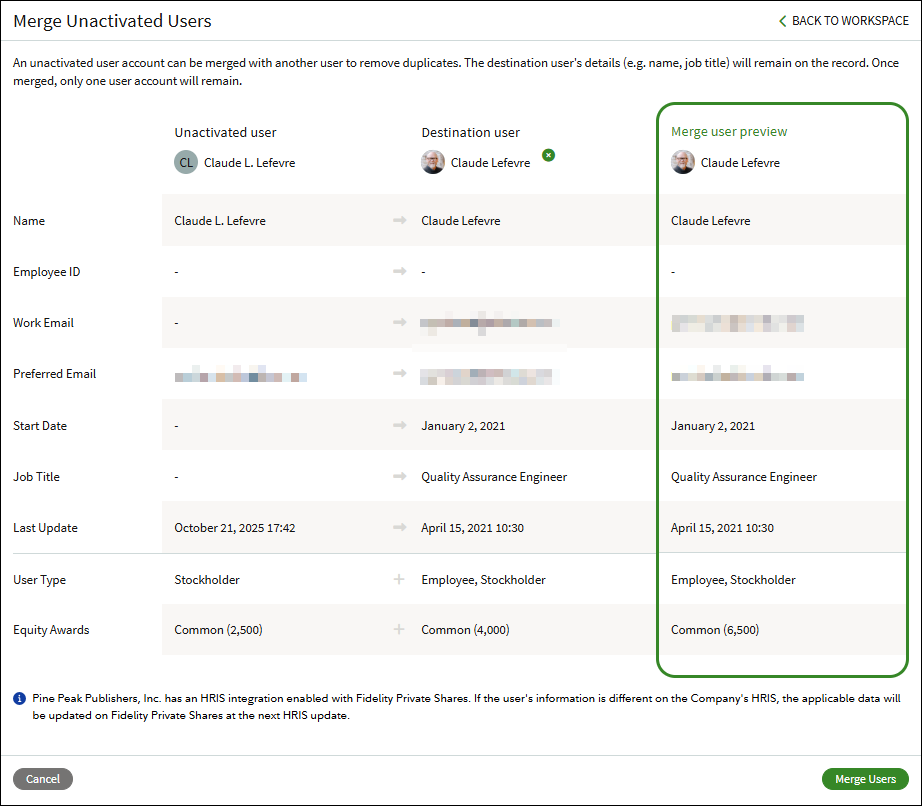
A preview will display for the merged users.
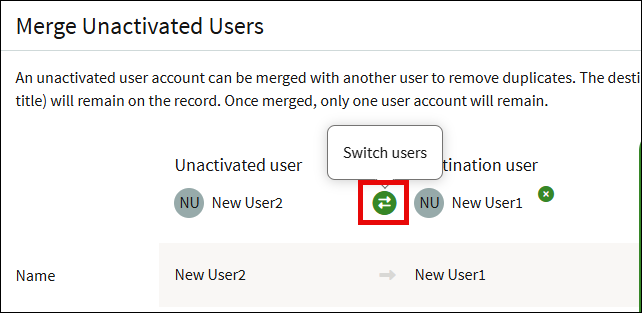
If you are merging two unactivated users, there is a Switch users button which will switch the Destination user. The information of the destination user will be used.
- Click Merge Users to proceed.
- A confirmation modal will display with a reminder that this is a permanent change. To proceed, click Confirm.
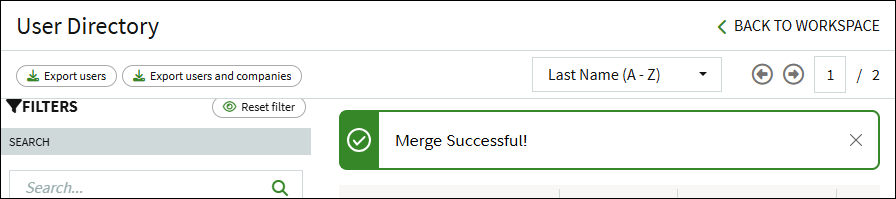
- You will be returned to the directory and a message will display indicating the merge was successful.
FAQs
Can I merge two active users? For security purposes, two active users cannot be merged. Please reach out to our Support team if you have a situation with two duplicate active users.
Can I select which user information to use during the merge? Permissions and equity holdings will be additive, meaning all separate permissions and holdings will be combined into one user. The merge process will use the other data fields, such as their name, job title, and start date, of the active user. If you have an HRIS integration, applicable data from your HRIS will update if different from what is saved in Private Shares. If you do not have an integration, you can use the HR Data Upload to update additional details.
I accidentally merged the wrong user, can this be undone? The merge user process is permanent and cannot be reversed. If any holdings were merged to the wrong user, please contact our Support team for assistance.
Screenshots are for illustrative purposes only.
Fidelity Private Shares LLC provides cap table management and other administrative services to private companies and their equity compensation plans.
Fidelity Private Shares LLC
© 2025 FMR LLC. All rights reserved.
1230337.1.0