
Introduction
This article will walk you through the process of generating a Convertible Note (or Bridge Note). See this article to learn more about Convertible Notes and how they work. If you have a Convertible Note that was executed outside of the platform, follow the steps in this article to Upload a Convertible Note.
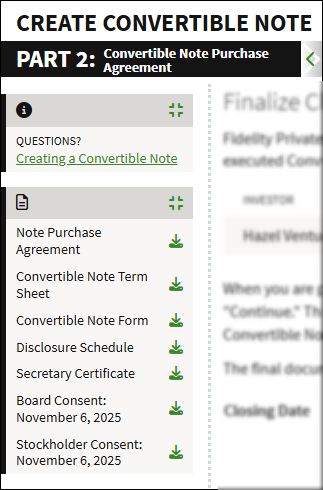
This workflow is broken up into two parts: defining the Convertible Note Terms, and Convertible Note Purchase Agreement. As you continue through the workflow, any generated or uploaded documents will display in the documents panel on the left of the workflow.
Click the links below to jump to that section of the article:
Part 1: Convertible Note Terms
Let's Get Started
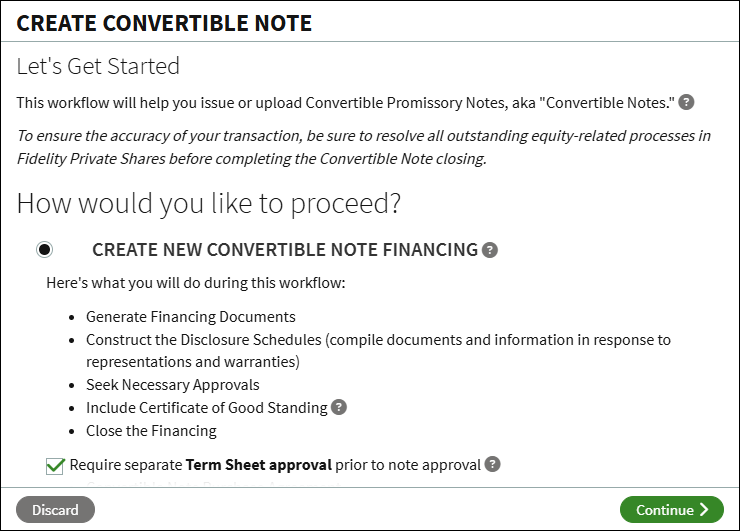
From the Company workspace, go to Start New Workflow > Financing > Convertible Note. The workflow will lead you through the process of creating the documents and obtaining necessary approvals to complete the financing.
A term sheet will be created as part of the workflow and circulated for approval before executing the note(s). If you wish to forego this approval step, uncheck this box. If you are unsure, you can check with your legal counsel. When ready, click Continue.
Comply with Securities Law
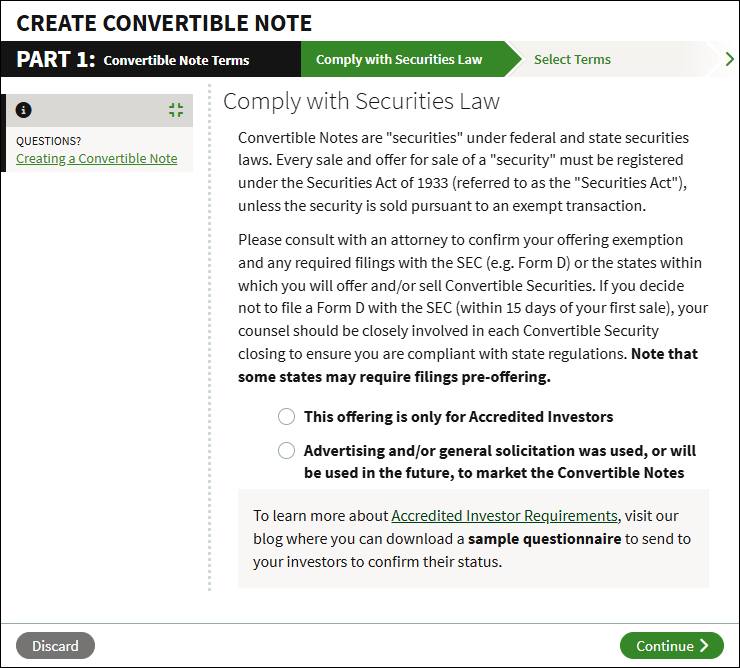
You will be asked to confirm compliance with securities laws. If you're unsure which option to choose, we recommend consulting with your attorney. You can learn more about Accredited Investor Requirements on our blog. Click Continue to move forward.
Select Terms
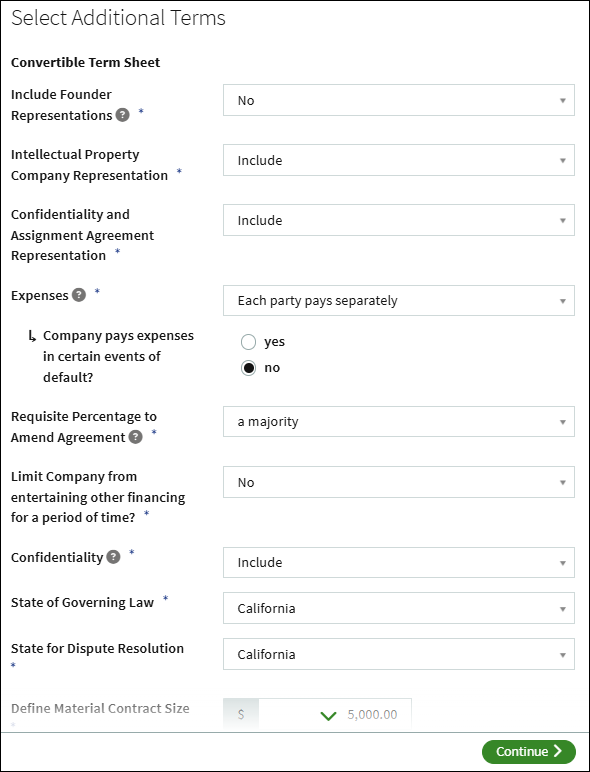
Enter the terms which will be used in the financing documents.
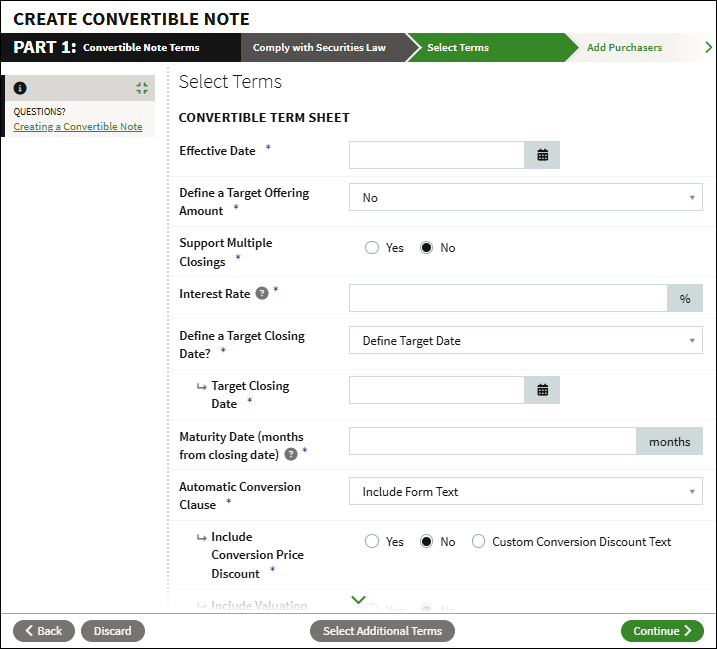
Click Select Additional Terms if there are additional terms that need to be set. Otherwise, click Continue.
Add Purchasers (for Term Sheet Approval)
The following steps will only display if you selected to Require Separate Term Sheet Approval. If you unchecked that option, you can skip this step.
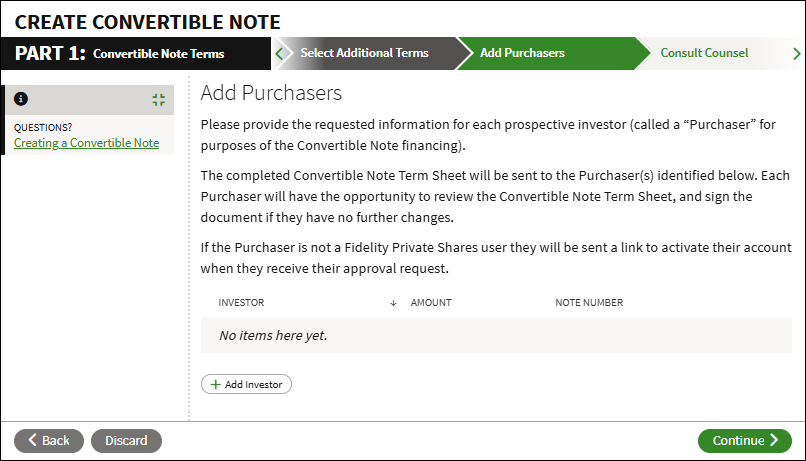
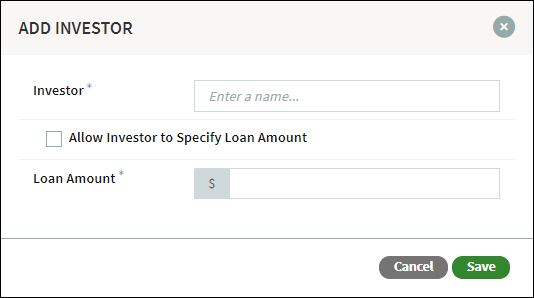
Click Add Investor to add a purchaser. Enter their name, selecting to create a new user if applicable, and the loan amount. You can also check to allow the investor to specify the amount.
Repeat this step until all purchasers have been added. If necessary, you can edit or delete investors before clicking Continue.
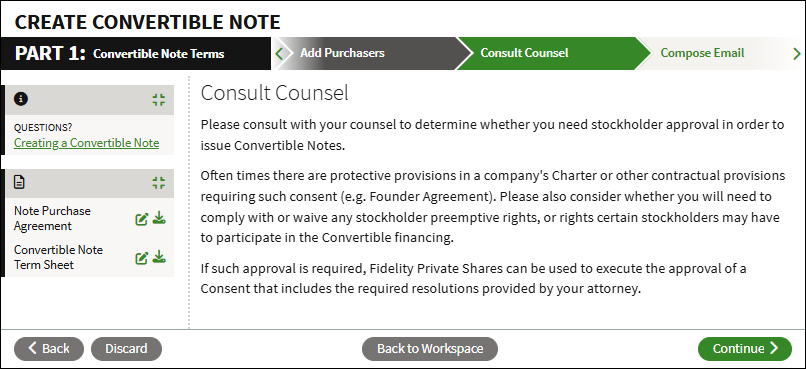
Consult Counsel
Before continuing, the workflow will prompt you to check with your legal counsel if stockholder approval is needed in order to issue the convertible notes. If necessary, you can generate the approval in the platform.
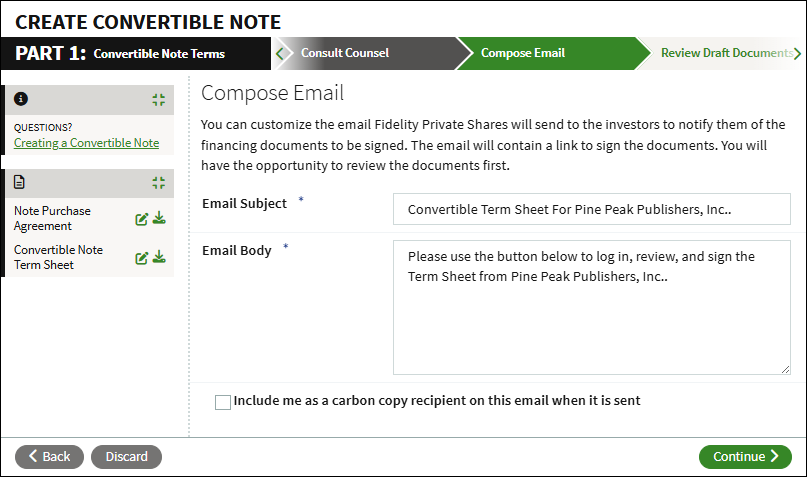
Compose Email
Review and customize the email that is sent out to your investors. Check if you want to receive a copy of the email when sent out.
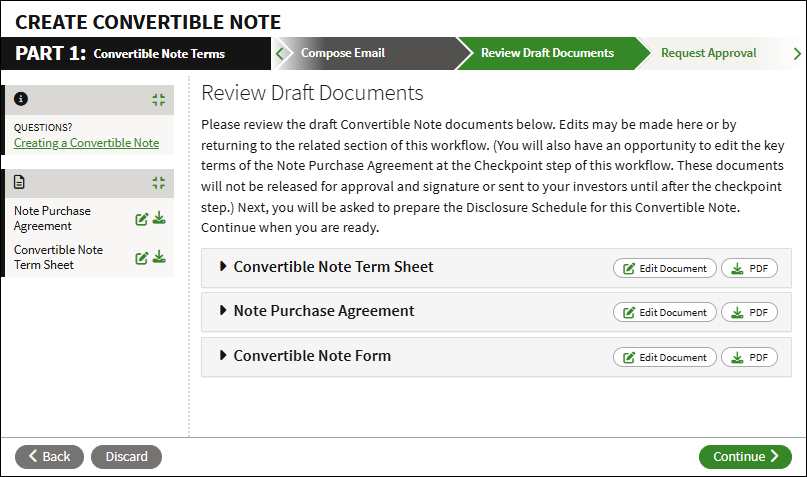
Review Drafts
Here you can review drafts of the generated documents. Click Edit Document to make changes or click PDF to download a copy of the document.
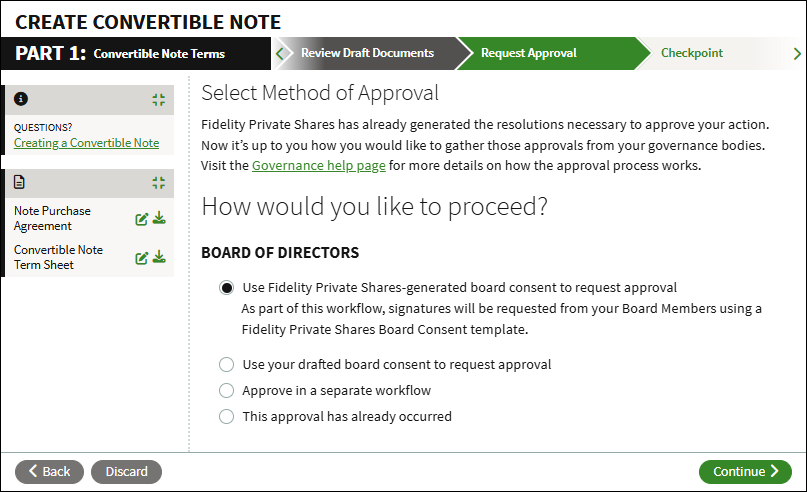
Request Approval
Select how you would like to obtain the necessary approvals. You can generate a consent using our templates, upload your own drafted consent forms to be sent out for signature, opt to run the consent in a separate workflow, or if the approval has already happened you can upload the executed documents.
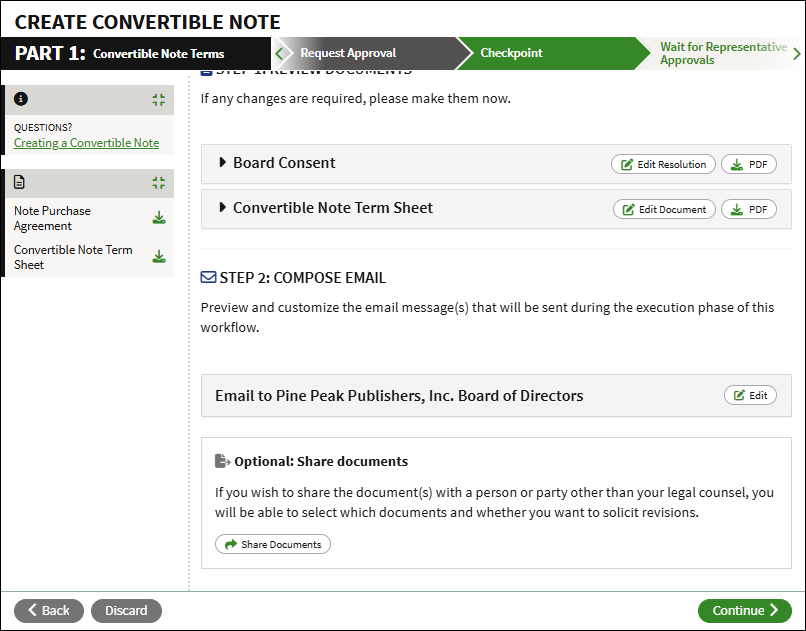
Checkpoint
The documents listed will be sent out for review and signature. Take time to review the documents, and make any necessary changes before continuing. You can also opt to send the documents to your legal counsel for review, or edit the email that is sent out as part of the execution of the note(s).
Wait for Approvals
The workflow will send emails to obtain the necessary approvals. The workflow will show the status of any pending approvals. Once all approvals have been obtained, you can continue to Part 2 of the workflow. See this article for additional information on using Private Shares to generate board approvals.
Part 2: Convertible Note Purchase Agreement
Review Document
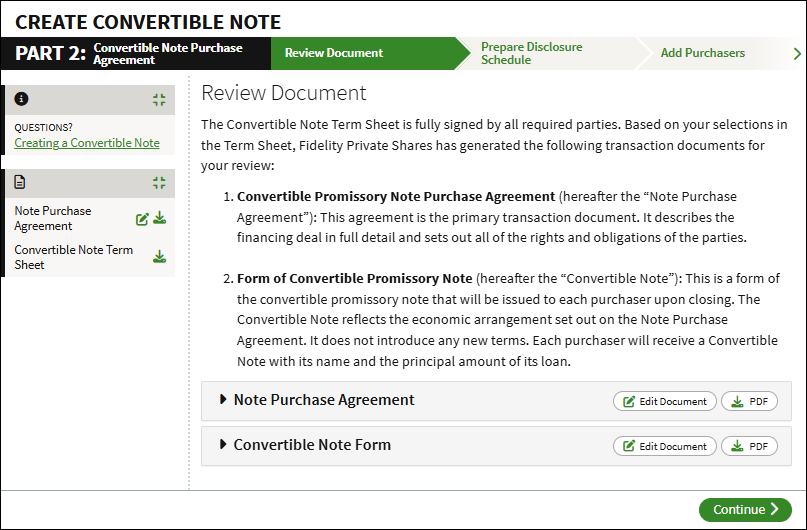
If you selected to Require Separate Term Sheet Approval in Part 1, the generated documents will be listed. Review and edit the documents if necessary before continuing. If you did not require the separate approval, skip to the next step.
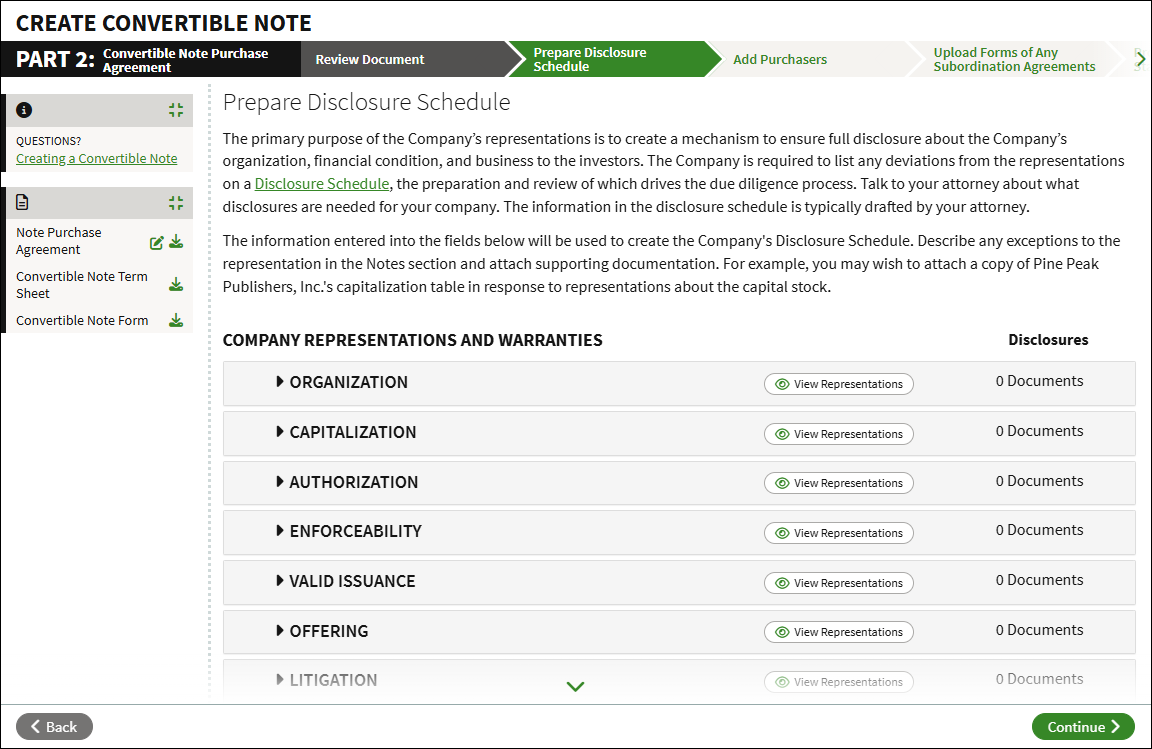
Prepare Disclosure Schedule
Add or upload information relevant for the Disclosure Schedules to the Note Purchase Agreement. We recommend reviewing the Representations and Warranties from the Note Purchase Agreement with your attorney, as they can work with you to determine what information, if any, should be disclosed.
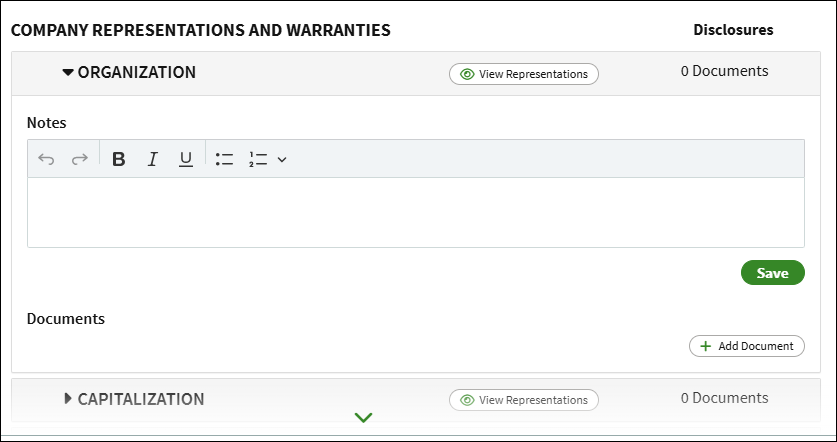
To add notes or an additional document, click the arrow to expand the section. To add a note, enter the text of the note and click Save. To add a document, click Add Document to upload a document or select one from your Data Room.
Add Purchasers
If you selected to Require Separate Term Sheet Approval in Part 1, those purchasers will display. If you do not need to add any additional purchasers you can continue forward to the next step.
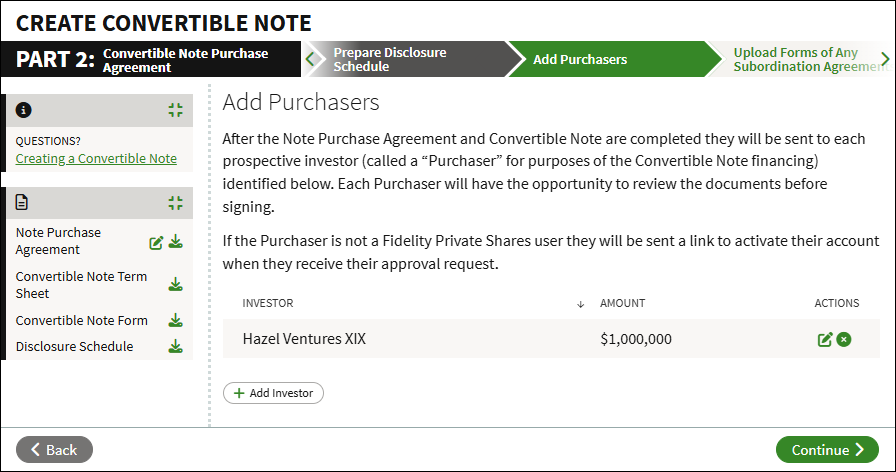
Click Add Investor to add purchasers. Enter their name, selecting to create a new user if applicable, and the loan amount. You can also check to allow the investor to specify the amount.
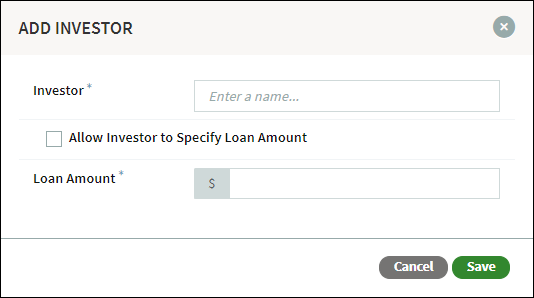
Repeat this step until all purchasers have been added. If necessary, you can edit or delete investors before clicking Continue.
Upload Subordination Agreement Forms
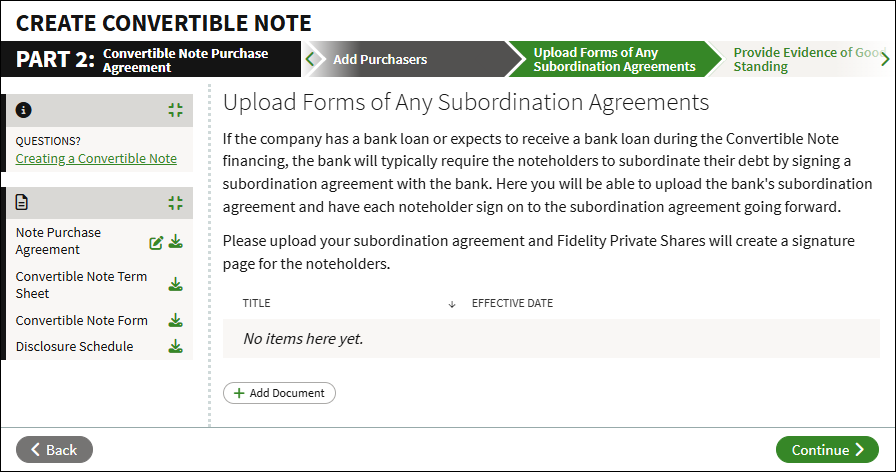
Click Add Document to upload any Forms of Subordination Agreements. The documents uploaded here will be included for signature by the noteholders.
Provide Evidence of Good Standing
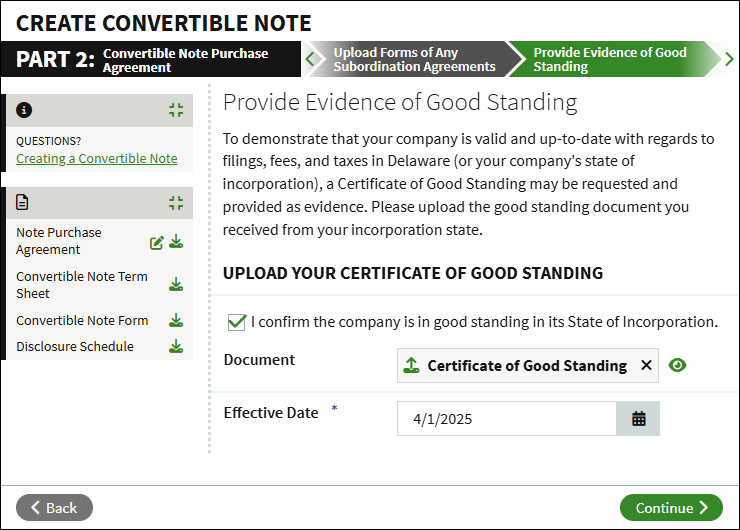
Click Document Options to upload your Certificate of Good Standing, select the effective date, and check the box to certify your company is in good standing.
Closing Deliverables
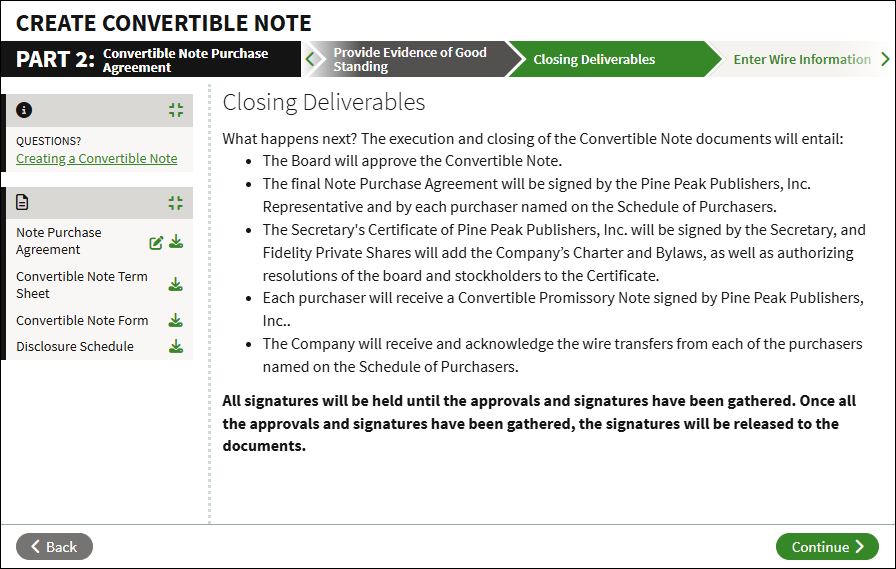
A summary of the execution and closing of the convertible notes will display.
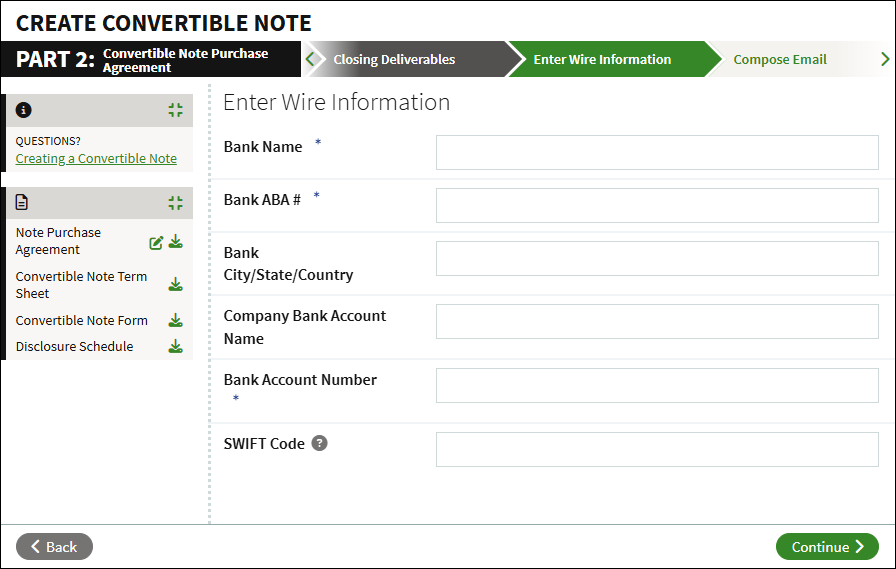
Enter Wire Information
Enter your bank information. This will be shared with the purchasers so they know where to send their funds.
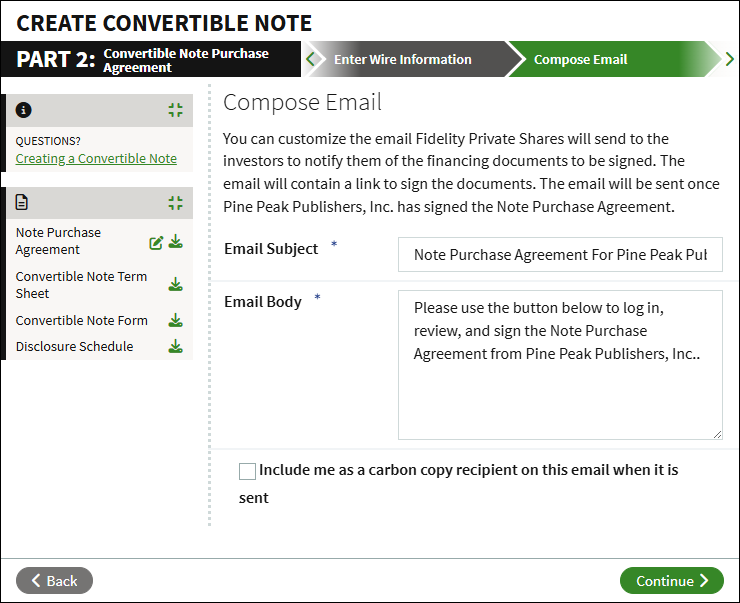
Compose Email
You can tailor the email that is sent to the purchasers to log in and sign the note purchase agreement. If no changes are needed, click Continue.
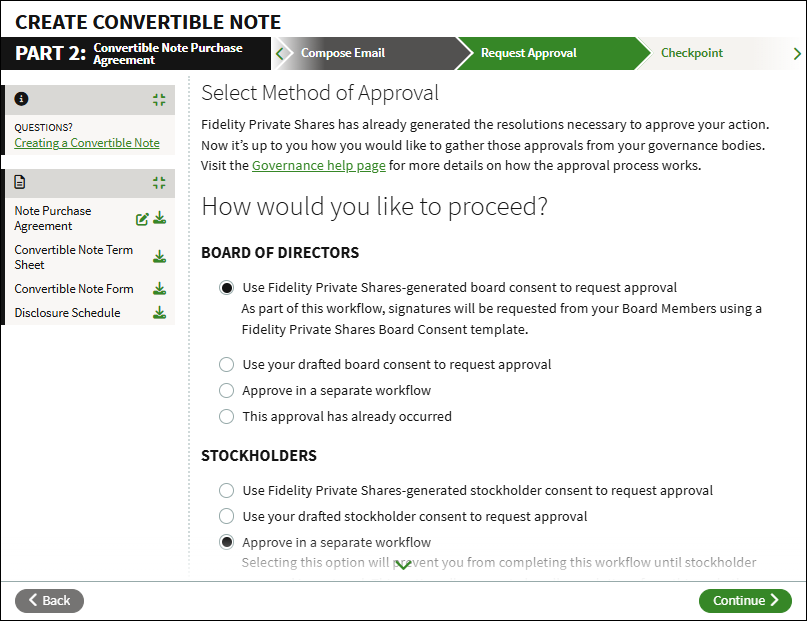
Request Approval
Select which method of approval to use for the Board Consent, and if required, the Stockholder Consent. You can select to use the generated consent forms or upload your own drafted forms to send out for signature, opt to defer and run the approval in a separate workflow at a later time, or you can upload executed documents if the approval has already taken place. The Stockholder Consent can be waived; you may want to speak with your lawyer to see if this approval is required.
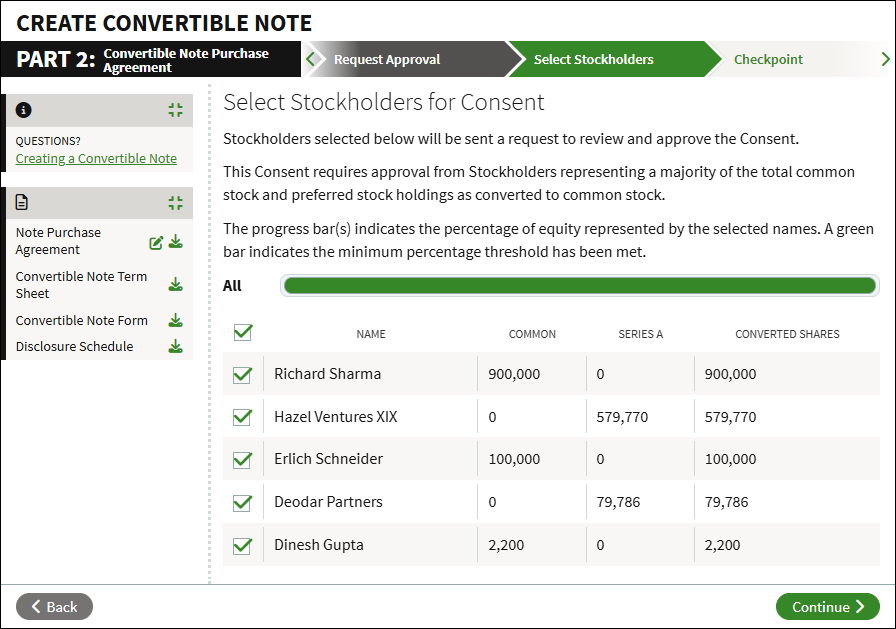
Select Stockholders for Consent
The stockholder consent requires majority approval. Select which stockholders to include in the consent. The progress bar will turn green when the minimum percentage threshold has been met. If you are waiving the Stockholder Consent this step will be skipped.
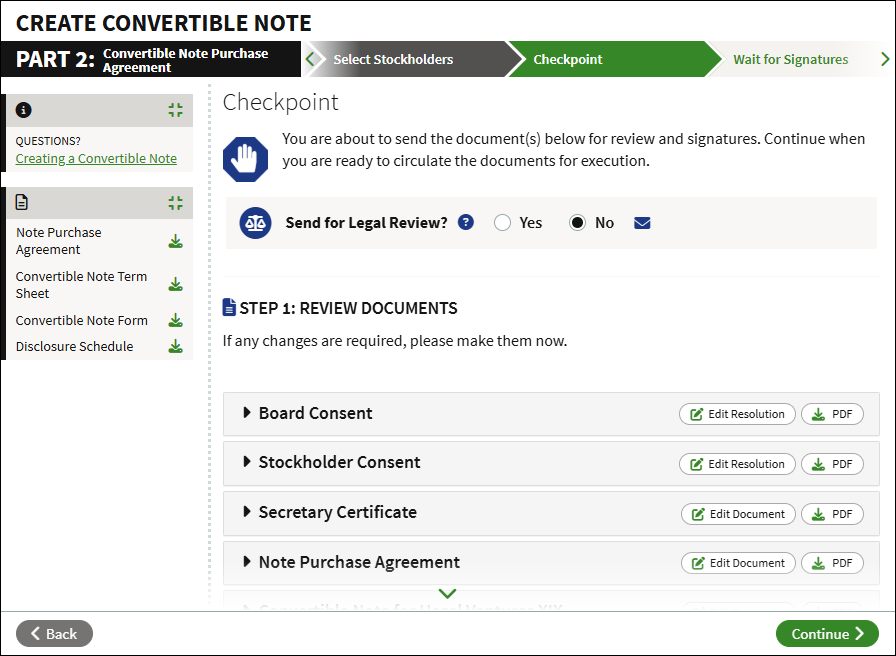
Checkpoint
Take time to review and edit the documents before they are sent for approval. You can also choose to send this workflow for legal review, and you can customize the email sent as part of the execution. When you are ready to circulate the documents for execution, click Continue.
Wait for Approvals
The workflow will send emails to obtain the necessary approvals. The workflow will show the status of any pending approvals. Once all approvals have been obtained, the workflow will continue.
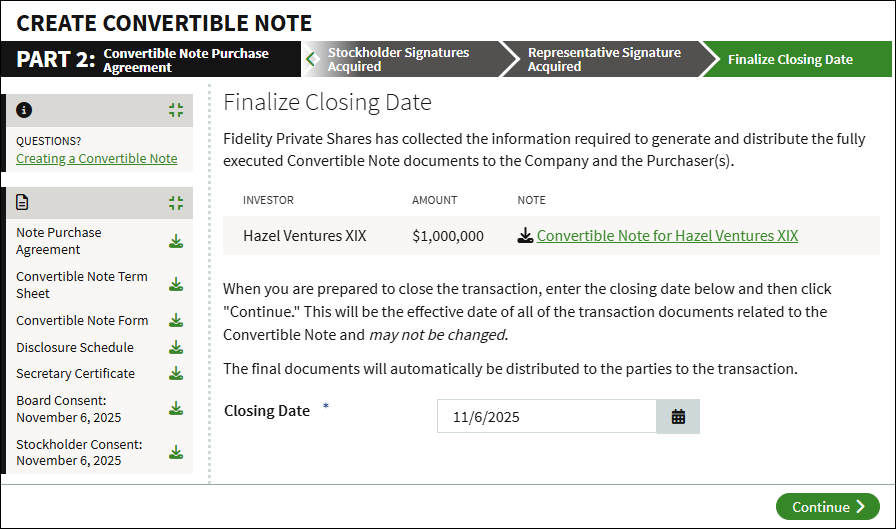
Finalize Closing Date
Once all necessary approvals have been obtained, you will be able to confirm the closing. When you are ready, click Continue to complete the workflow. All related documents will be available in the Data Room, and an email will be sent to the purchasers.
FAQs
Who can invest using a Convertible Note? Only Accredited Investors can participate in a Convertible Note financing on Fidelity Private Shares. Accredited Investors can include individuals and investment firms.
Do I need help from my counsel? All financing events should involve guidance from outside counsel. Your counsel involvement settings will determine whether your note financing documents will automatically go to your attorney for review, or whether you can choose to send them.
My investors aren’t on Fidelity Private Shares. Is that ok? Investors who are new to the platform will receive an email inviting them to set up their account before they review and sign their documents. If your round includes existing investors who already have access to your account, they'll get an email to notify them that the financing documents are awaiting their approval.
What if a stockholder or note holder will not sign electronically? If there is a situation where an approver cannot or will not log into Private Shares to sign electronically, you can upload a copy of the signature page. On the Wait for Approvals step, click the three-bar menu to the right of the approver, and select Upload Signature. You'll then be prompted to upload the signature page, and enter the effective date.

Screenshots are for illustrative purposes only.
Fidelity does not provide legal or tax advice. The information herein is general in nature and should not be considered legal or tax advice. Consult an attorney or tax professional regarding your specific situation.
Fidelity Private Shares LLC provides cap table management and other administrative services to private companies and their equity compensation plans.
Fidelity Private Shares LLC
© 2025 FMR LLC. All rights reserved.
1092936.3.0