
Introduction
Individual equity promises can be added when running the Add Employee workflow as part of their onboarding process. For multiple promises, there is a process to upload equity promises in bulk.
Once uploaded, you can review and track these promises using the Equity Promises Report, and the promises will be queued up the next time you run the Grant Shares or Options workflow.
Bulk Upload Process
- The Bulk Upload can be started in one of two ways:
- On the Company Workspace, go to Equity & Financing > Equity Promises report and click Upload Equity Promises.
- Go to Start a New Workflow > Upload Equity Promises.
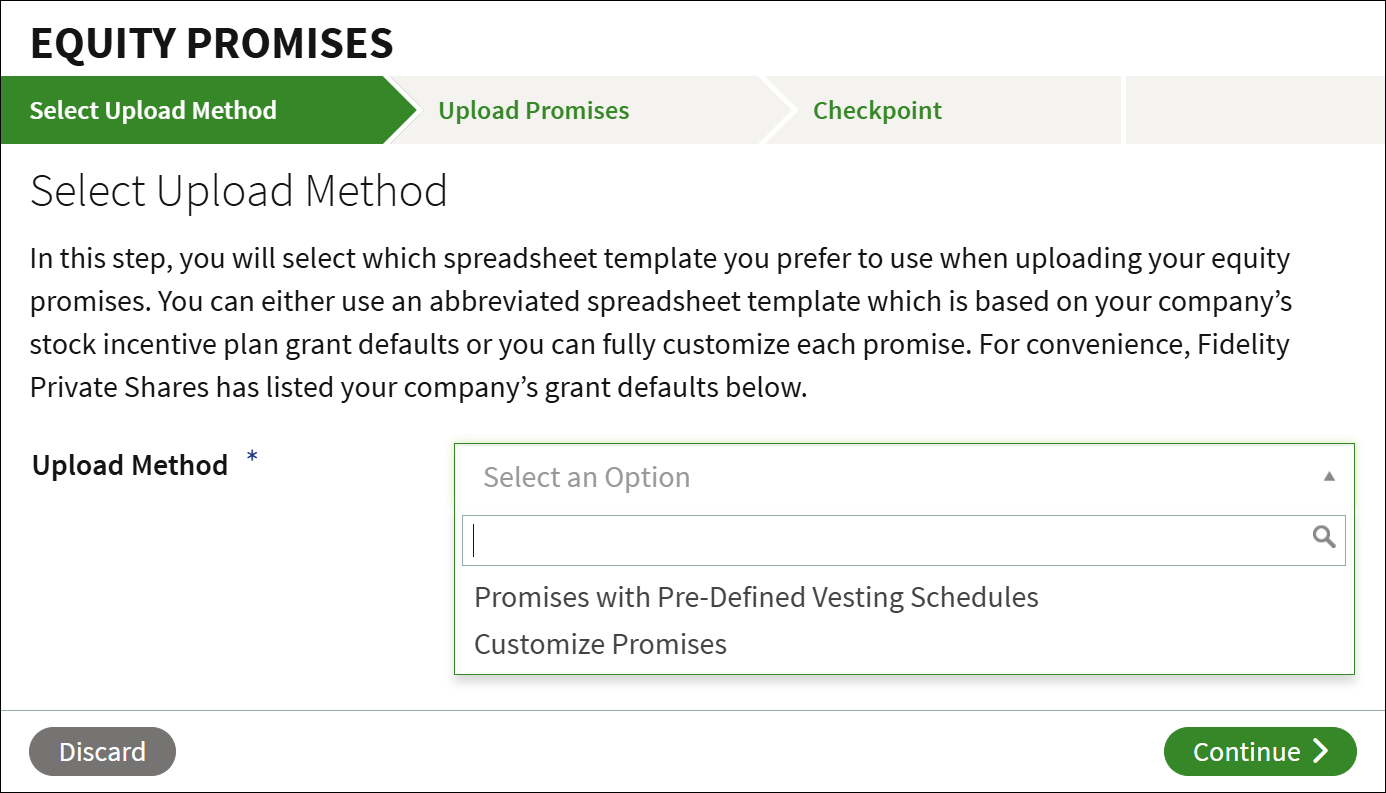
- Select which upload method to use. You can either upload promises with pre-defined vesting schedules based on the details of your Stock Incentive Plan (SIP), or you can customize each promise in the template. Click Continue.
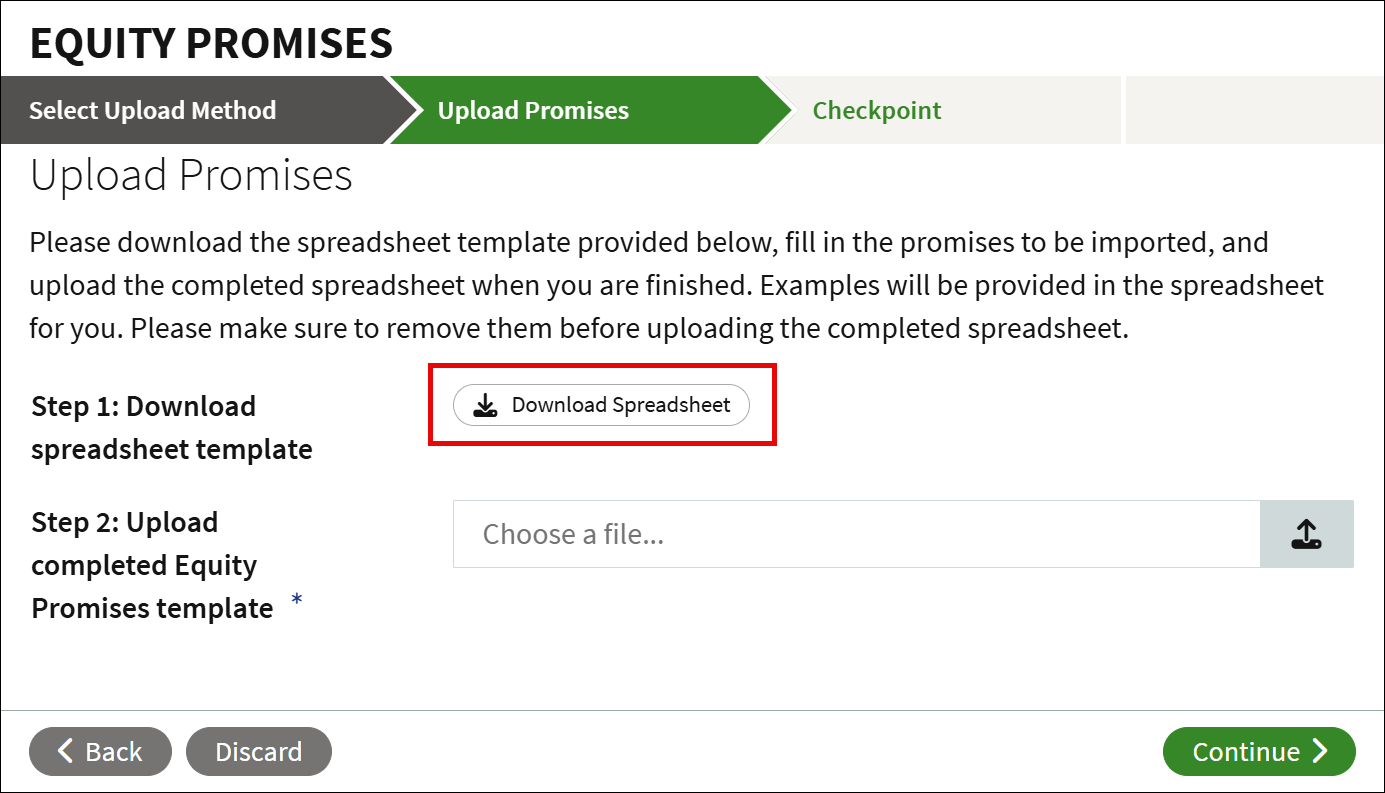
- Click Download Spreadsheet. The template selected in the previous step will download.
- Fill out the spreadsheet with the details for each equity promise. Each column will be marked as Required or Optional, with explanations on what data is needed. Save the spreadsheet once all promises have been added.
Note that the template will be prefilled with example equity promises you can use as a template for adding new promises to the spreadsheet. Make sure to delete any example names before uploading.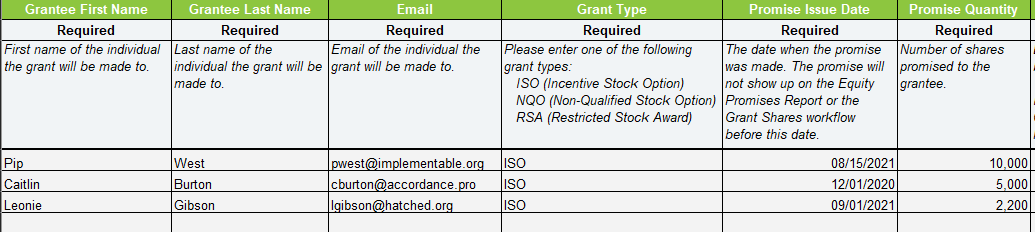
- Return to the workflow and click Choose a file to upload the spreadsheet template from your computer, and click Continue.
- If there are any errors with the spreadsheet, you will be prompted to resolve the issues found. Click Download Spreadsheet to download a new version of the spreadsheet.
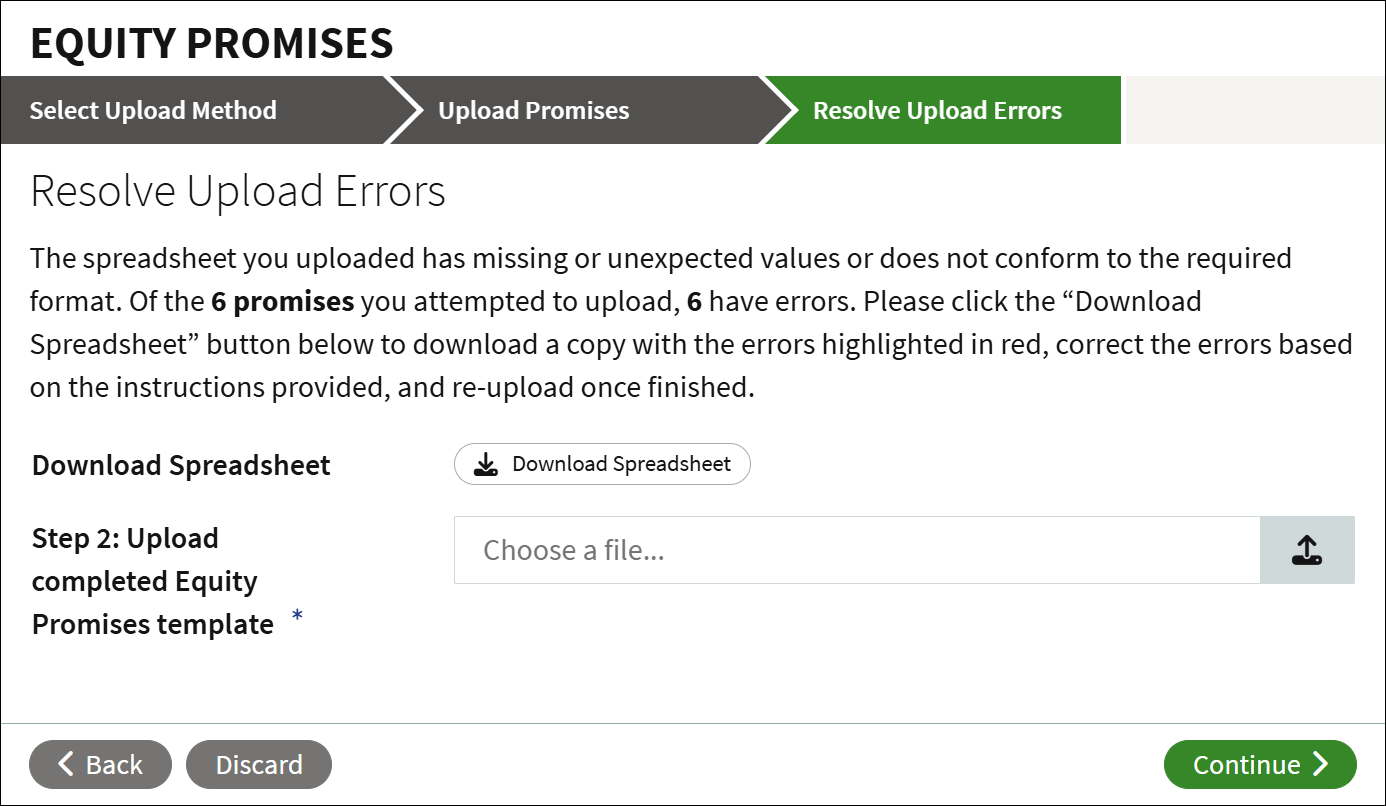
Any errors will be highlighted in red with a note about the invalid or missing information.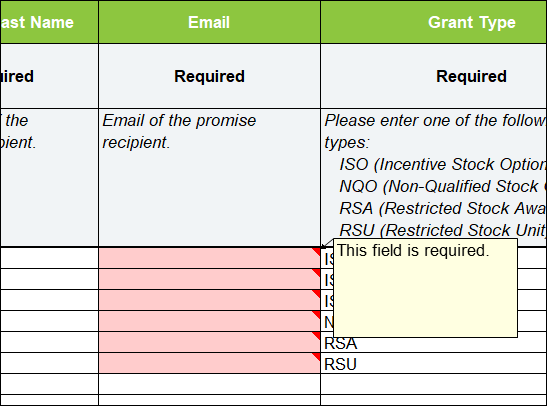
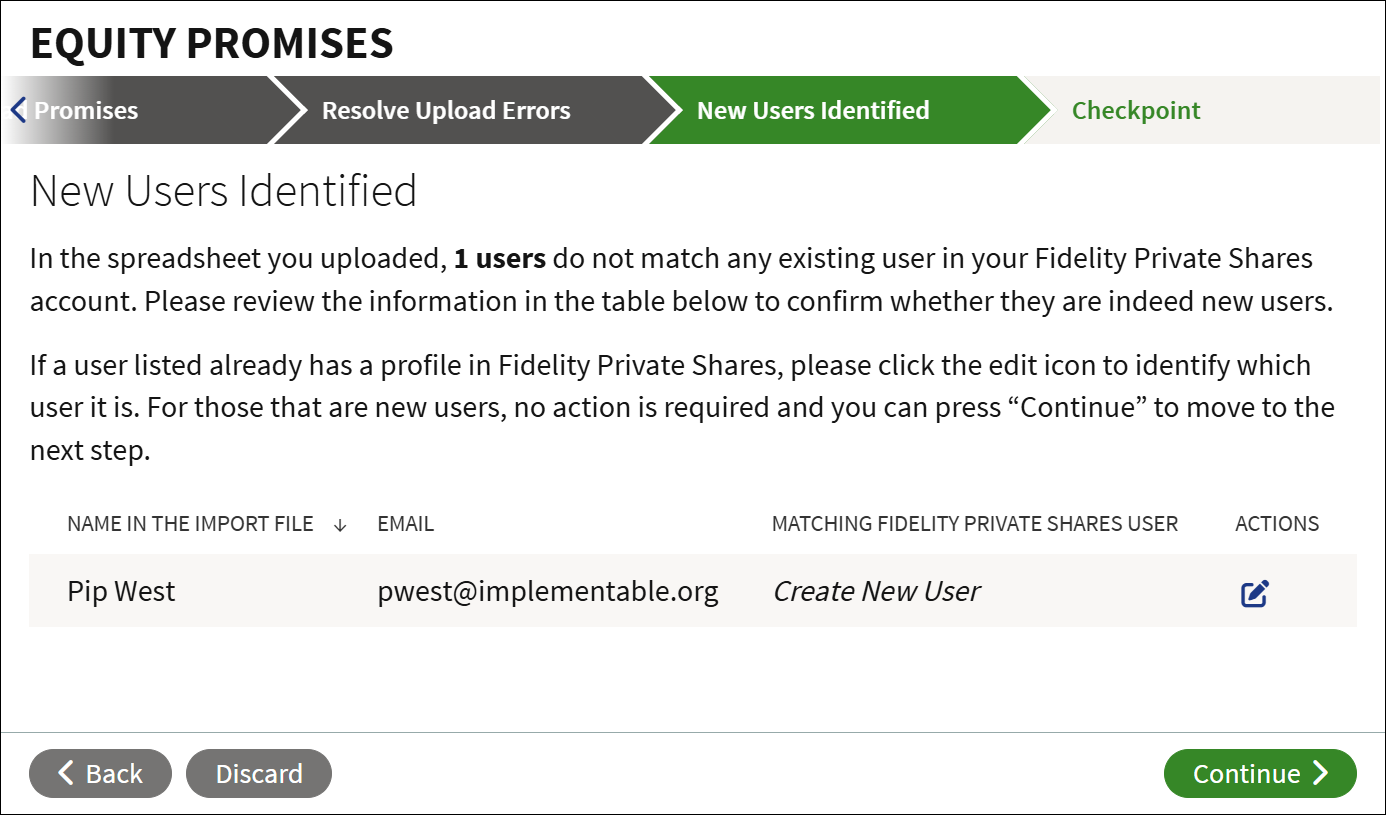
When the errors have been resolved, save the file, click Choose a file, and select the template. - The system will flag any new users that have been uploaded. Click Continue to add them as a new user. Click the Edit icon to change their name, or to indicate if they are an existing user.
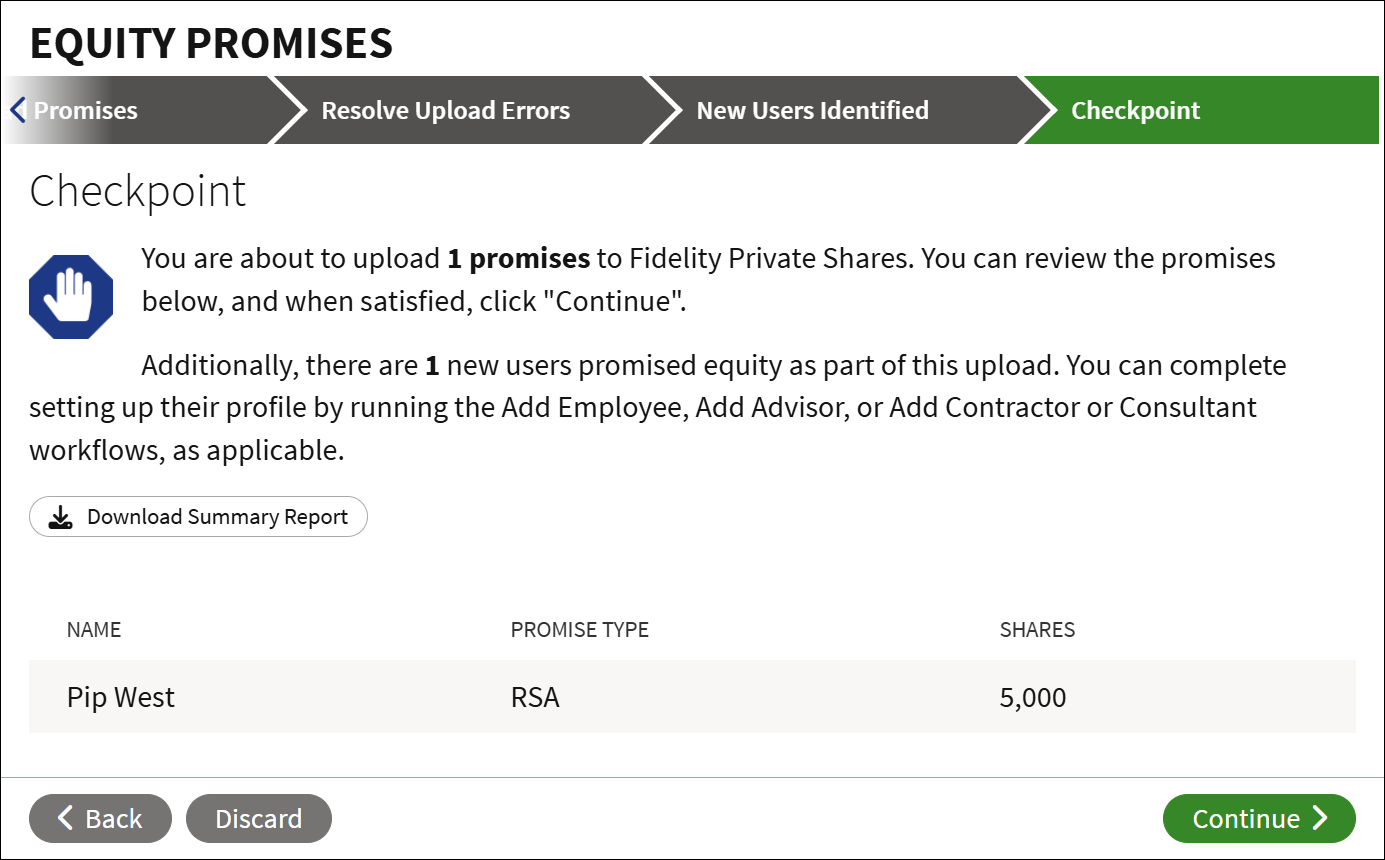
- If the import was successful, you will be brought to the Checkpoint. Here you can review the summary of equity promises, or you can click to Download a Summary Report to save a spreadsheet of all promises. To finish the upload click Continue.
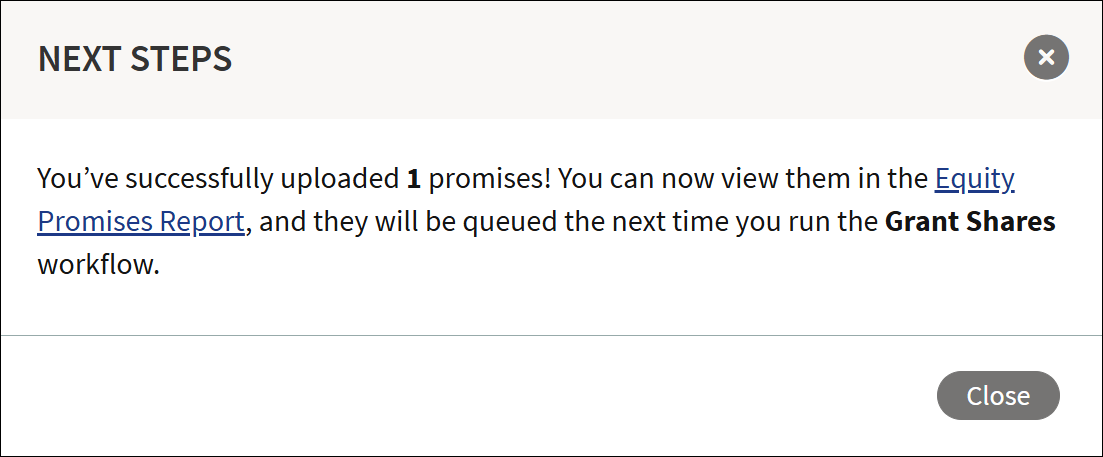
- A confirmation will display with a link to the Equity Promises report. The next time you run the Grant Shares Under the Plan workflow, these and any other promises will be prefilled.
Screenshots are for illustrative purposes only.
Fidelity Private Shares LLC provides cap table management and other administrative services to private companies and their equity compensation plans.
1089366.2.0
© 2024 FMR LLC. All rights reserved.