
Introduction
The Record Existing Secondary Sale upload workflow permits the capturing of a secondary sale. A secondary sale is the sale of shares from one stockholder to a third party (or third parties), which is not in connection to a company's acquisition. Alternatively, a stock transfer involves switching the owner of stock from one person/entity to another person/entity. In other words, secondary sales involve cash, and transfers don't. See these articles for instructions on adding a new stock transfer, or recording an existing transfer.
Please note that there can be tax consequences to a transfer of shares, so if you're uncertain whether or not your transaction meets the stock transfer or secondary sale guidelines, you may want to speak with your lawyer before starting a Secondary Sale workflow in the platform.
Secondary sales will always happen as an upload version of the workflow because they will occur outside of the platform, and you should already have signed documents in hand. This workflow allows you to record each secondary sale separately, or you can upload multiple secondary sales in bulk. Instructions are provided for both options; click the links to jump to that section of the article:
Record Secondary Sale - separately
This option of the workflow has you define each secondary sale separately. Follow the steps in the section below for the bulk option if you have more than a few transactions to record.
Let's Get Started
- From the Company Workspace, go to Start New Workflow > Equity > Record Existing Secondary Sale.
- Select Record each secondary sale separately.
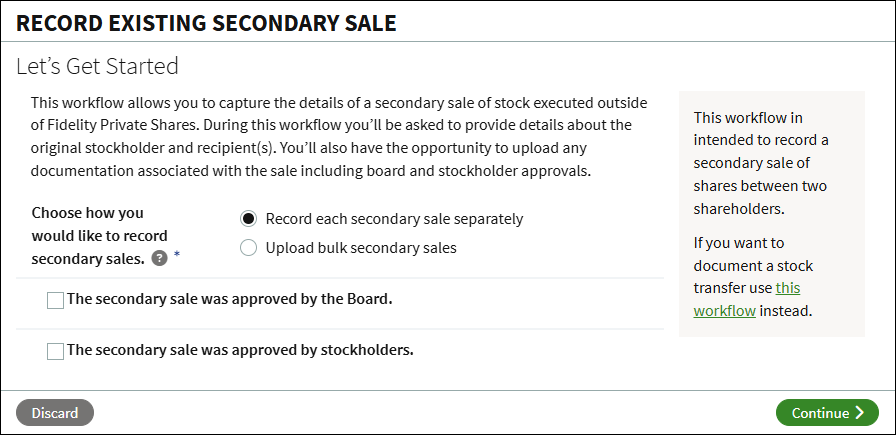
- Check the boxes if the board and/or stockholders approved the secondary sale. Checking these boxes will prompt you to upload the approvals during a later step in the workflow.
- Click Continue.
Record existing Secondary Sale
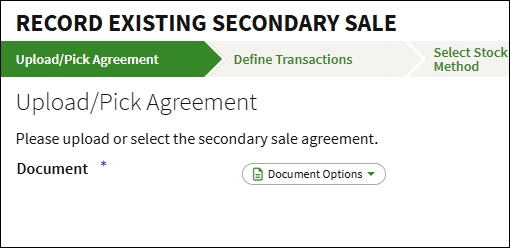
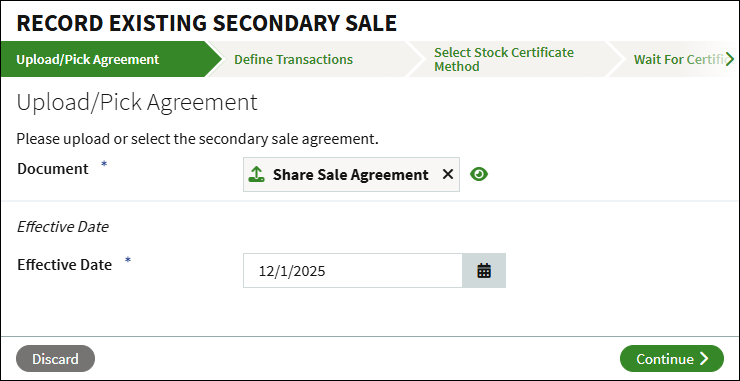
- Click Document Options to add the Secondary Sale Agreement. You can either select the document from the Data Room or upload the agreement from your computer.
- Enter the Effective Date of the agreement, and click Continue.
Define Transactions
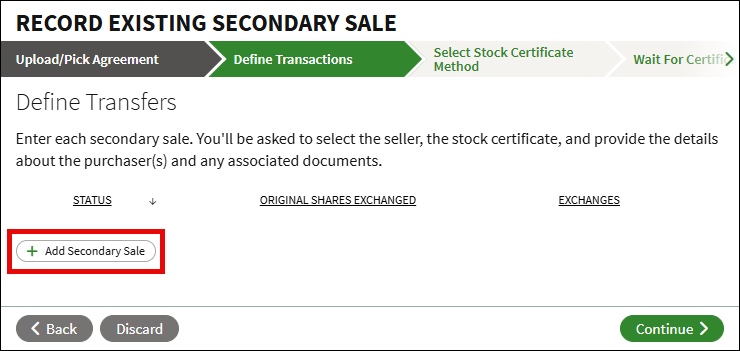
In this step you will select the seller, the stock certificate being sold, and define the purchase.
- Click Add Secondary Sale.
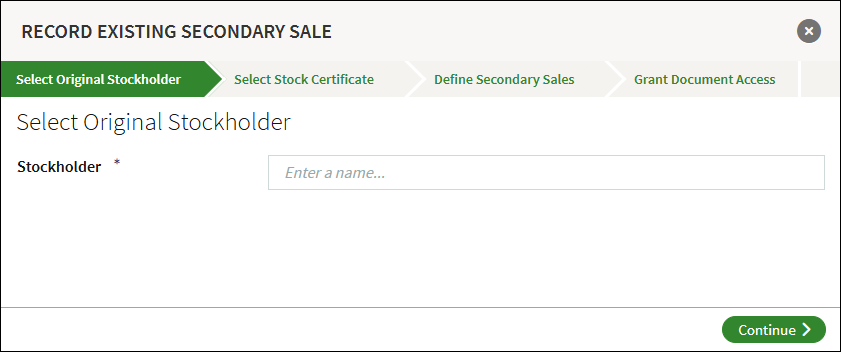
- Search for and select the name of the seller.
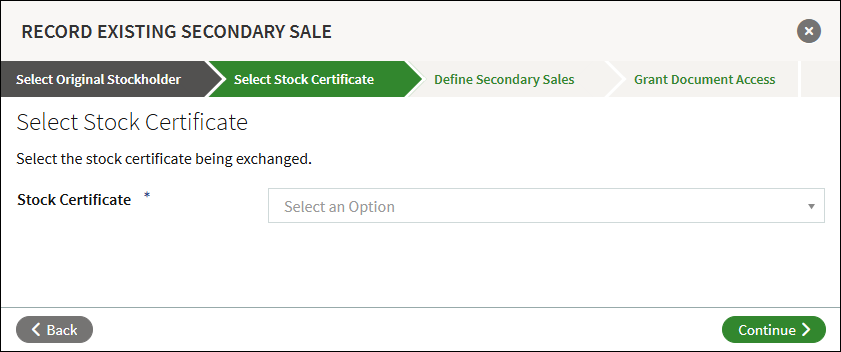
- Select the stock certificate from the dropdown menu.
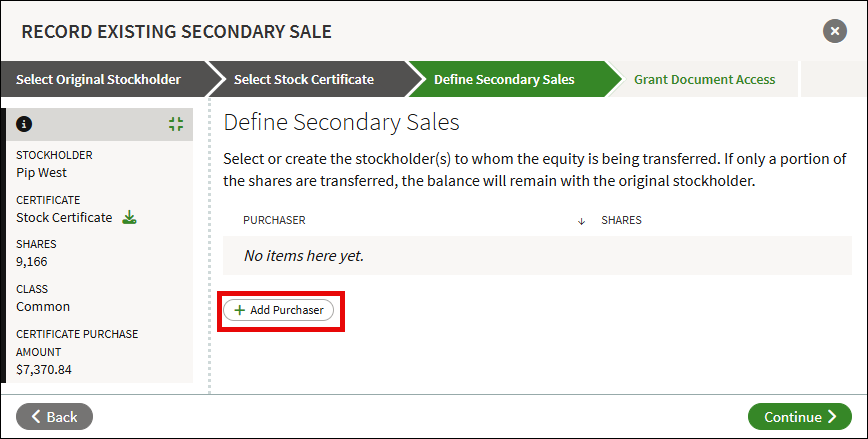
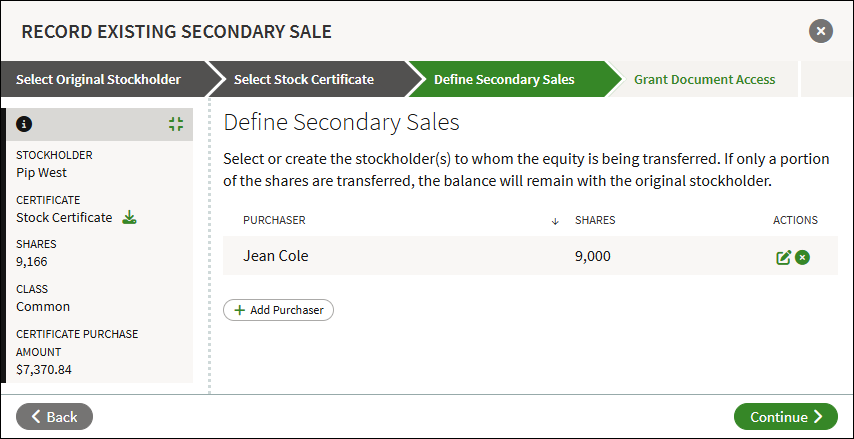
- Click Add Purchaser to add a buyer. You can add multiple purchasers during this step. If the entire stock certificate is not sold, any remaining shares will be issued in a new certificate under the original holder's name.
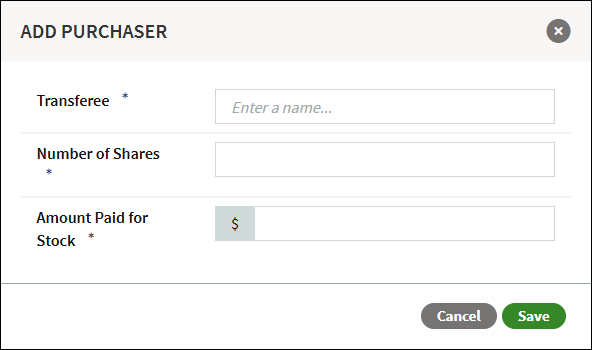
- Enter the name of the transferee (the buyer), the number of shares purchased, and the total amount paid. Click Save.
- Click Add Purchaser again to add an additional purchaser. Click the Edit icon to make changes to an added purchase, or click the X to remove it.
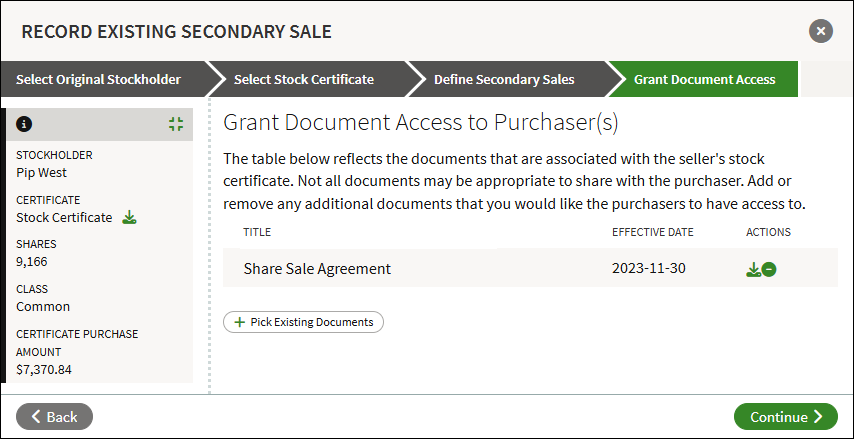
- Documents associated with the seller's stock certificate will be listed. Additional documents can be selected which will be shared with the purchaser(s). Click Pick Existing Documents to select a document from the Data Room. To remove document access click the Minus button.
- If there are any additional certificate sales, click Add Secondary Sale again and repeat the previous steps. Otherwise click Continue.
Upload Board and Stockholder Approval
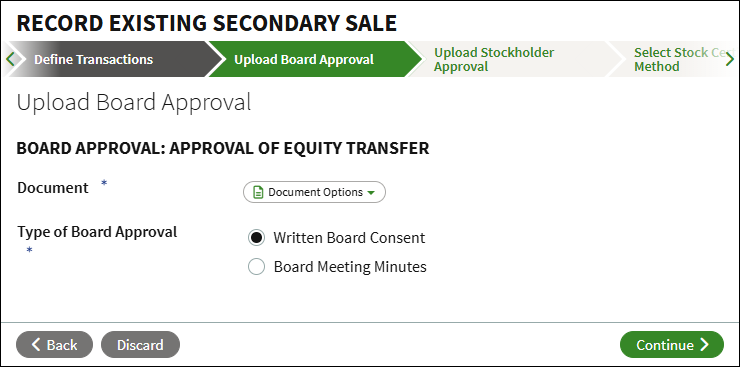
If checked in the first step, click Document Options to upload the selected approval(s) from your computer or select it from the Data Room. If not checked, you can skip these steps.
Select Stock Certificate Method
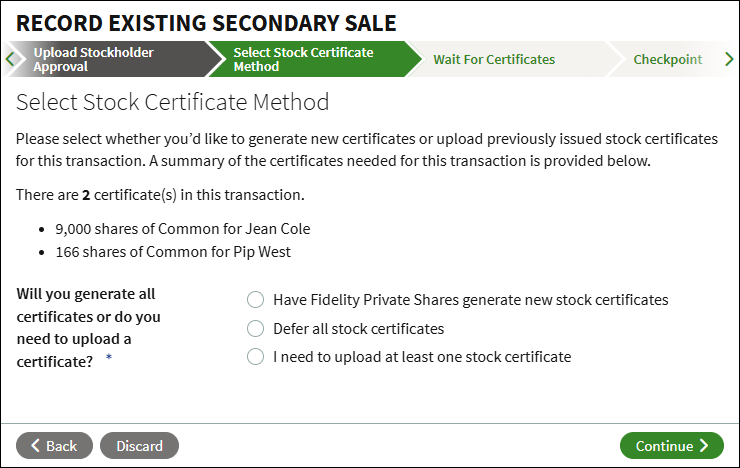
Select how to handle the resulting stock certificates for the transfer. You can use Fidelity Private Shares to generate new stock certificates, defer stock certificates to be generated in a separate workflow at a later time, or to upload at least one of the stock certificates.
Checkpoint
At the Checkpoint you can review the associated documents before sending out for review and signature. You can optionally share the documents or send the workflow for legal review before continuing.
Signature Process
If you've used the generative path for the stock certificate, the company representative(s) will sign the certificate. Once signed, all documents will be automatically added to the Data Room, and the Stock Ledger and Cap Table will be adjusted accordingly. If any new users were added as purchasers, you can also choose to invite them to the platform, or you can wait to invite them at a later time.
Record multiple Secondary Sales in bulk
This workflow option lets you record multiple secondary sales at once. To do this, first download the provided template and enter the details for each secondary sale. Once completed, upload the template to record all secondary sales.
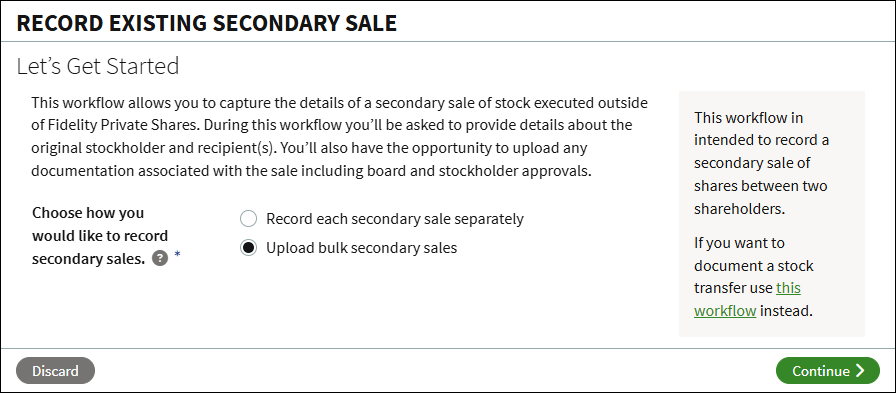
Let's Get Started
- From the Company Workspace, go to Start New Workflow > Equity > Record Existing Secondary Sale.
- Select Upload bulk secondary sales and click Continue.
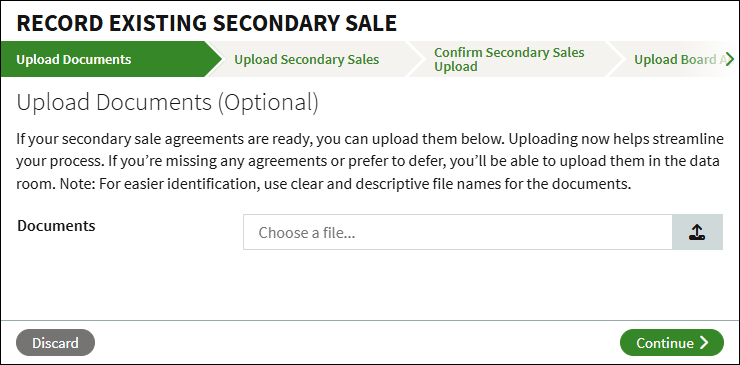
Upload Documents (Optional)
The secondary sale agreements can be optionally uploaded at this step, or can be uploaded later from the Data Room. Click Choose a file to upload the agreement(s) from your computer. It is recommended to use clear and descriptive file names.
Upload Secondary Sales
In this step you will download and fill out the template. The template consists of four tabs (Secondary Sales, Purchasers, Stock Certificates, and Documents) where you will add the information to define each secondary sale. See the sections below on the information on each tab of the template.
After recording all transactions, save the template. Then upload it by clicking Choose a file, and select the template from your computer. Click Continue to import the template. 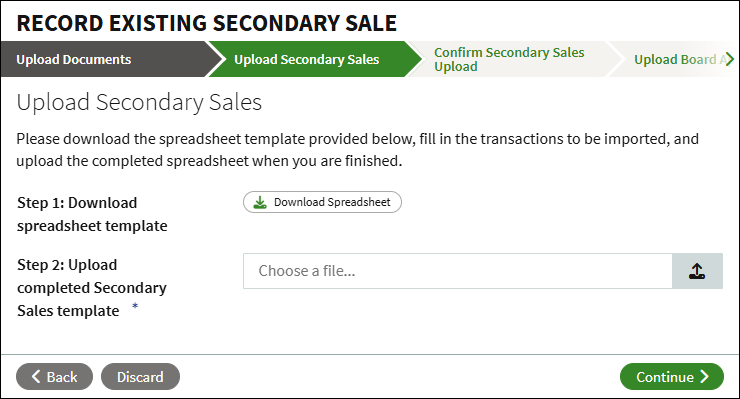
Secondary Sales tab
Use this tab to define transactions. For each transaction, add a new line item. If there are multiple purchasers, you can select the same certificate for each. If a certificate’s full share amount is not sold, any remaining shares will be issued into a new certificate for the original holder.
- Open the Secondary Sales tab.
- In the Stock Certificates column, select the stock certificate being sold from the dropdown menu.
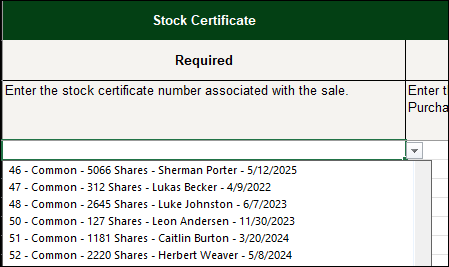
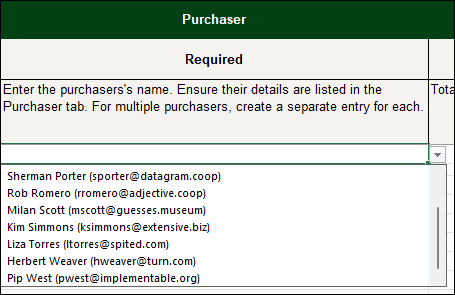
- In the Purchaser column, select the purchaser from the dropdown menu. Any new purchasers not yet added to your account need to be added in the Purchasers tab.
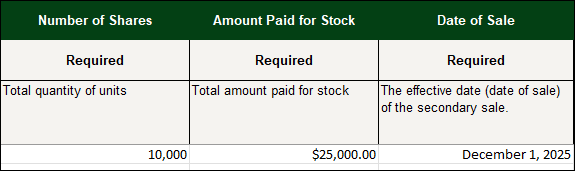
- Enter the Number of Shares purchased, the Amount Paid, and the Date of Sale in their respective columns.
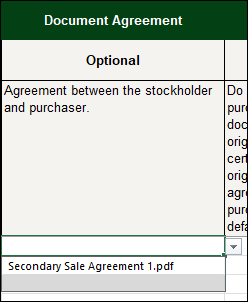
- Select the sale agreement from the dropdown menu in the Document Access column if uploaded in the previous step. Otherwise leave this column blank.
- Select if you want to provide the purchaser access to any documents associated with the seller's stock certificate. If left blank, this will default to No.
- Repeat the steps above to add additional sales.
Purchasers
This tab lists all existing users in your account, and new purchasers can be added. Individuals or third-party entities can be added. Purchasers selected in the Secondary Sale tab need to be listed on this tab.
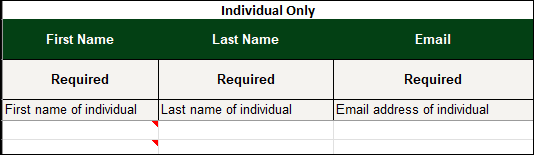
To add an individual, fill out the First Name, Last Name, and Email columns located in the Individual Only section on the left side of the template.
To add a third-party entity, fill out the Entity Name, and optionally the Parent Entity, Entity Contact First Name, Entity Contact Last Name, Entity Contact Email, and Stakeholder ID columns in the Entity Only section on the right side of the template.

Stock Certificates
This tab shows all of the outstanding stock certificates from your Cap Table. This tab is locked from editing, but can be used as a reference when selecting the certificate being sold.
Documents
Similar to the Stock Certificates tab, the Documents tab is a reference of all documents uploaded in the previous step of the workflow.
Resolve Upload Errors
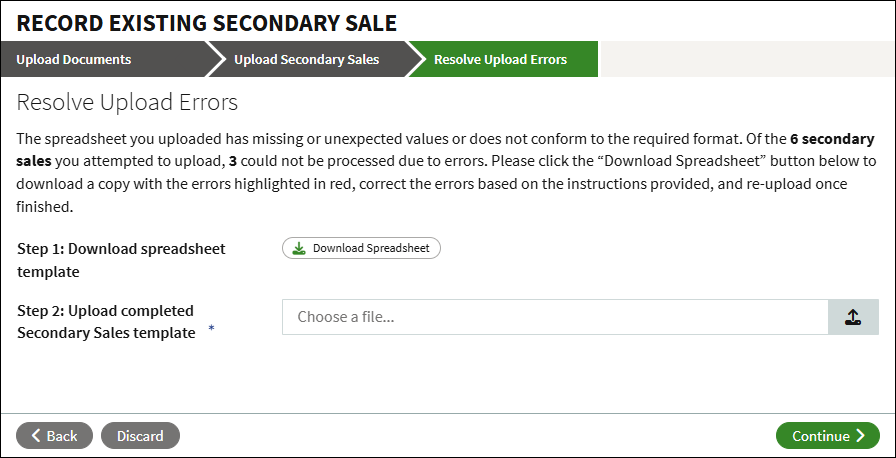
If there are missing or unexpected values in the template, you will be prompted to resolve these errors. Click Download Spreadsheet to download a copy of the template where the errors are highlighted in red.
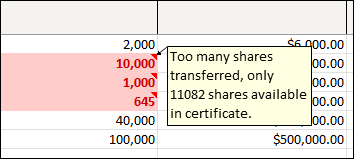
Errors will be highlighted in red with a note explaining the error.
Once the errors have been resolved, save and reupload the template.
Confirm Secondary Sales Upload
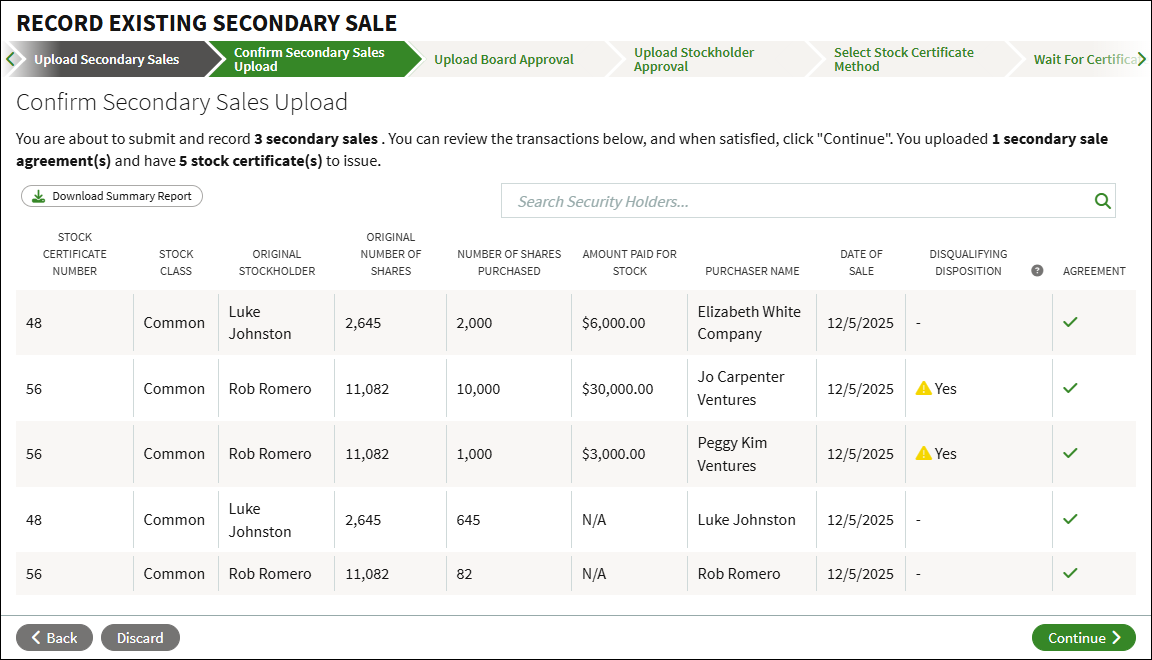
Each transaction recorded in the template will display for your review. You can search the summary, or click to Download a Summary Report. If any changes need to be made, click the Back button and reimport the template.
Upload Board Approval and Stockholder Approval
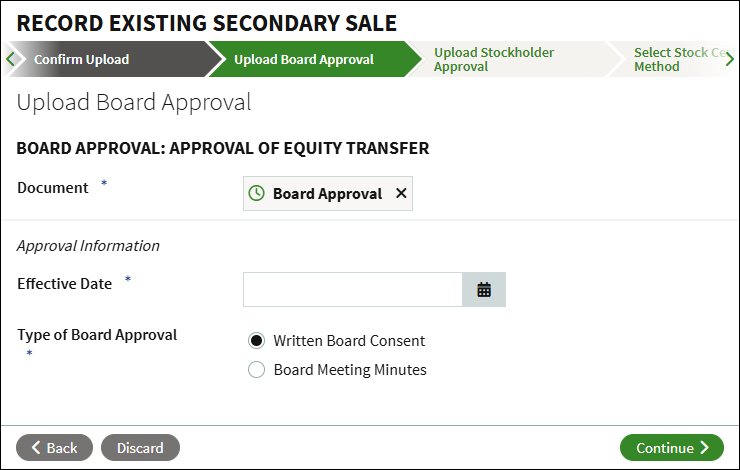
Click Document Options to either upload the approval from your computer, select the approval from the Data Room, or to defer uploading the document to a later time. Enter the Effective Date, and select the Type of Board Approval.
Repeat these steps for the Stockholder Approval.
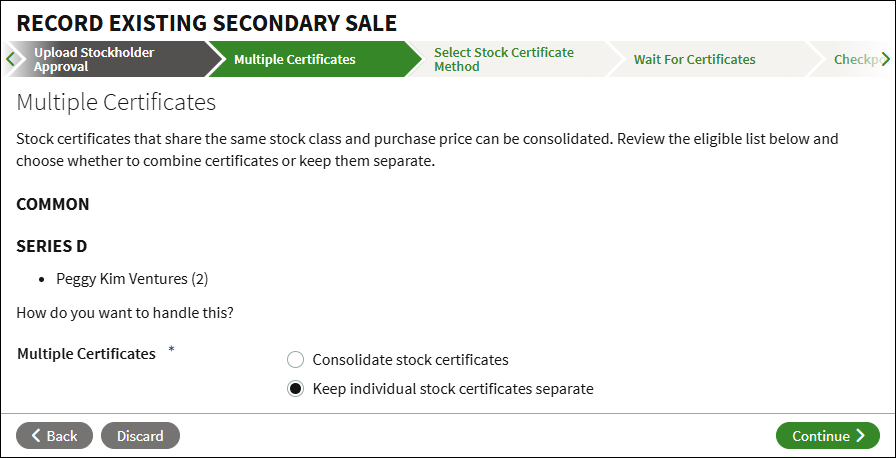
Multiple Certificates
Certificates that share the same stock class and purchase price per share for the same holder can be consolidated. If there are any eligible certificates, you will be prompted to either consolidate the certificates, or keep the the individual stock certificates separate. If there are no eligible certificates, you will not see this step.
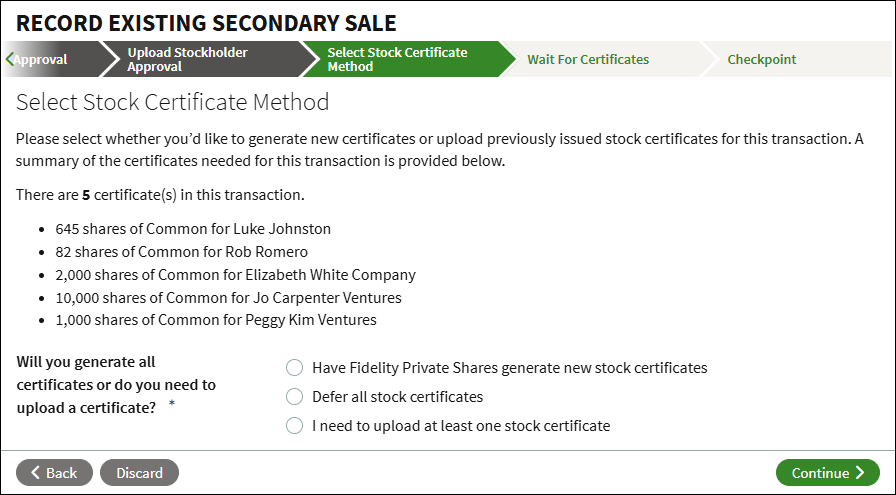
Select Stock Certificate Method
Select how to handle the resulting stock certificates for the transfer. You can use Fidelity Private Shares to generate new stock certificates, defer stock certificates to be generated in a separate workflow at a later time, or to upload at least one of the stock certificates.
Checkpoint
At the Checkpoint you can review the associated documents before sending out for review and signature. You can optionally share the documents or send the workflow for legal review before continuing.
Signature Process
If you've used the generative path for the stock certificate, the company representative(s) will sign the certificate. Once signed, all documents will be automatically added to the Data Room, and the Stock Ledger and Cap Table will be adjusted accordingly. If any new users were added as purchasers, you can also choose to invite them to the platform, or you can wait to invite them at a later time.
FAQs
What if the transactions are from different board of director or stockholder agreements? This workflow will only let you add transactions that are associated with the same board and/or stockholder agreement. If there are transactions approved in a different approval, you will need to run the workflow again and select the corresponding approvals.
What if there are multiple transactions for a single grant? You can list multiple transactions related to the same certificate and seller, as long as the sale date is the same, and the sales are approved in the same board/stockholder approval.
What if there is a disqualifying disposition? Do I need to take any additional action? The system will automatically detect potential disqualifying dispositions and display a warning message on the Confirmation page after uploading the bulk template. If the transaction is ultimately identified as a disqualifying disposition, it will appear on the Disqualifying Dispositions Report. At that point, you should follow your standard internal procedures for handling disqualifying dispositions.
If you believe the transaction was flagged in error, you should review the underlying data to understand why it was identified as a potential disqualifying disposition. If further clarification or action is needed, you should contact our Support team for further assistance.
What happens if I upload the template for the same certificate twice? The import process will display an error message related to the certificate if it has already been included in a previous transaction. When a template is processed, certificates that are part of a transaction are canceled and new certificates are issued. If you accidently upload a template used in a previous workflow, those certificates would no longer be outstanding, which prevents risk of duplicating the transaction.
What happens if there are new users? New users can be added manually if adding the secondary sales individually, or can be added in the Purchasers tab on the bulk template.
Will new users be invited to the platform? New users will not be invited automatically to the platform. You will be prompted if you want to invite new users or you can defer their invitation as part of the workflow.
Screenshots are for illustrative purposes only.
Fidelity does not provide legal or tax advice. The information herein is general in nature and should not
be considered legal or tax advice. Consult an attorney or tax professional regarding your specific
situation.
Fidelity Private Shares LLC provides cap table management and other administrative services to private companies and their equity compensation plans.
Fidelity Private Shares LLC
© 2025 FMR LLC. All rights reserved.
1128494.2.0